
Sell Credit Packs
Make a credit pack in the console, price it in each currency, sell it in your app, and follow, grant, revoke, change and archive the credits it sells.
A credit pack is a number of credits your customers buy at a price: 1,000 credits for $10. You make it once in the console, your app sells it with openCreditStore() or CreditStorePage, and every purchase lands in the workspace's credit balance, which useCreditBalance reads and useConsumeCredits spends (Credits overview).
Before you start
- Stripe connected (Connect Stripe); the Credits part of the Billing menu shows once it is.
- Your billing currencies saved under Settings > General (Your catalog): a pack is priced in each.
- Credit packages on your BuildBase plan, which also sets how many you may keep and how long purchased credits may last.
Open credit packages in the console
(opens the console in a new tab)1. Open credit packages
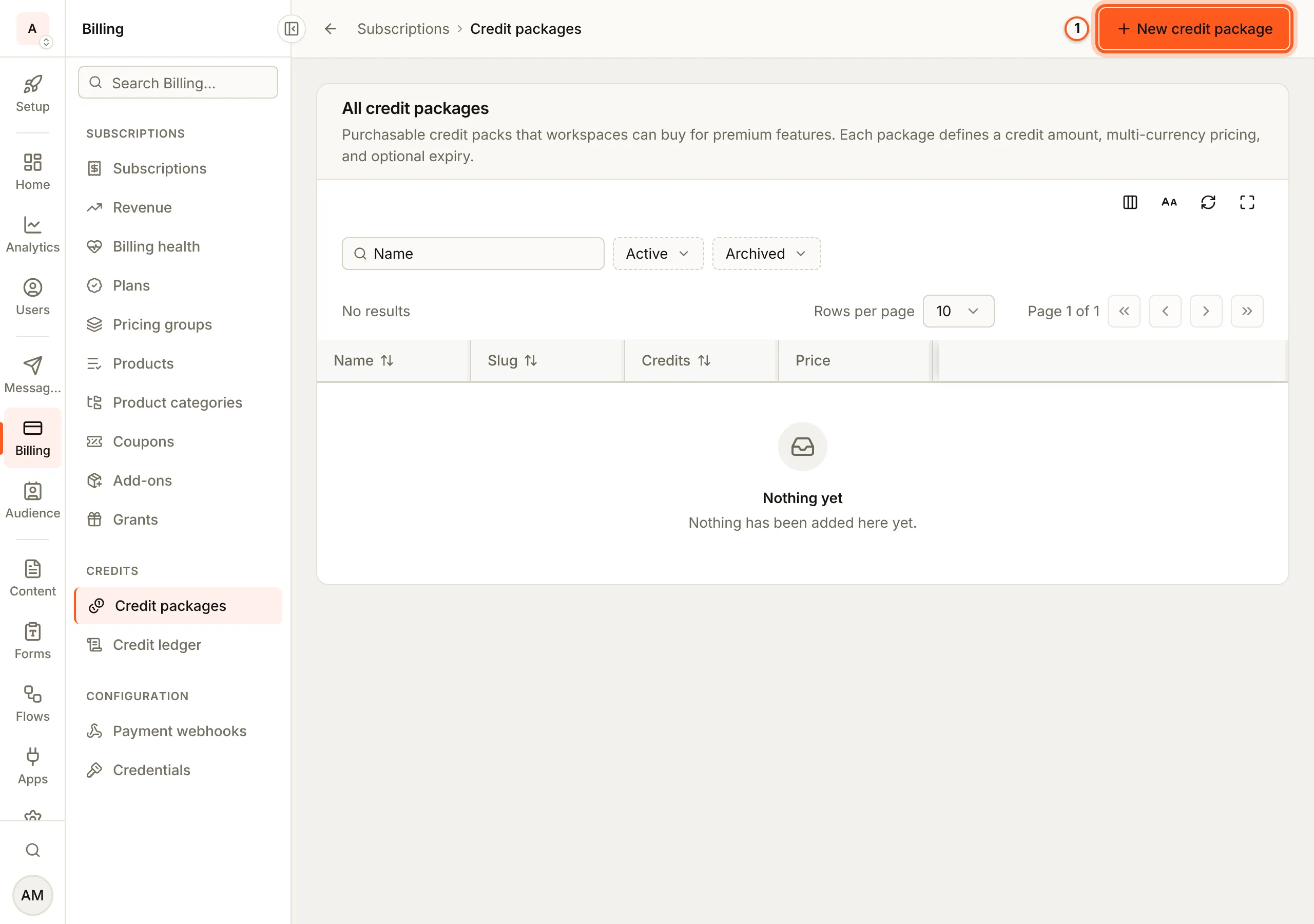
In the Billing menu, under Credits, choose Credit packages, then New credit package.
2. Describe the pack
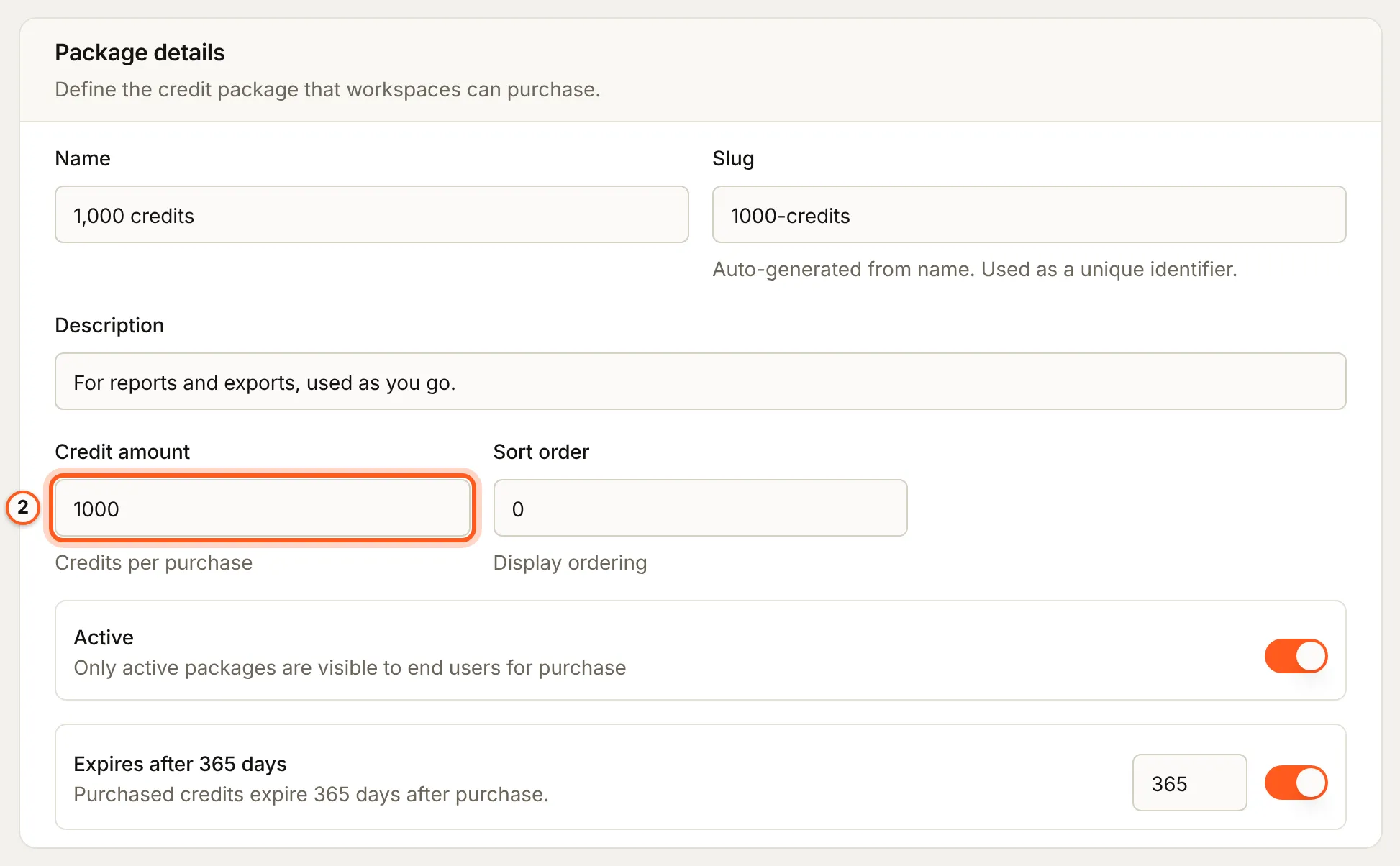
Under Package details, give it a Name, a Slug and a Description, and in Credit amount the credits one purchase gives. Sort order places it among your packs, and only an Active pack is offered to your customers.
3. Choose when the credits expire
Off, purchased credits stay until they are used (Never expires). On, they expire the number of days after purchase you type. When your BuildBase plan caps how long credits may last, the switch stays on and the card says the most days it allows.

4. Price it in each currency
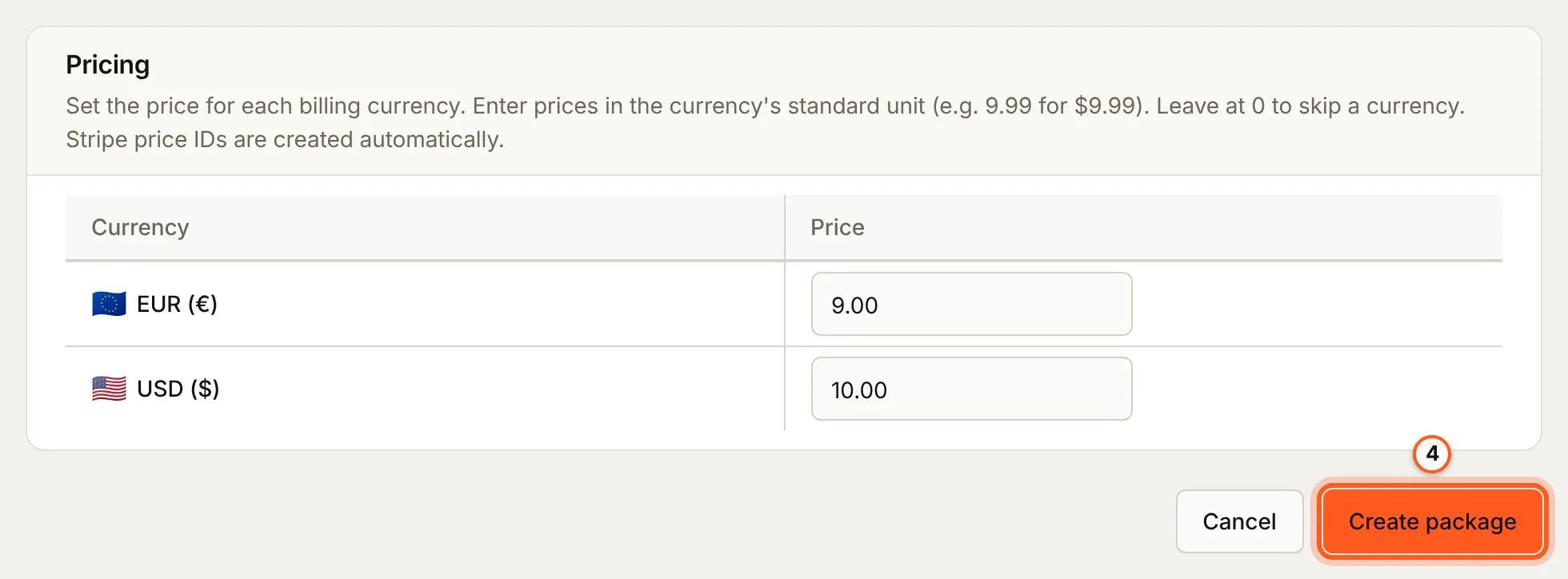
Under Pricing, type a price for each billing currency in its usual unit (9.99 for $9.99); 0 leaves a currency out. Press Create package: BuildBase creates the Stripe prices for you.
5. The customer buys it
In your app, openCreditStore() opens the Credits screen of the workspace settings, where Buy Credits opens Buy Credit Packages with your active packs, their price and how long their credits last. A pack is paid through Stripe Checkout, and its credits are added once Stripe confirms the payment.

6. See the balance
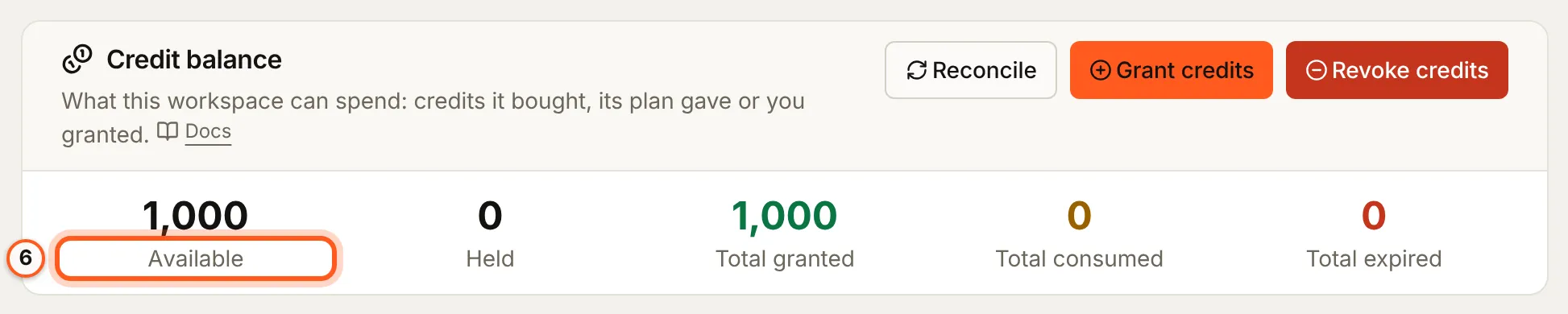
In the console, open the workspace (User management > Workspaces, then its row). The Credit balance card shows what it has Available, what is Held for work in progress, and the totals granted, consumed and expired. Below it, Credit transactions, Credit holds and Credit buckets list each movement, each open hold and each lot of credits with its expiry.
The credit ledger
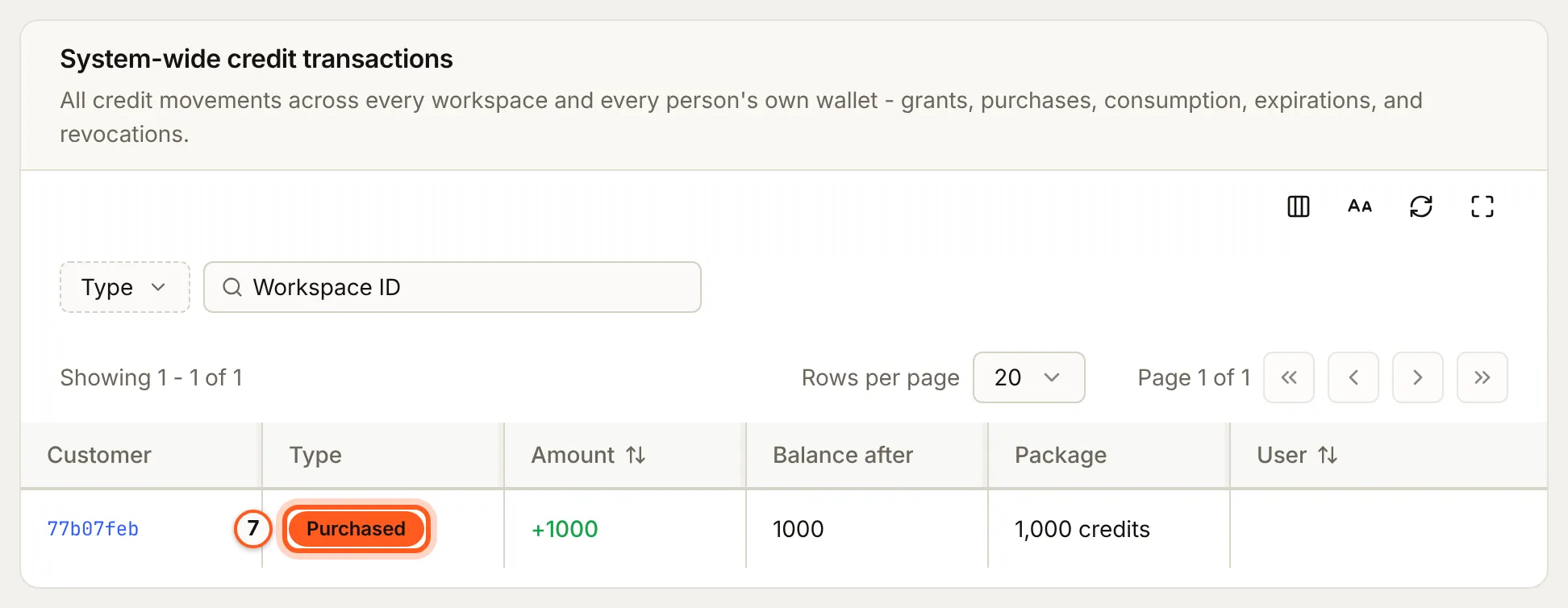
Billing > Credit ledger lists every credit movement in your organization: each row's Customer, Type (Purchased, Plan grant, Consumed, Expired, Admin grant, Admin revoke, Refund), Amount, Balance after, Package and Description. Filter it by type or workspace.
Grant and revoke credits
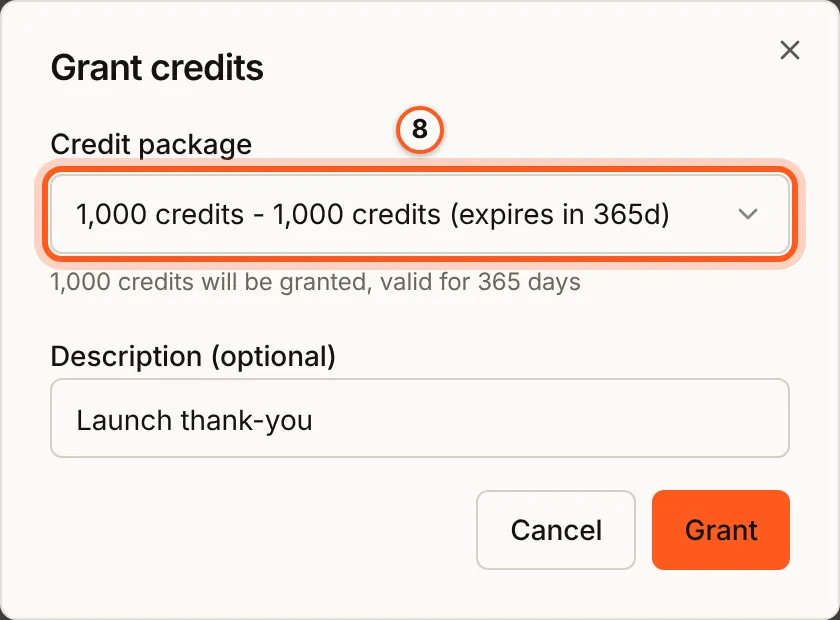
On the workspace's Credit balance card, Grant credits gives a whole pack's credits for free: choose the Credit package, add a Description (optional), and press Grant. The credits expire as the pack's do.
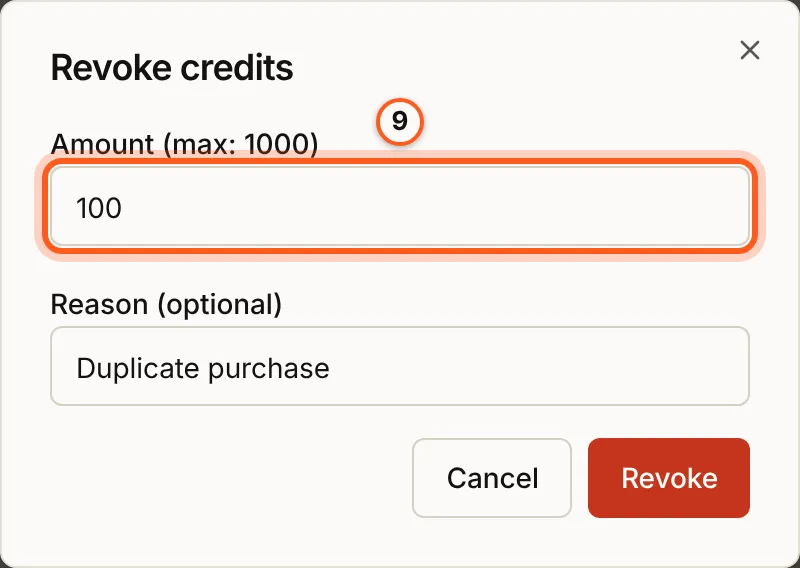
Revoke credits takes credits back: type the amount under Amount (max: N), at most what is available, add a Reason (optional), and press Revoke. Both appear in the ledger as Admin grant and Admin revoke.
On the same page, an open hold that will never settle can be ended with Release, and Reconcile recomputes a balance from its buckets when it looks out of step.
Changing a sold pack
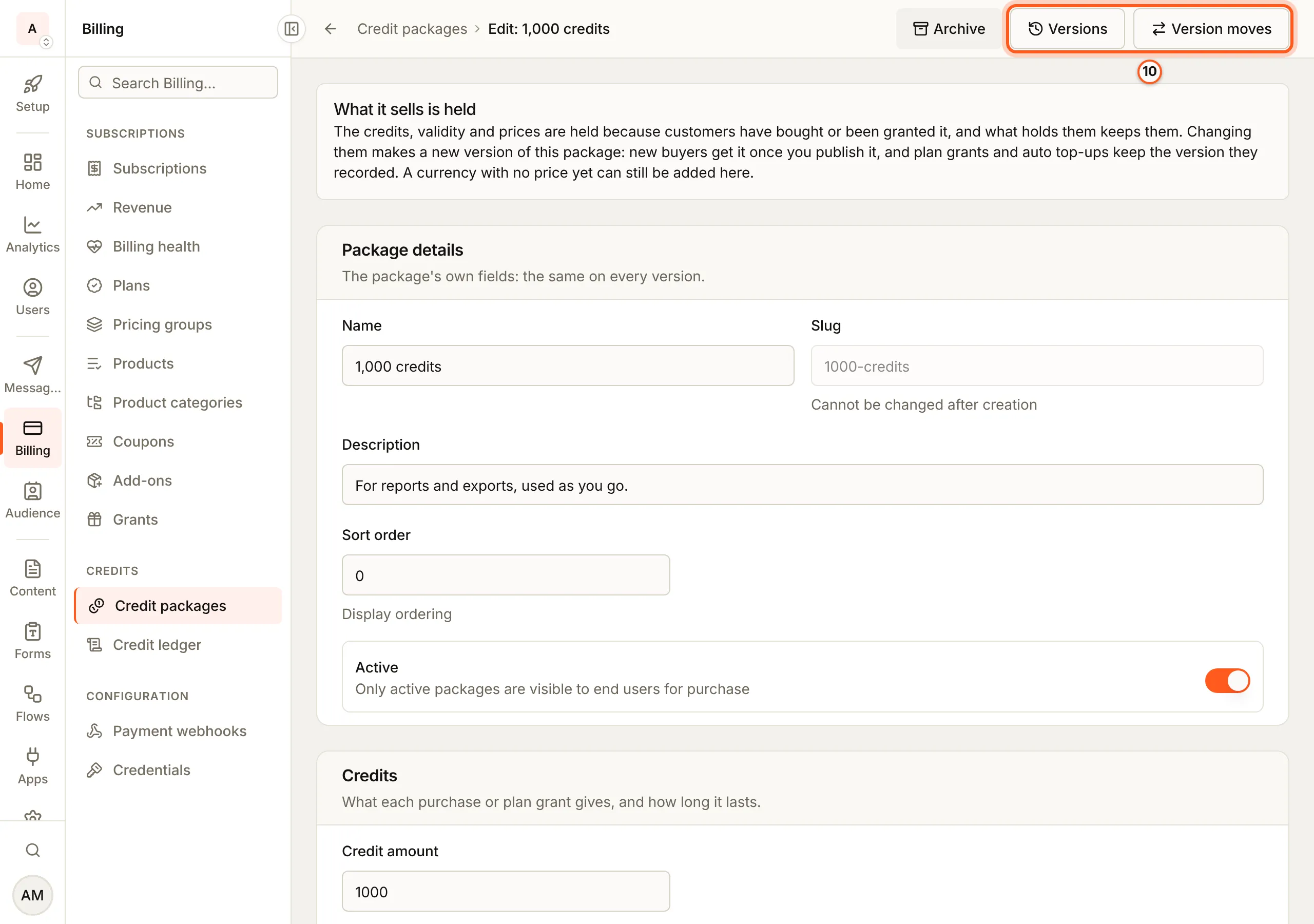
Press Edit on the pack's row. Its name, description, order and Active change in place, and so do its credits, prices and expiry while nothing holds it. Once a sale, a plan grant or an automatic top-up holds it, a change to those is refused with VERSION_REQUIRED, and the page offers to carry it to a new draft version, which Versions lists; buyers keep the terms they paid for. A currency not priced yet can still be added in place. The card Version moves sets what publishing a new version does to the automatic top-ups that buy an older one:
- Keep auto top-ups on their version: nothing changes for them; new ones buy the new version.
- Move auto top-ups that only gain: a top-up that gets more credits for the same price or less moves at once.
- Move gains, and ask about the rest: gains move at once, and a payer for whom the new version is not better is told, and moves only if they agree.
Taking a pack off sale
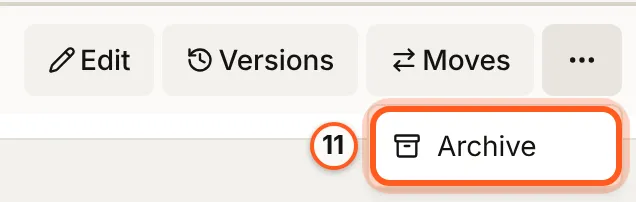
Switch Active off to stop new sales at once, or press More actions on its row, then Archive, to take it off sale and deactivate its Stripe prices. Credits already bought or granted from it stay.
Check that it worked
The purchase shows in the Credit ledger as Purchased, with the balance after it, and the workspace's Credit balance rises by the pack's credits. useCreditBalance reads the same balance, and your webhook endpoint receives credit.purchased.
Things to watch out for
- No billing currencies, no prices. The Pricing card says "No billing currencies configured" until you save them, and a pack needs a price above 0 in at least one currency ("At least one currency must have a price greater than 0.").
- A grant takes a whole pack, and a workspace only. A person's own wallet is shown on their page, read only.
- Archiving is refused (
CREDIT_PACKAGE_IN_USE) while a plan version grants the pack, an automatic top-up buys it or credits from it are left; switch Active off meanwhile. - A saved-card top-up does not compute tax, so an organization that collects tax sells packs through checkout (Auto top-up).
- Spending more than the balance is refused with
402 INSUFFICIENT_CREDITS, withavailableandrequested; releasing a hold that already settled answersHOLD_NOT_OPEN.
Next steps
- Credits overview - spend, hold and top up credits from your app and server
- Plan credits - give credits with a plan
- Quotas - a monthly allowance instead of a balance