
Set up notification events in the console
Turn email and push on for your organization, choose each system event's channels, create your own events with their email, and see what was delivered.
A notification event is one kind of message your users get, such as an invitation or "a report is ready". Each event says whether it goes by email, push or both, and the inbox keeps every one of them. This guide sets them up in the console: the switches for the whole organization, the events BuildBase sends for you, and an event of your own that Acme Analytics sends when a report is ready.
Before you start
A console role that can read and change notification events. For email, a sender marked System default (connect a sender); for push, browsers subscribed from your app (set up web push).
1. Open Notification events
Open Notification events in the console
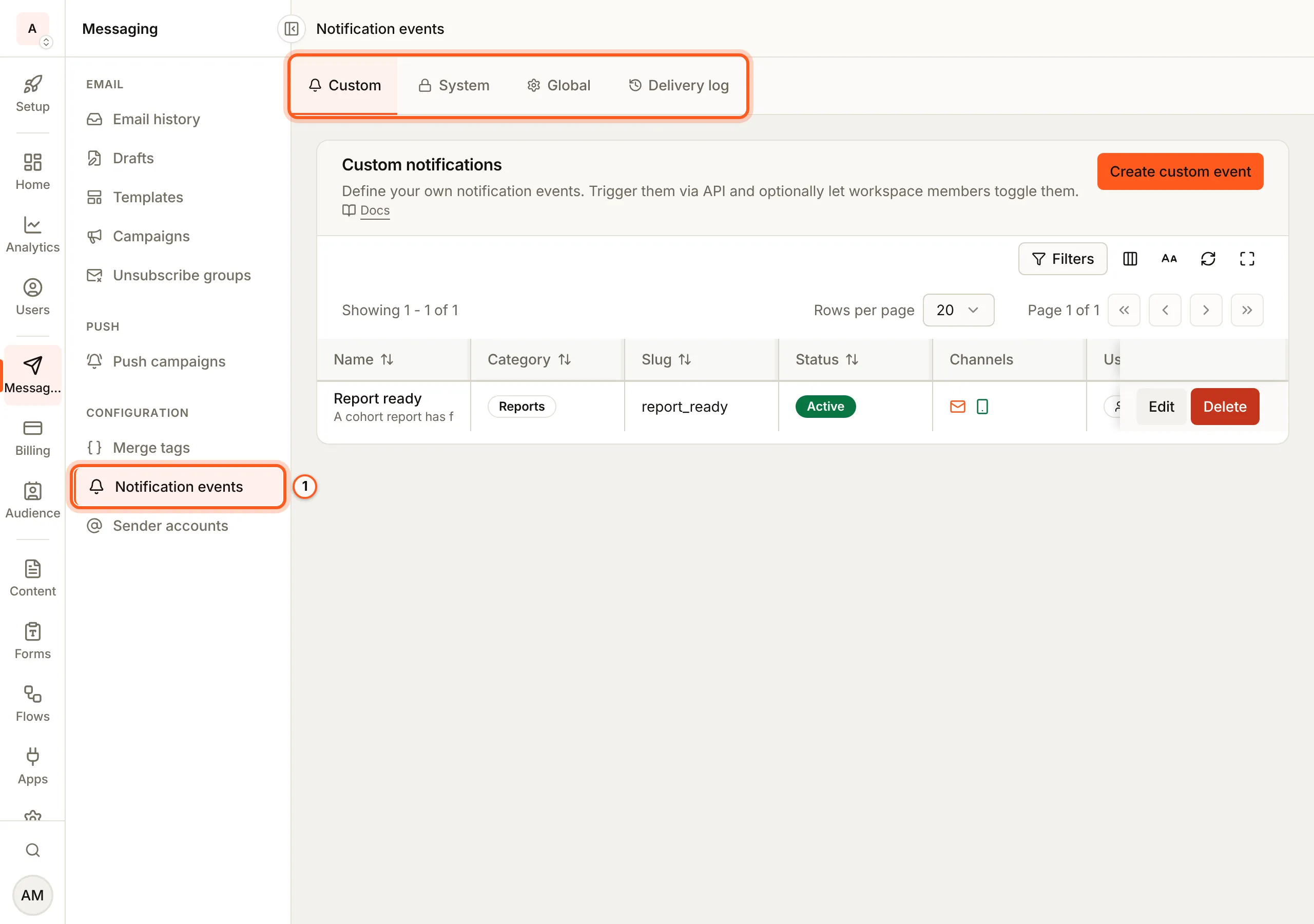
(opens the console in a new tab)In the left rail choose Messaging, then Notification events under Configuration. The page, Notifications, has four tabs: Custom, System, Global and Delivery log.
2. Choose the channels for the whole organization
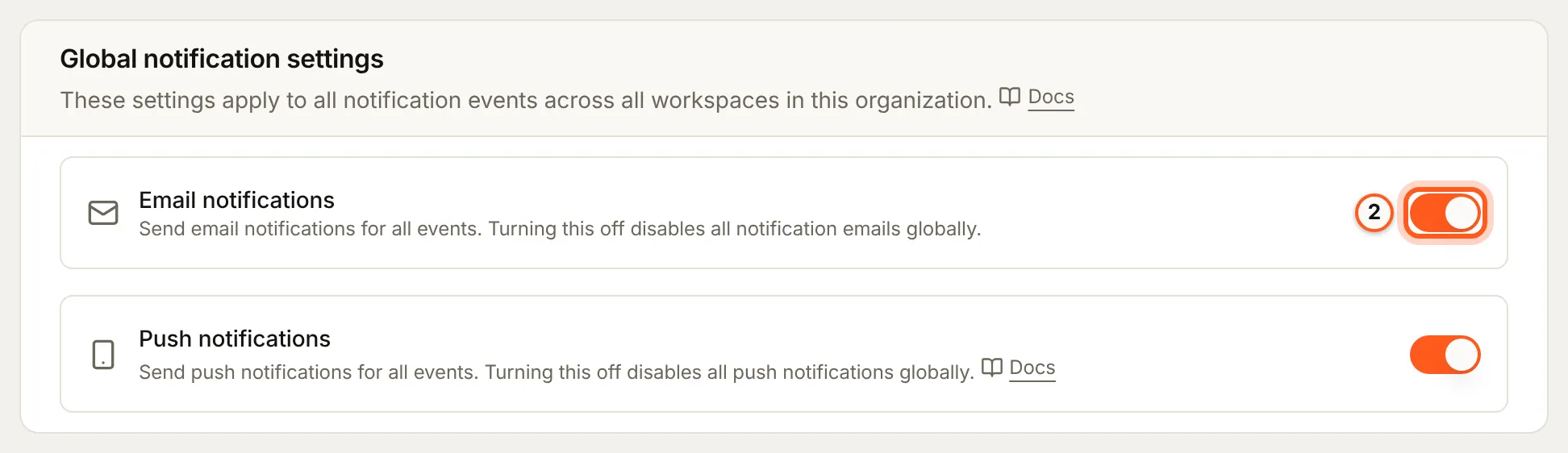
On Global, the Global notification settings card has Email notifications and Push notifications. Each saves the moment you switch it. Off, no event sends by that channel, whatever the event says, and push campaigns are refused too. This is the first of the four gates every notification passes.
System events
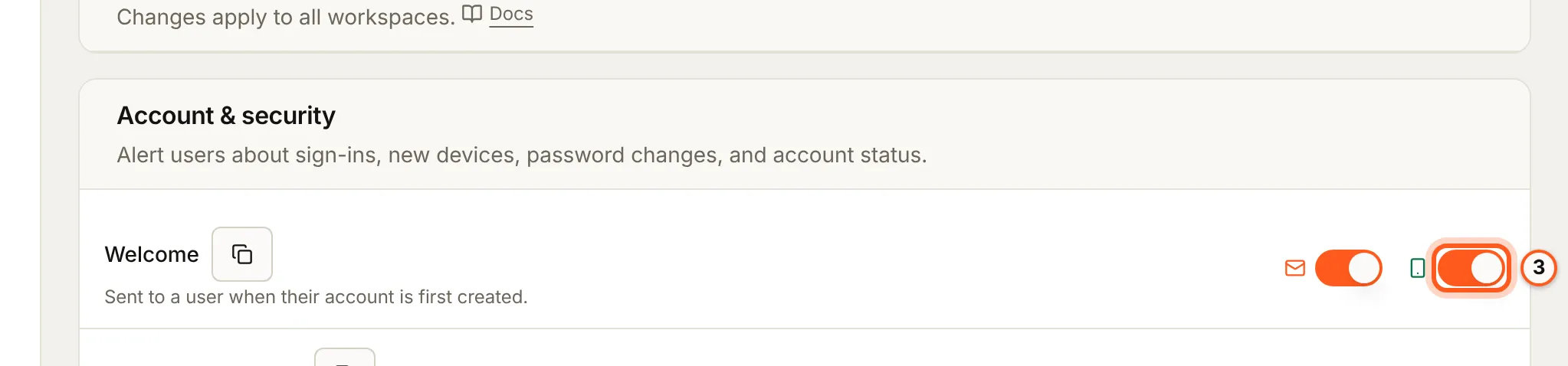
The events BuildBase sends for you, such as invitations, billing and credit notices, are on System, one card per category. Each event has an email switch and a push switch, and both save at once.
3. Choose each system event's channels
Turn a channel off for one event with its switch. Edit on a row opens Configure system event, which changes the same two channels: a system event's name, description and email template are fixed, and it cannot be deleted.
Custom events
Your own events, the ones your server sends with
bb.notification.send(), are on Custom.
4. Create an event
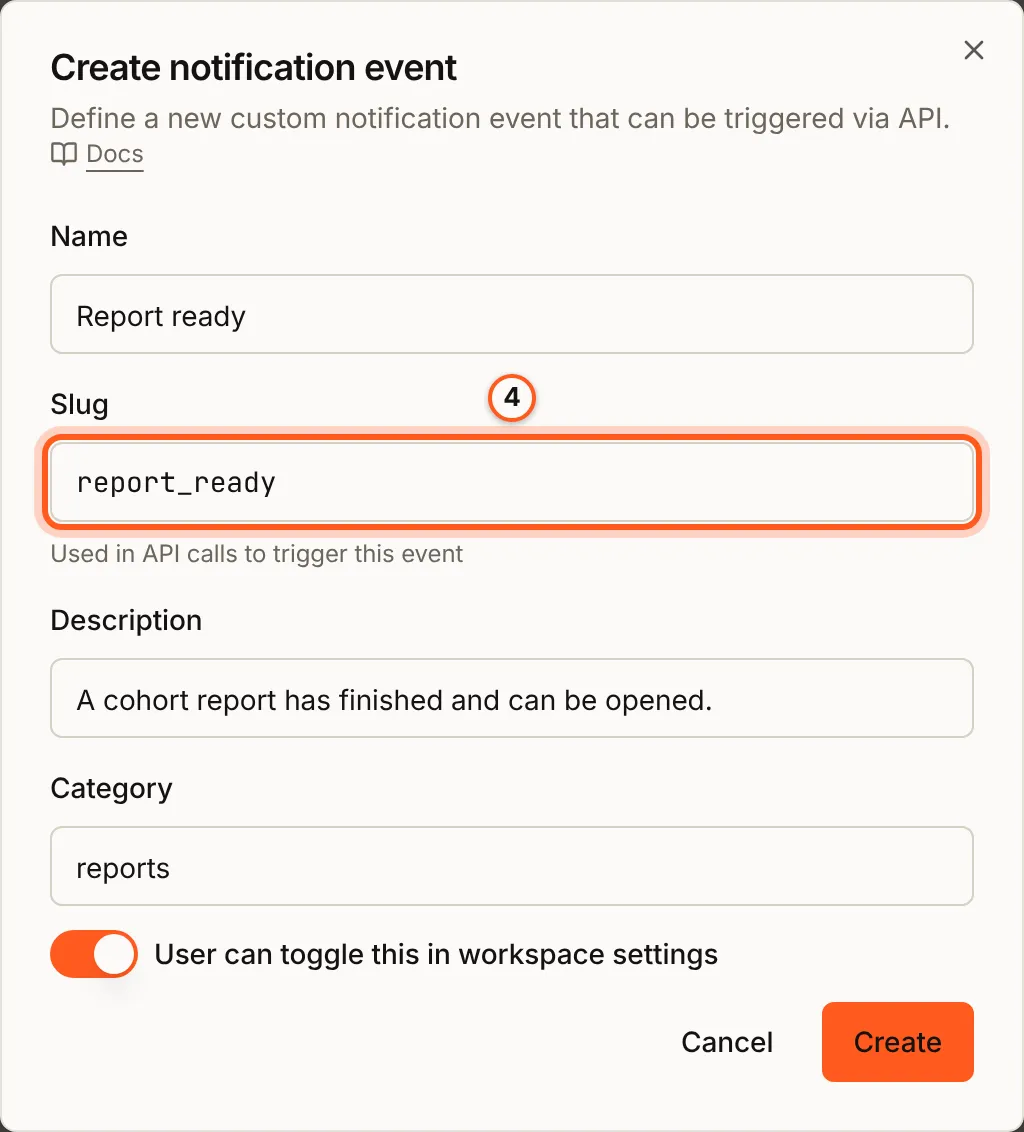
Press Create custom event. In Create notification event, fill
Name, Slug (what your code sends, such as report_ready),
Description and Category. Turn on User can toggle this in workspace
settings if each member may turn it off for themselves. Press Create.
The event is made with email and push on, and with its own email template,
custom-notification-<slug>. Your plan caps how many custom events you have;
the meter beside Create custom event counts them.
5. Change it later
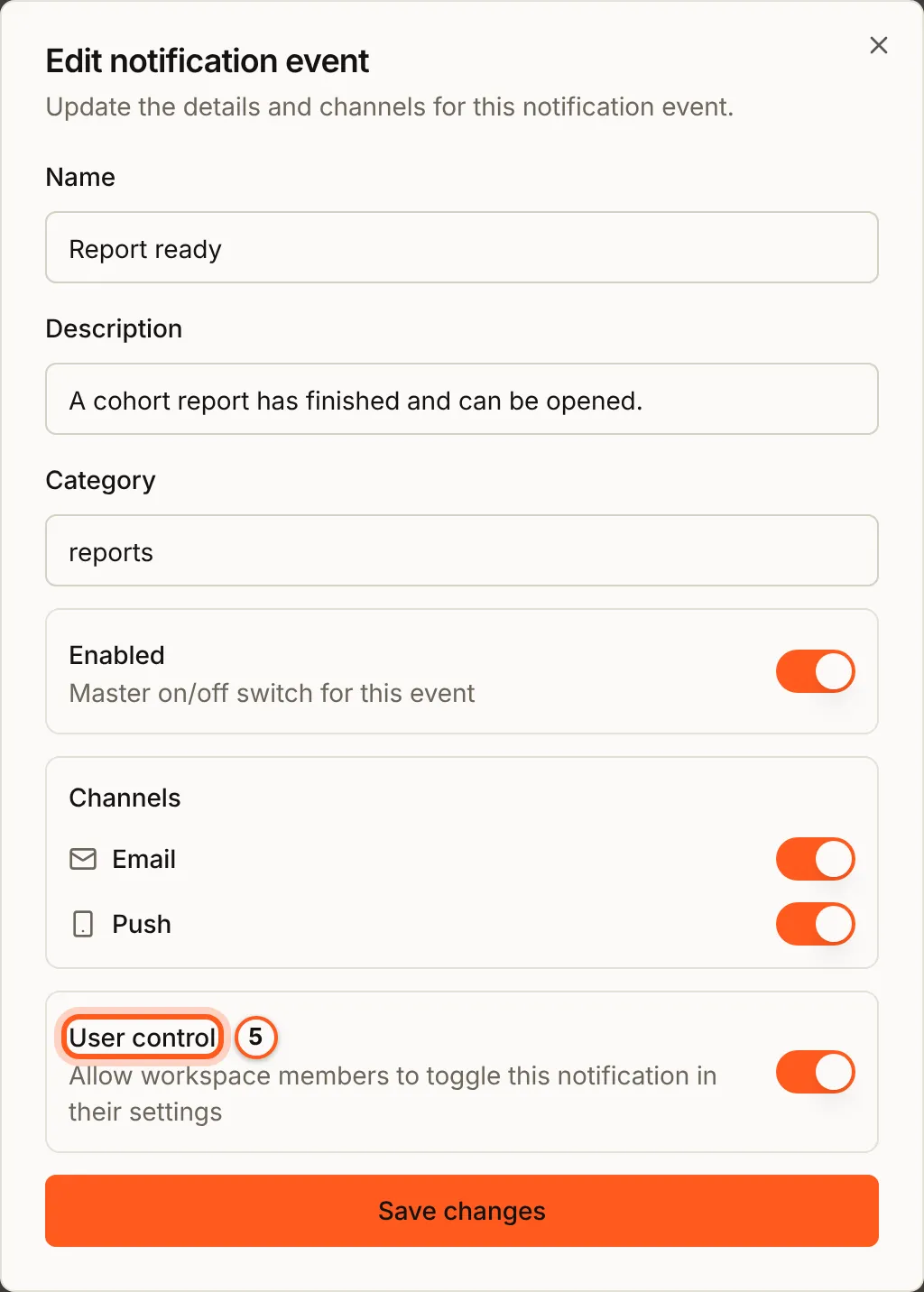
Edit on its row opens Edit notification event: Enabled switches the whole event off, Email and Push choose its channels, and User control is the same per-member toggle. Press Save changes.
6. Write its email
In the left rail choose Templates under Email. The event's template
is listed under its name, Report ready, in the Notification category
(filter Category to find it in a long list); its id is
custom-notification-report_ready. Open it with the edit button. Its body
starts as the event's name and {{message}}, the text your server sends;
write the email around it (create a template).

7. Send it from your server
await bb.notification.send(workspaceId, 'report_ready', userId, {
  title: 'Your cohort report is ready',
  message: 'The March cohort report has finished.',
  url: '/reports/march',
});
Leave out userId to send it to every member of the workspace. The
notifications overview has every field and what
comes back.
8. See what was delivered
Delivery log has one row per person per notification: the event, who got it, in which workspace, what Email and Push each did, and whether they Read it. The totals above it are for the last 30 days.
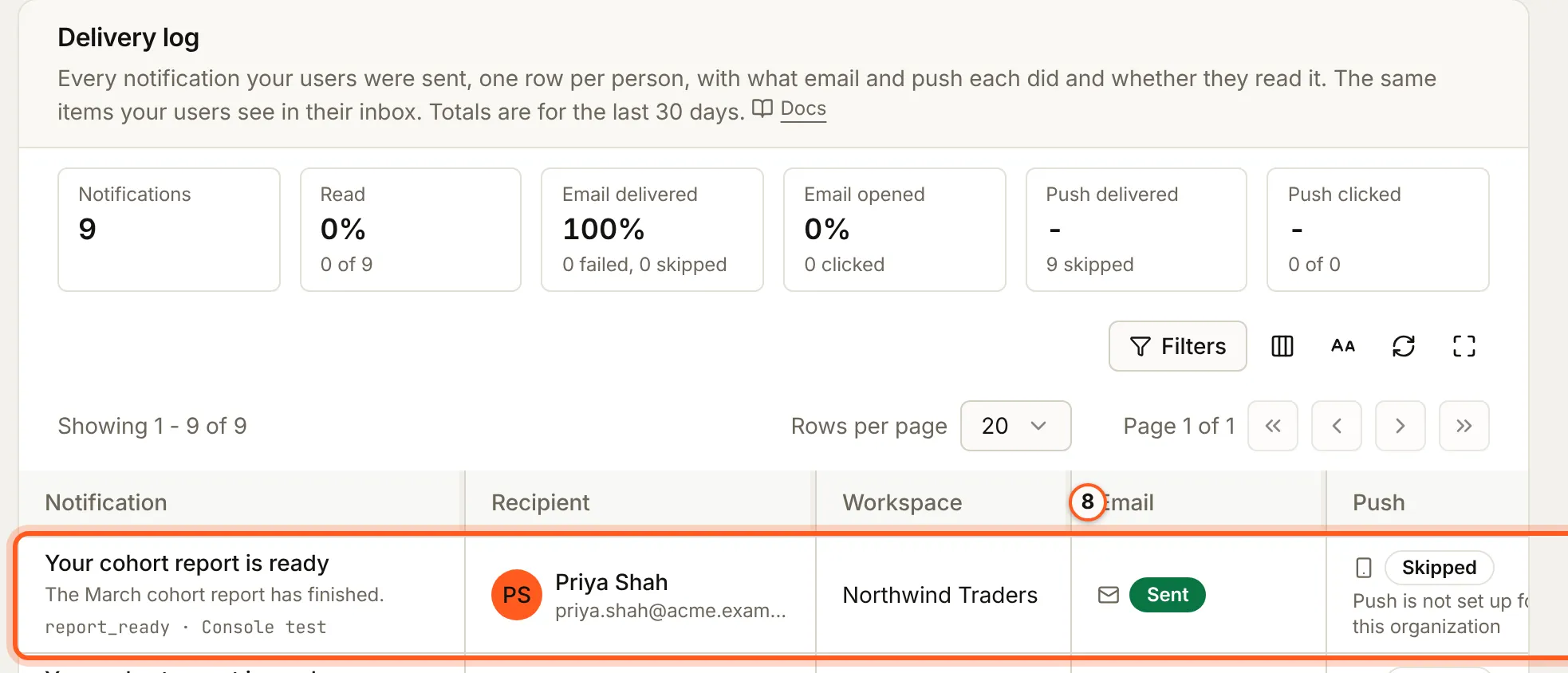
Each row also says where the send came from, under its slug: here Console test, since the guide's example was sent from the console. Skipped with "Push is not set up for this organization" means the organization has no VAPID keys yet, so nothing could be pushed (set up web push).
9. One person's notifications
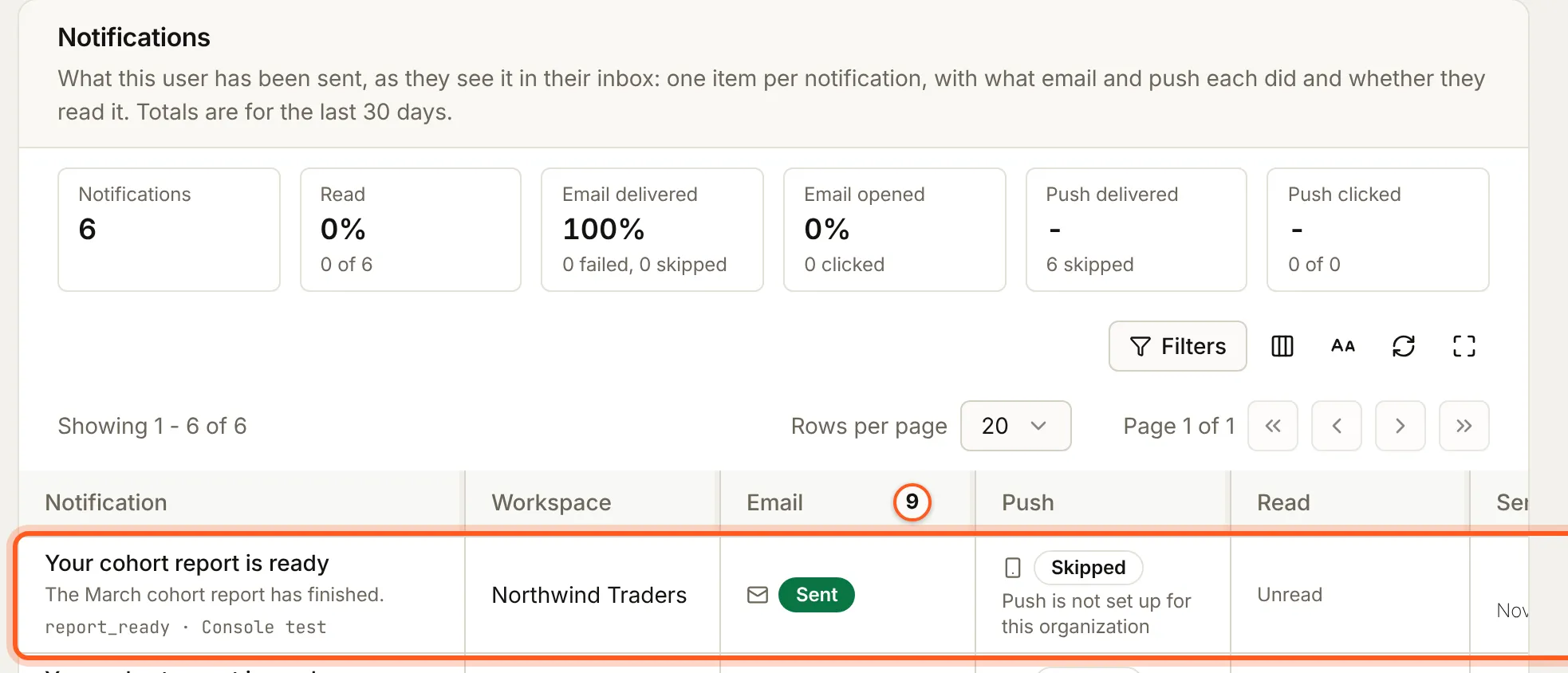
The same rows for one person are on their page: Users, then the user, tab Notifications. It is what they see in their inbox.
Check it works
Send the event once from your server. A row appears on Delivery log with the channels it used, and the item is in that person's inbox.
Things to watch out for
- A slug your server sends before you create it registers itself. It
becomes a custom event with push on and no email template, and it counts
toward your plan's custom events like one made here (events you have not
set up). The console
cannot attach a template to it: set
emailTemplateover the API. - A slug is stored lowercase, and any character other than a letter, a
digit,
.,_,:or-becomes-. - Deleting a custom event deletes its email template too, the
custom-notification-<slug>one it was made with. A template you attached over the API stays, since it may serve something else. System events cannot be deleted. - A member's own choice applies only to an event with user control. An event without it ignores members' preferences, which suits security and billing notices.
If something goes wrong
| What you see | What it means |
|---|---|
NOTIFICATION_EVENT_NOT_SET_UP (403) on a send | A new slug, with your plan's custom events used up. Create it here once there is room, or send one you have. |
429 on a send | More than 300 sends in an hour from one workspace. Try again later. |
| Failed to create email template for notification event. | The event was not made because its template could not be. Try Create again. |
A send answers sent: true with both channels false | A gate blocked both: the switches on Global, the event's own channels, or the person's preferences. |
reason: 'event_disabled' | Enabled is off on the event. |
Next Steps
- Notifications overview - the send call, what comes back and the four gates.
- Inbox - the bell and the list your users see.
- Set up web push - subscribe browsers so push has somewhere to go.
- Slack alerts - the same system events, to your team's channel.