
Set up web push in your app
Turn push on for your organization, serve the service worker, add a button that subscribes the browser, and see it counted in the console.
Before a push can reach anyone, a browser has to subscribe to it from your
app. This guide adds that to an app already using @buildbase/sdk: the
organization's switch, the service worker, a button, and the console's
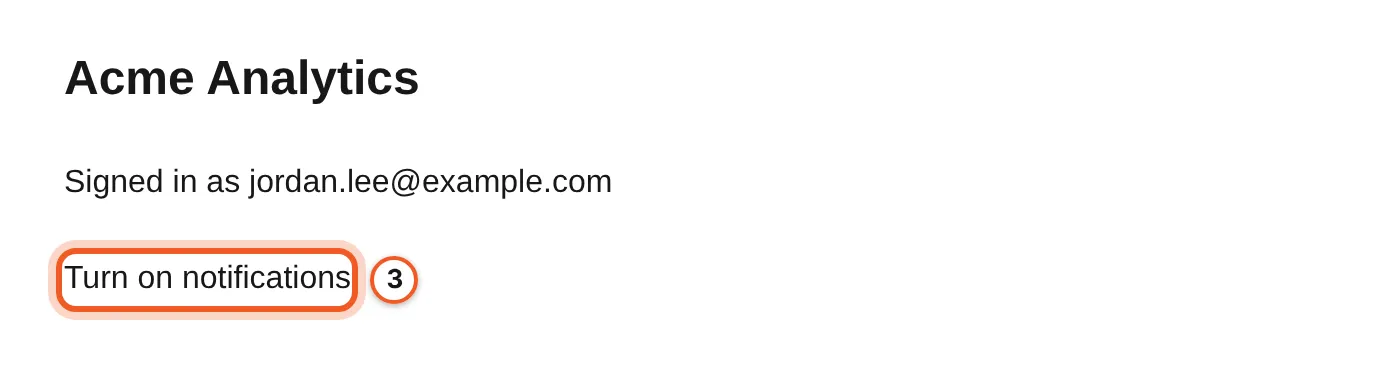
count of subscribed browsers. Acme Analytics adds a "Turn on notifications"
button to its app.
Before you start
A plan that includes push notifications. An app wrapped in SaaSOSProvider
from @buildbase/sdk, served over HTTPS (or localhost while you develop),
and a test user who can sign in to it. A console role that can change
organization settings.
1. Turn push on
Open Notification events in the console
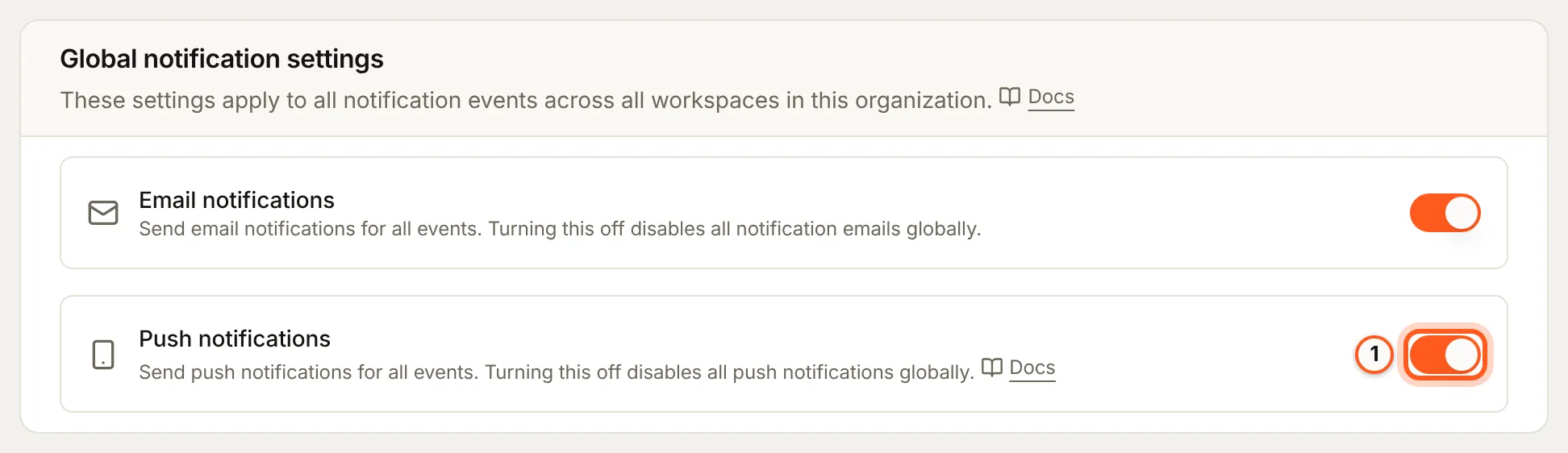
(opens the console in a new tab)In the console's left rail choose Messaging, then Notification events, and open the Global tab. Turn on Push notifications. Off, no event sends a push and push campaigns are refused.
2. Serve the service worker
The browser runs a small script, /push-sw.js, to show a push when it
arrives. The SDK ships it as PUSH_SERVICE_WORKER_SCRIPT; write it into your
public directory when you build, so it updates with the SDK:
import fs from 'node:fs';
import { PUSH_SERVICE_WORKER_SCRIPT } from '@buildbase/sdk';

fs.writeFileSync('public/push-sw.js', PUSH_SERVICE_WORKER_SCRIPT);{
"scripts": {
"predev": "node scripts/write-push-sw.mjs",
"prebuild": "node scripts/write-push-sw.mjs"
}
}It must be served at /push-sw.js itself: a redirect is refused by browsers.
To keep the file elsewhere, see serving it from another
path.
3. Add a button that subscribes
usePushNotifications() works anywhere inside SaaSOSProvider. Its
subscribe() asks the browser for permission itself, then registers the
browser with BuildBase:
'use client';

import { usePushNotifications } from '@buildbase/sdk/react';

export function PushButton() {
  const { isSupported, isSubscribed, loading, error, subscribe } =
    usePushNotifications();

  if (!isSupported) return null;

  return (
    <div>
      <button disabled={loading || isSubscribed} onClick={subscribe}>
        {isSubscribed ? 'Notifications are on' : 'Turn on notifications'}
      </button>
      {error && <p role="alert">{error}</p>}
    </div>
  );
}
Render it where someone is signed in: for a signed-out visitor subscribe()
does nothing, because a subscription belongs to a user.
4. Allow notifications
Sign in to your app as your test user and press the button. The browser asks whether the site may show notifications; choose Allow. Within seconds the browser shows one "Notifications Enabled" notification: the whole path, from your app through BuildBase to the browser, works.
5. See the browser counted
Open Push campaigns in the console (opens the console in a new tab)Back in the console, choose Push campaigns under Push. On a plan
that limits push subscribers, a meter beside Create campaign counts the
browsers subscribed against that limit, such as 1/1000. A plan with no
limit shows no meter.
Check it works
The "Notifications Enabled" notification arrives right after Allow, the button reads Notifications are on, and the meter, where your plan has one, counts one more browser. Then send yourself a push campaign.
Things to watch out for
- Only the big browsers' push services are accepted: Google's, Mozilla's, Microsoft's and Apple's, which Chrome, Firefox, Edge and Safari use. Any other endpoint is refused.
- At your plan's push subscriber limit a new browser is turned away; browsers already subscribed keep receiving. The meter on Push campaigns shows how close you are.
- A browser that blocked notifications cannot be asked again by your
app:
permissionreads'denied'and the person has to allow it in the browser's site settings. - A pasted copy of the worker never updates. Write it at build time, as in step 2.
If something goes wrong
| What you see | What it means |
|---|---|
| Push notifications are not available right now. | Your plan does not include push, or its push subscriber limit is reached. The message names no plan, because the person reading it is your user. |
| Notification permission denied | The person chose Block, or blocked notifications for the site before. |
| Failed to subscribe to push notifications | The browser could not register /push-sw.js or reach its push service. Check the file is served at that path. |
| The button never shows | isSupported is false: the browser has no push support, or the page is not on HTTPS or localhost. |
Next Steps
- Your first push campaign - send one notification to a list.
- Push notifications overview - the hook, the worker and what has to hold before a push is sent.
- Notification events - which events send a push.