
Send your first push campaign in the console
Turn push on for your organization, generate its VAPID keys, write a push campaign for an audience list, send it and read its delivery report.
A push campaign sends one notification to every subscribed browser of the people on a list. This guide tells Acme Analytics' beta testers that cohort reports are here.
Before you start
A plan that includes push notifications, and an audience list (Audience,
then Lists) of people who signed up to your app and whose browsers
subscribed through it
(usePushNotifications). A push goes to
signed-up users only: a contact who never signed up, or who unsubscribed, gets
none. A console role that can create push campaigns.
1. Turn push on for the organization
Open Notification events in the console
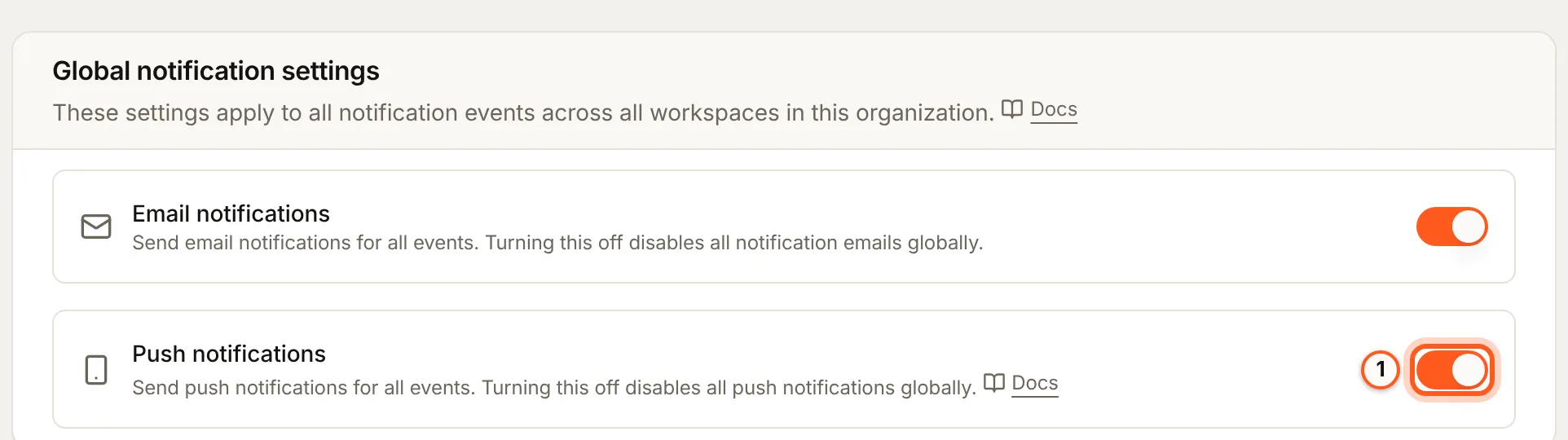
(opens the console in a new tab)In the left rail choose Messaging, then Notification events, and open the Global tab. Turn on Push notifications. Off, campaigns are refused and your events send no push.
2. Generate the VAPID keys, once
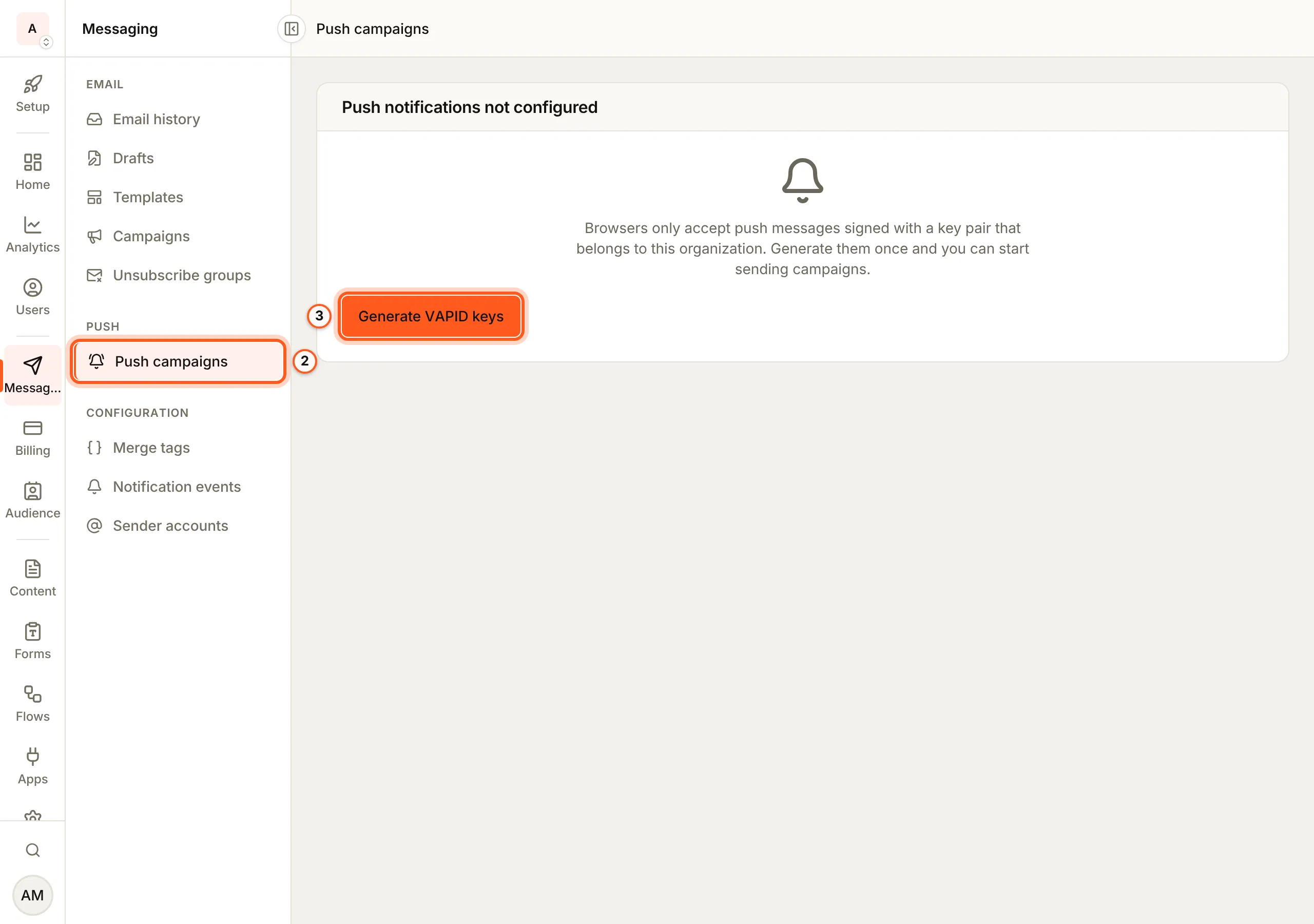
Open Push campaigns in the console (opens the console in a new tab)Choose Push campaigns. Until the organization has its VAPID keys, the key pair browsers use to check that a push comes from you, the page says Push notifications not configured. Press Generate VAPID keys. You do this once; the first browser that subscribes also creates them.
3. Create a campaign
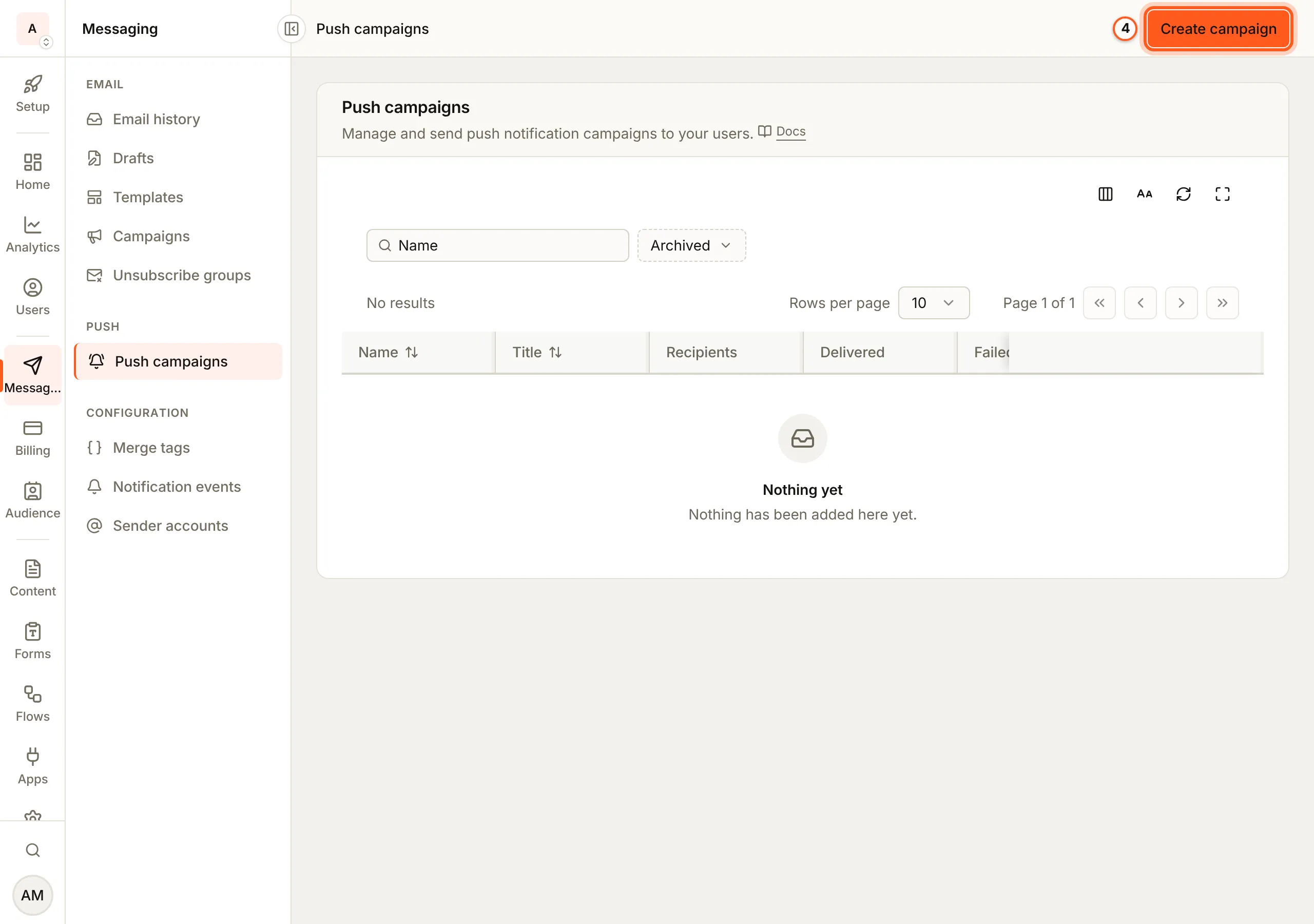
Push campaigns lists each campaign with what it delivered and what failed. On a plan that limits them, two meters beside Create campaign count your subscribed browsers and your campaigns against those limits. Press Create campaign.
4. Name it
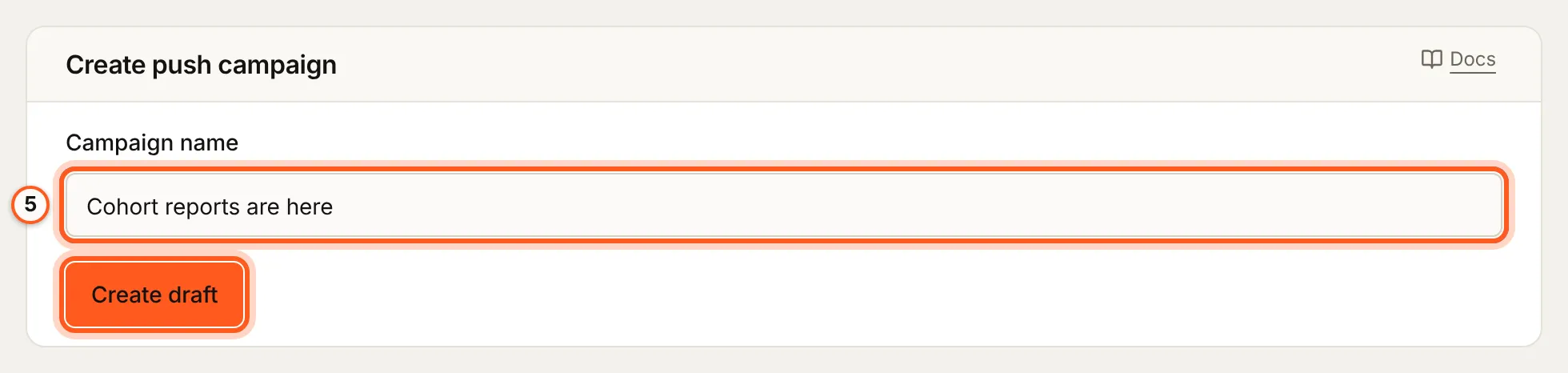
In Create push campaign, fill Campaign name (only you see it) and press Create draft.
5. Pick who, and write it
Pick the Audience / users list; under it the console counts the recipients. Then fill Notification title, Notification body and, if a tap should open a page, Click URL (optional). Under Icon (optional), Choose an image from your assets or upload one, shown beside the notification; without one, your organization's icon is used, and Remove goes back to it. Press Save.
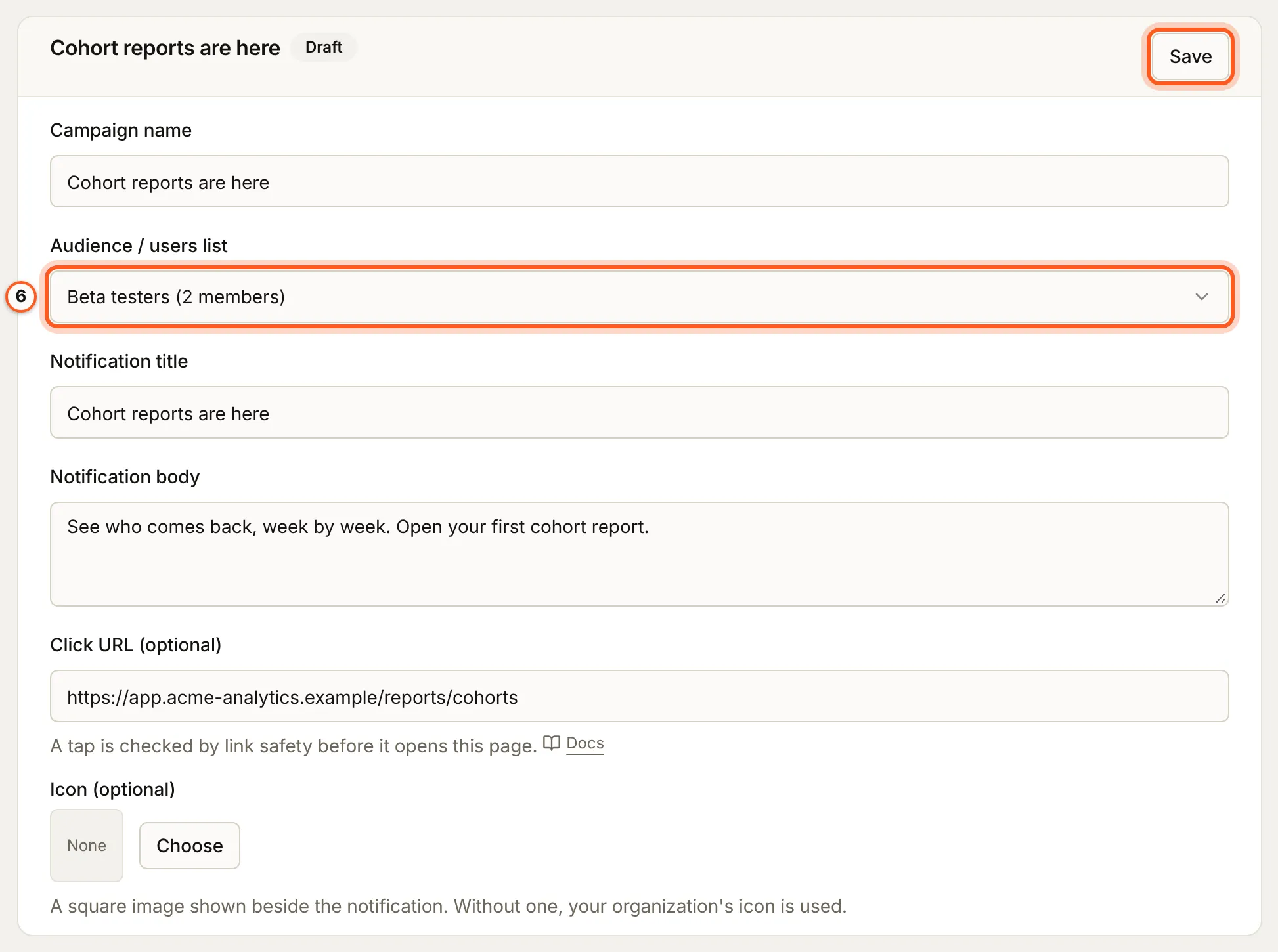

6. Send it
Send campaign shows once the campaign has a list with people on it, a title and a body. Press it and confirm. Every subscribed browser of each signed-up person on the list gets the notification, and the campaign is marked Sent.
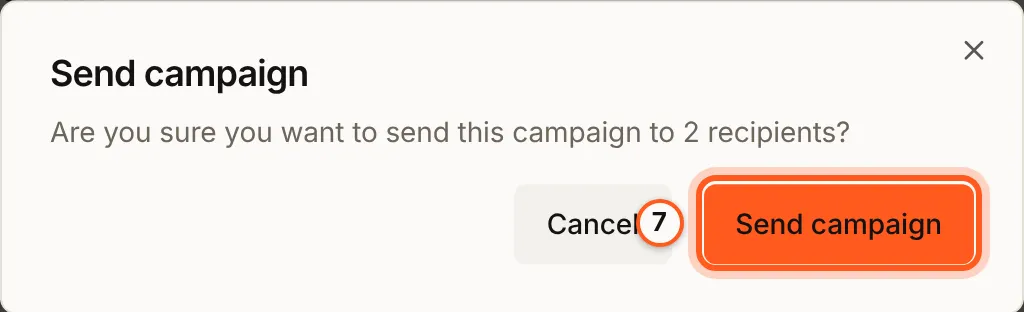
7. Read the report
Delivery analytics counts the Total devices it went to, how many were Delivered, how many Failed, and the Expired subscriptions it found and removed: browsers that stopped accepting pushes.
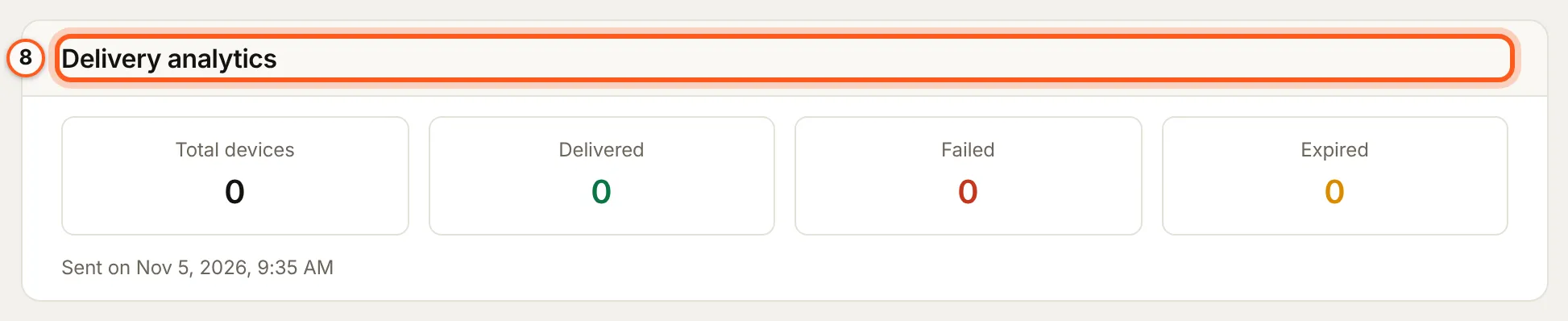
Here neither beta tester has subscribed a browser yet, so every count is 0.
Check it works
Subscribe a browser in your app, then send a campaign to a list it is on. Each browser gets one "Notifications Enabled" notification the moment it subscribes, which is the quickest way to see the whole path work.
Things to watch out for
- A sent campaign cannot be deleted. Archive it from its row's menu.
- Your plan caps push campaigns and subscribed browsers. At the subscriber limit a new browser is turned away, and the meter shows it here.
- A tap goes through link safety first, so a click URL found harmful later stops working (how).
- A workflow can push to one person with the Send Push Notification step (triggers and actions).
If something goes wrong
| What you see | What it means |
|---|---|
| Push is not set up for this organization yet (409) | Generate the VAPID keys on Push campaigns, then send again. |
| Push notifications are turned off for this organization (409) | Turn on Push notifications under Notification events, Global. |
| Campaign needs a title and body (400) | Fill both and press Save. |
| Campaign needs an audience list (400) | Pick a list with people on it. |
| Nobody on this list can receive push notifications (409) | No one on the list is a signed-up user who has not unsubscribed: pick a list of your app's users. |
| Delivered 0 | Nobody on the list has a subscribed browser yet. |
Next Steps
- Push notifications overview - subscribe browsers from your app and serve the service worker.
- Notifications - one call for email and push, and the gates it passes.
- Audience lists - build the list a campaign goes to.