
Group people with static and smart lists
Make a static list you fill by hand or a smart list that keeps itself up to date from a filter, for contacts or for users, one console screen at a time.
A list is a group of people you send to or act on together: a campaign goes to a list, a workflow adds people to one, a user flag can be on for one. A static list holds the people you put in it. A smart list is a filter, and holds whoever matches it. Audience contacts and users each have their own lists, which work the same way. This guide makes them for Acme Analytics.
Before you start
A console role that can create lists, and room in your plan: it sets how many lists you may keep, and how many of them may be smart.
1. Open Lists
Open Audience lists in the console
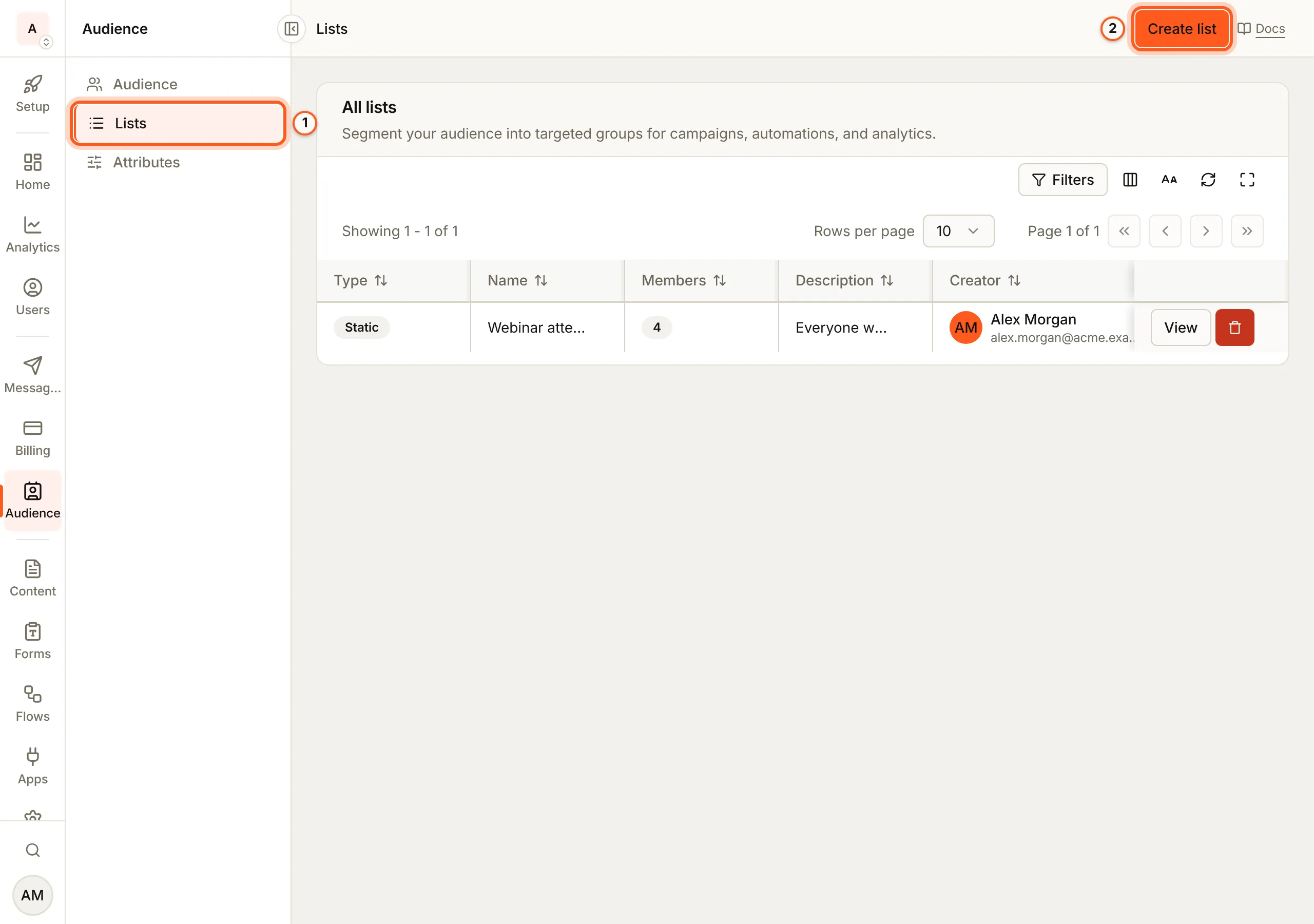
(opens the console in a new tab)In the left rail choose Audience, then Lists. Audience lists shows each list with its Type and how many Members it has. Press Create list.
2. Choose the type and name it
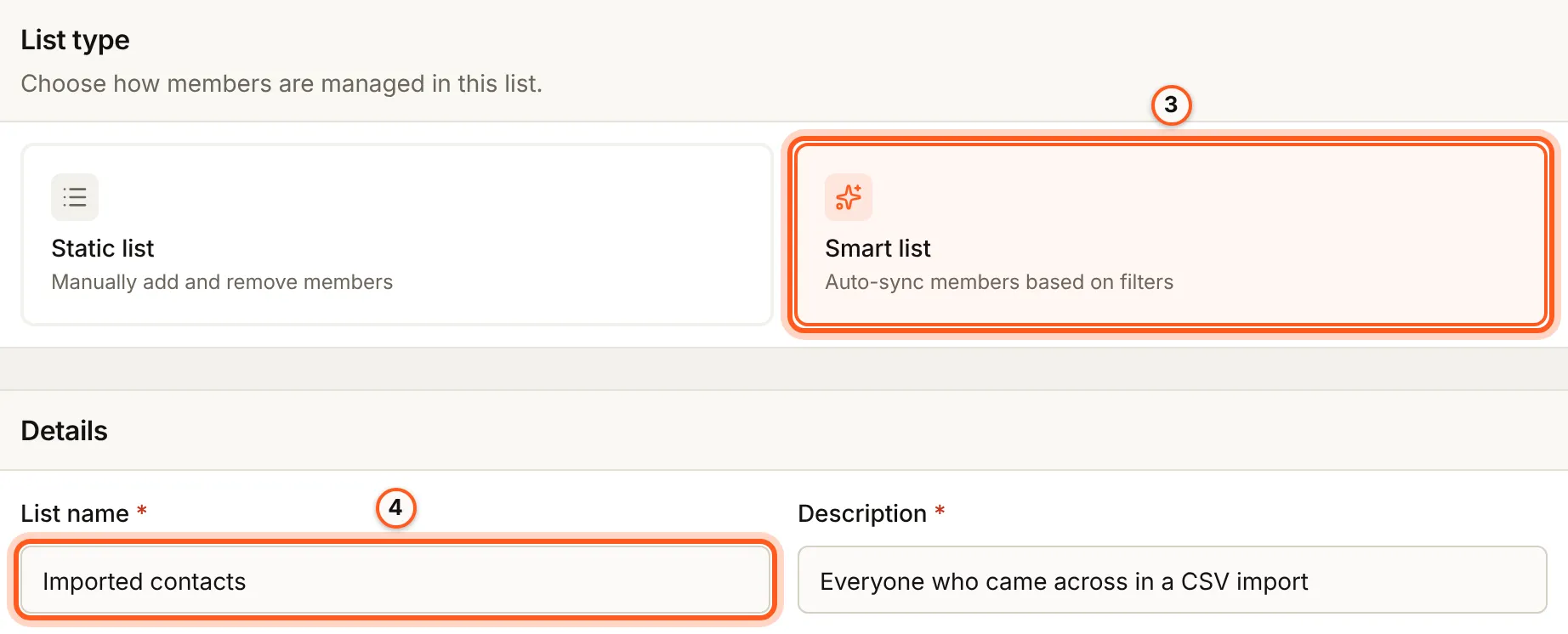
Under List type, choose Static list (you add and remove members) or Smart list (members follow a filter). Under Details, fill List name and Description.
3. A smart list: build its filter
Smart list filter matches on name, email, Source, Tag, Unsubscribed, Language, Country, Created At and more, and Advanced filters add a rule on an Email Campaign, an Email Template or another Audience List. Below it, the console counts who the filter takes in now, and lists them. Press Create list at the top to save it.
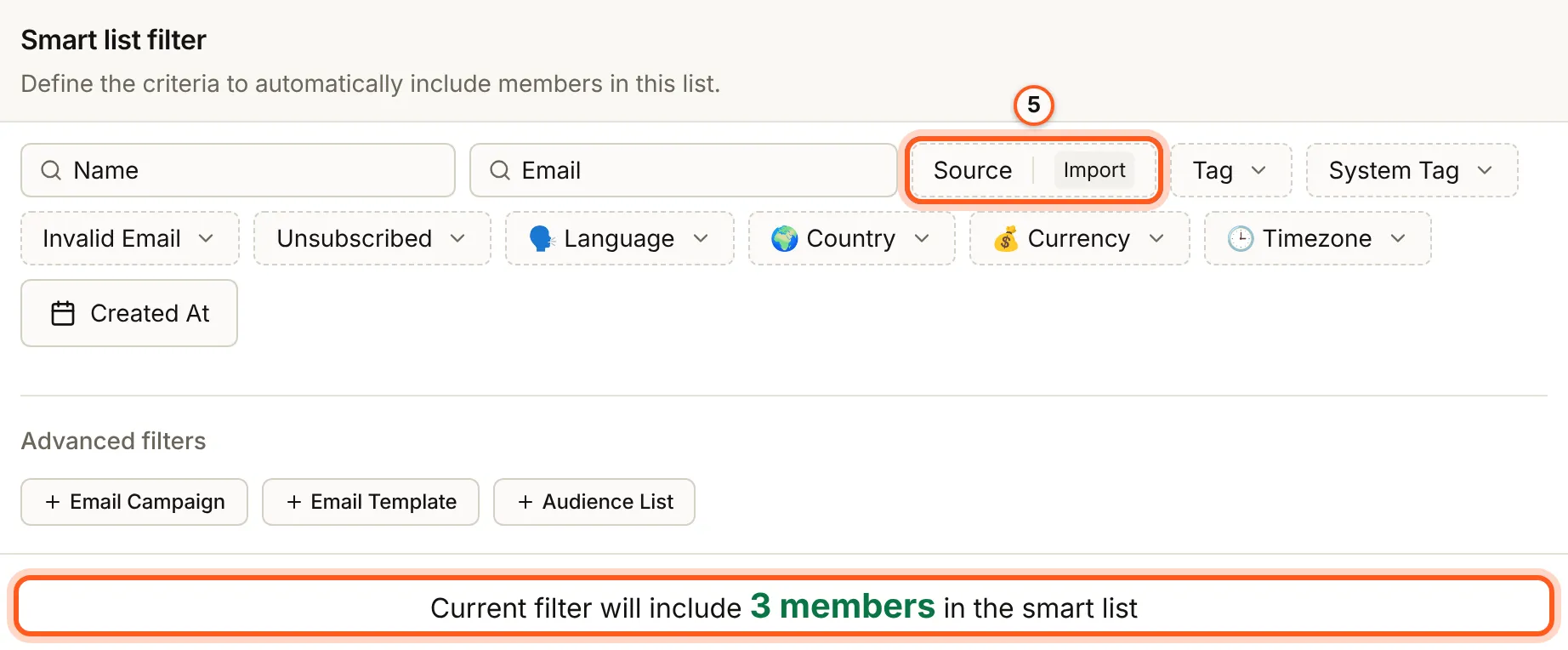
A smart list recomputes on its own every hour. To refresh it now, open it and press Sync smart list; Edit filter changes what it matches.
4. A static list: add members
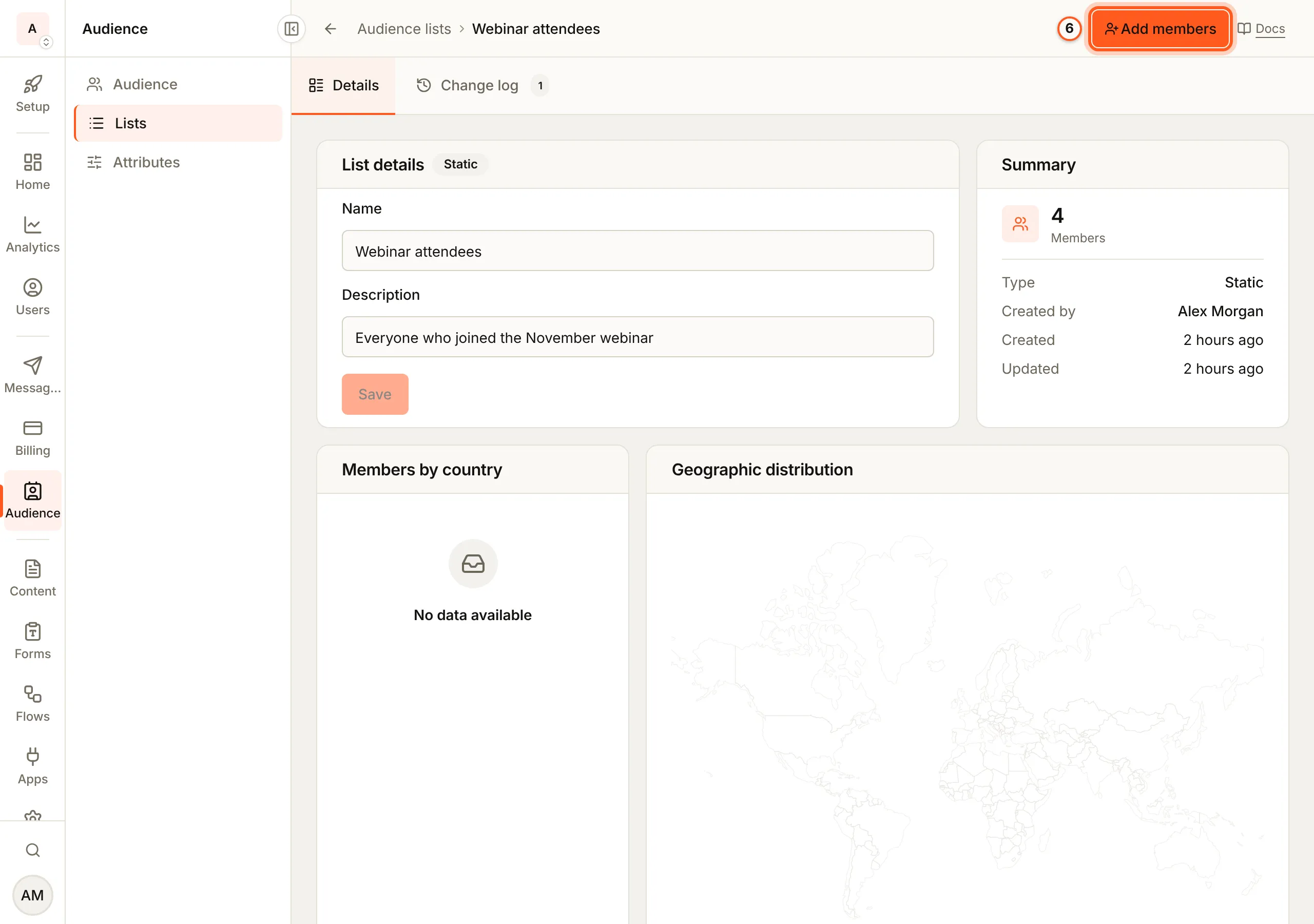
Open the list from All lists. Its Details tab shows its name, a Summary with how many members it has, and Members. Press Add members.
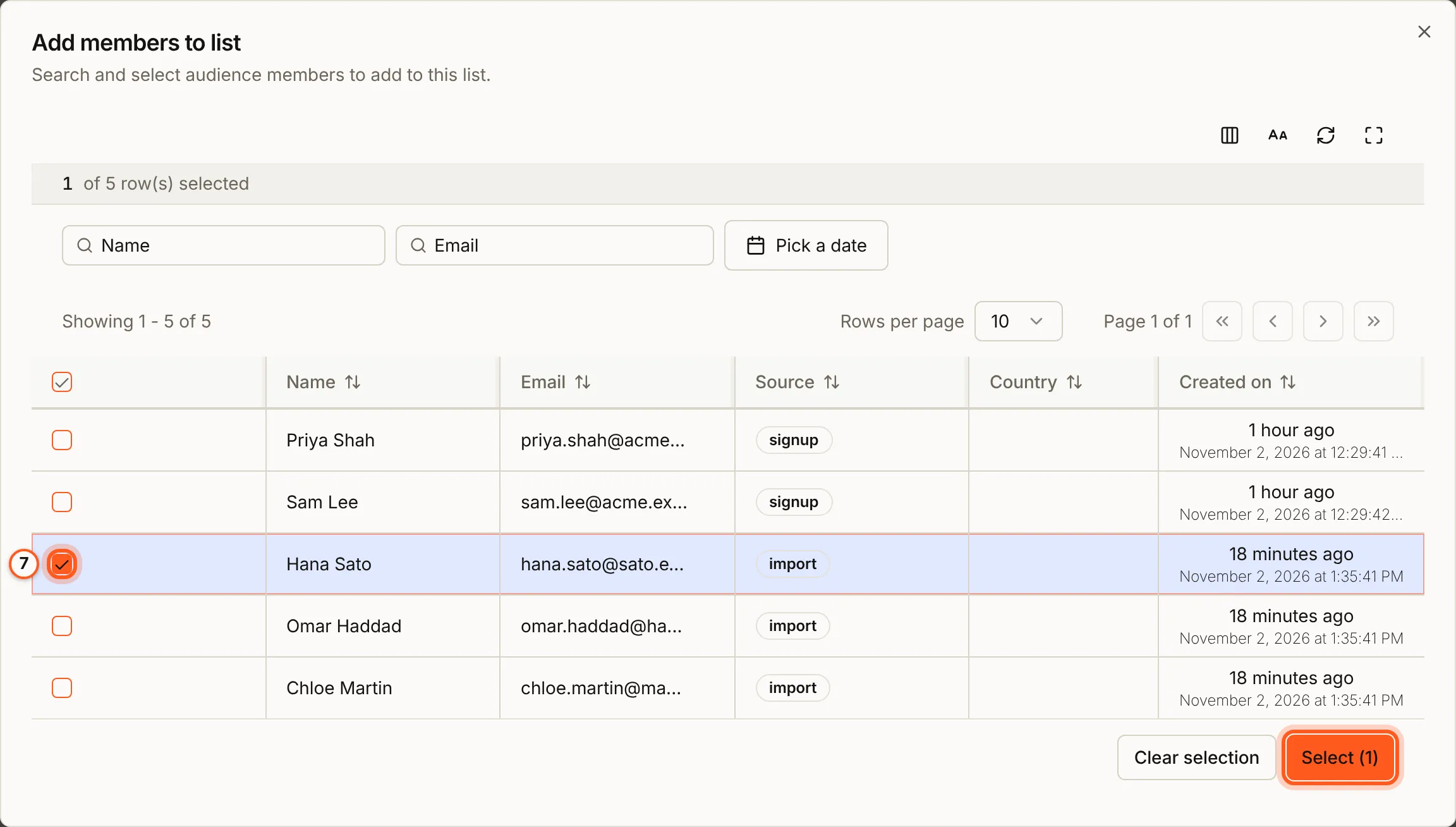
In Add members to list, tick each person, filtering by name, email or date to find them, and press Select.
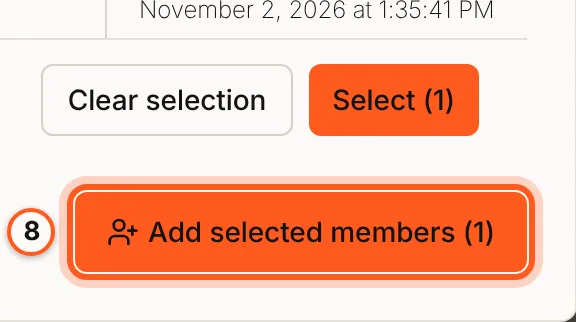
Then press Add selected members.
5. See who joined and left
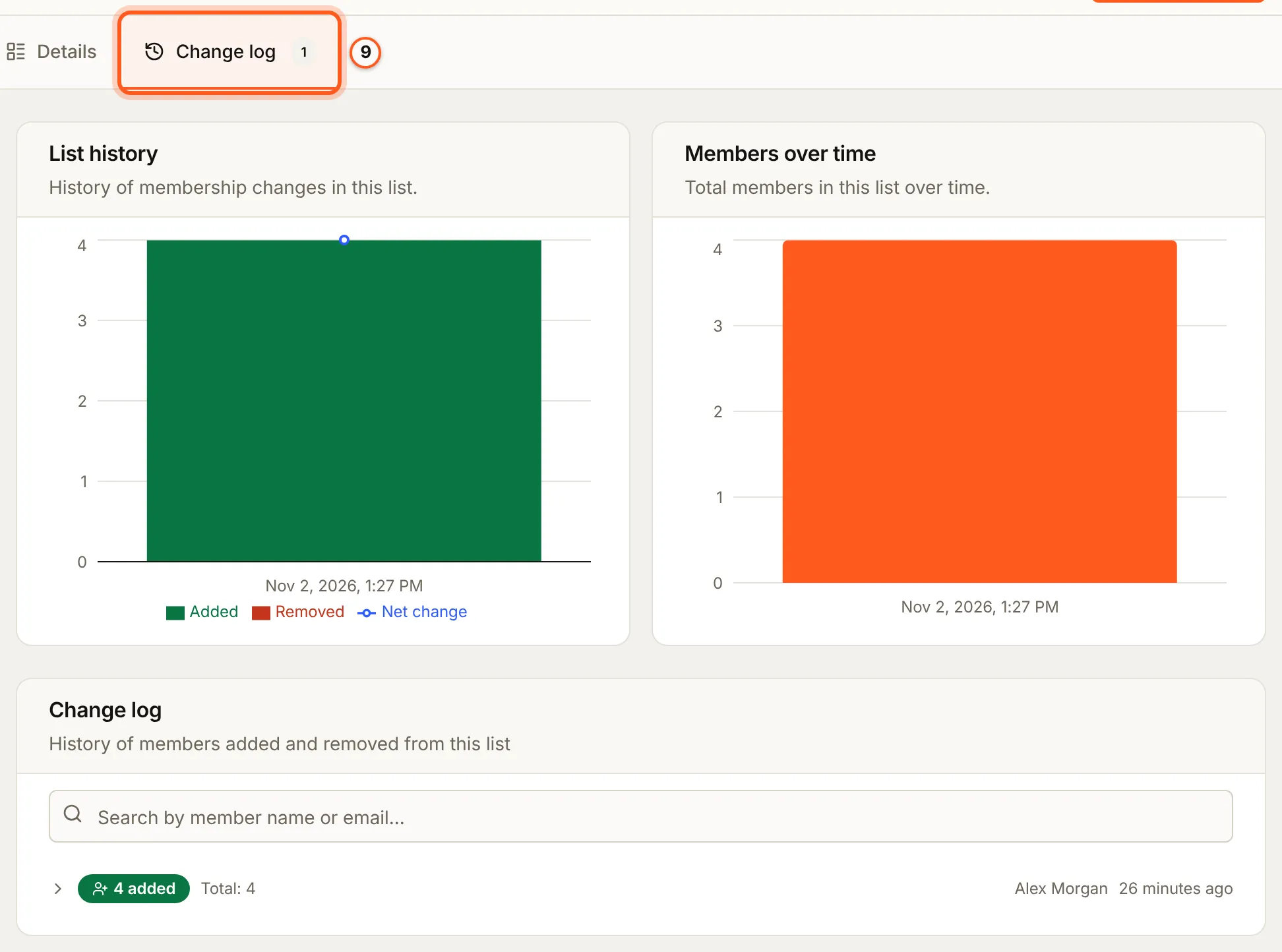
The Change log tab shows List history and Members over time as charts, and Change log: each change, how many were added or removed, who made it and when. Search it by name or email.
6. Lists of users
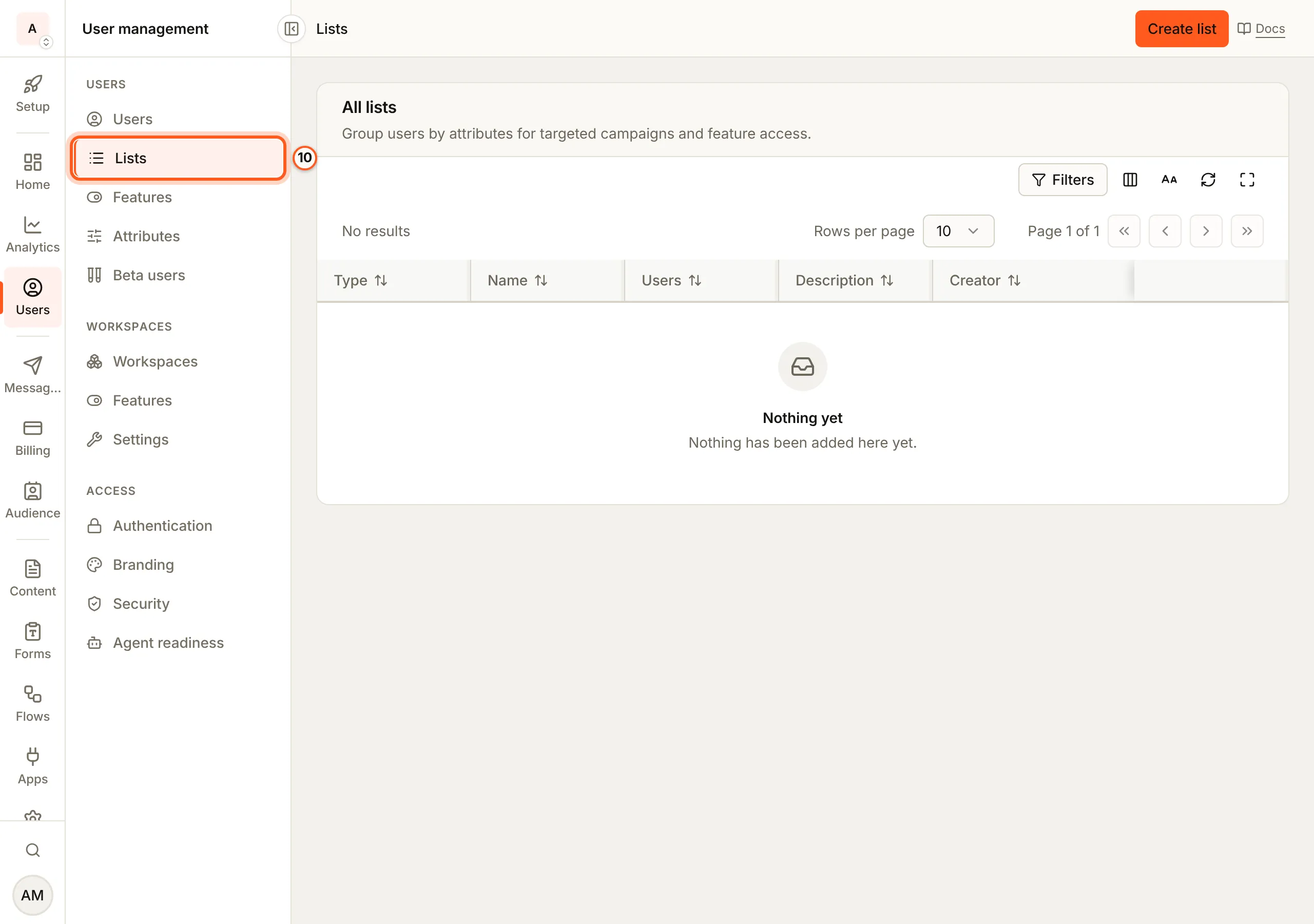
Users have their own lists, for targeting a user flag or a workflow at a group of your app's users. In the left rail choose Users, then Lists under Users. Create list works the same way: a static list takes users with Add users, and a smart list follows a filter on users.
Check it works
After Sync smart list, the smart list's member count matches the count the filter showed. On a static list, the person you added is under Members, and Change log shows the addition.
Things to watch out for
- Only a static list takes members. Adding contacts to a smart list, by hand or from an import, is refused with "Contacts can only be added to a static list".
- A smart list is up to an hour behind. It recomputes hourly; press Sync smart list when you need it current.
- Deleting a user list cannot be undone. The users stay, but every feature and workflow scoped to the list stops matching anyone.
Next Steps
- Audience and lists - contacts, tags and the API for lists.
- Importing contacts - fill a static list from a CSV.
- Sending campaigns - send to a list.