
Set up a Vercel deploy hook
Where the deploy hook is in Vercel, where it goes in BuildBase, how to send each deploy's result back, and how to check it works.
Setting up takes two parts. The deploy hook lets BuildBase start a build, and works on every Vercel plan. The webhook lets Vercel tell BuildBase how the build went, and needs a Pro or Enterprise team. Without the second part, deploys still run and read Triggered in the history.
Before you start
A Vercel project connected to a Git repository (Vercel only offers deploy hooks on connected projects), and a BuildBase plan that includes deploy hooks. You add the hook in the BuildBase console under Settings > Deploy hooks.
1. Create the deploy hook in Vercel
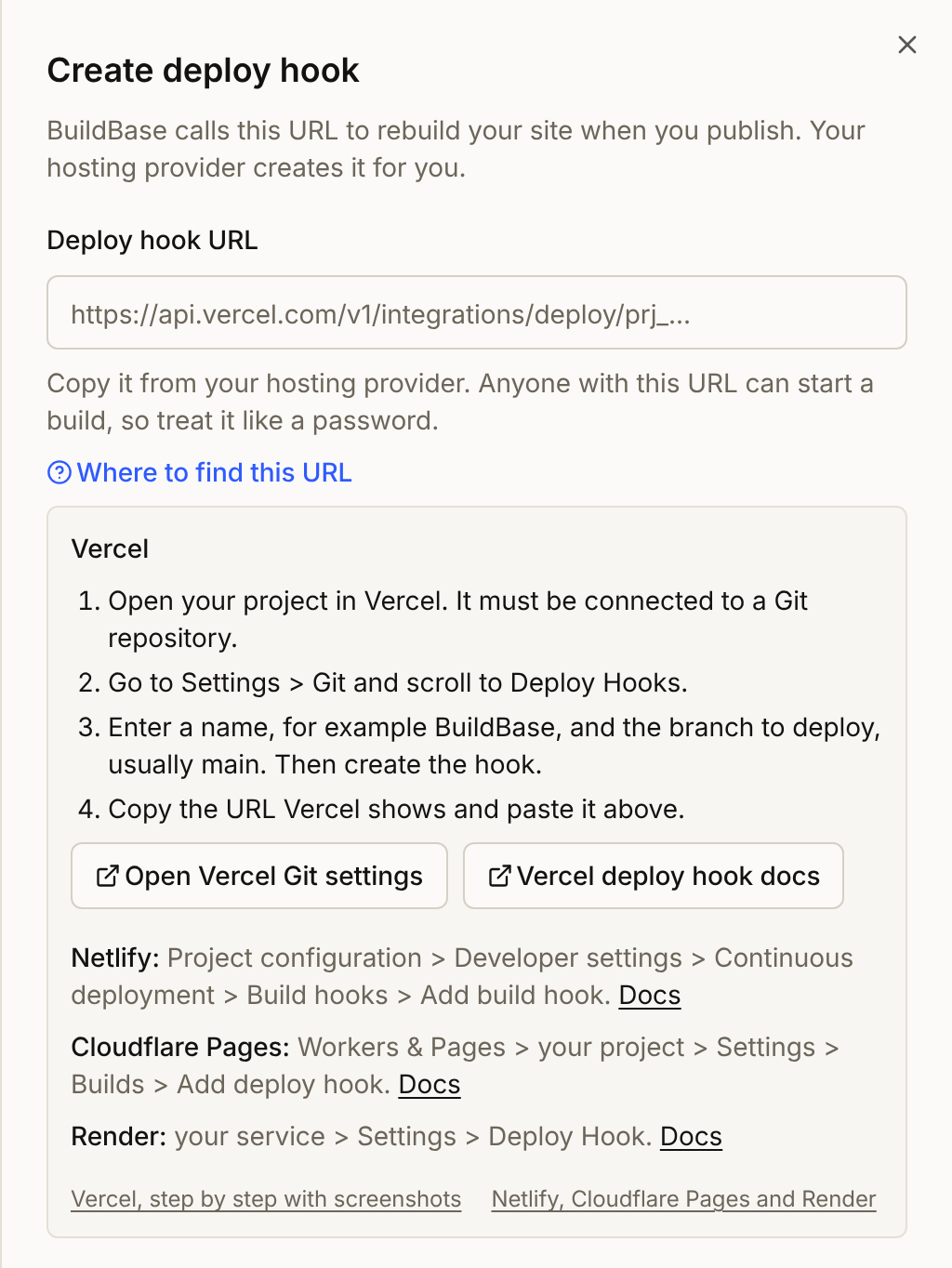
- In Vercel, open your project and go to Settings > Git. Scroll to Deploy Hooks. (Go to Git settings)
- Enter a name, for example
BuildBase, and the branch to deploy, usuallymain. Create the hook. - Copy the URL Vercel shows. It looks like
https://api.vercel.com/v1/integrations/deploy/prj_.../....
Warning
Anyone who has the deploy hook URL can start a build of your site. Treat it like a password. If it leaks, delete the hook in Vercel and create a new one, then delete the old hook in BuildBase and add the new URL. Paste the same webhook secret when you add it, or its deploys stop reporting results.
2. Add it to BuildBase
In the BuildBase console, open Settings > Deploy hooks, select Manage hooks, then Create hook. Paste the URL into Deploy hook URL. If you are not sure where it is, Where to find this URL shows the steps for each provider.
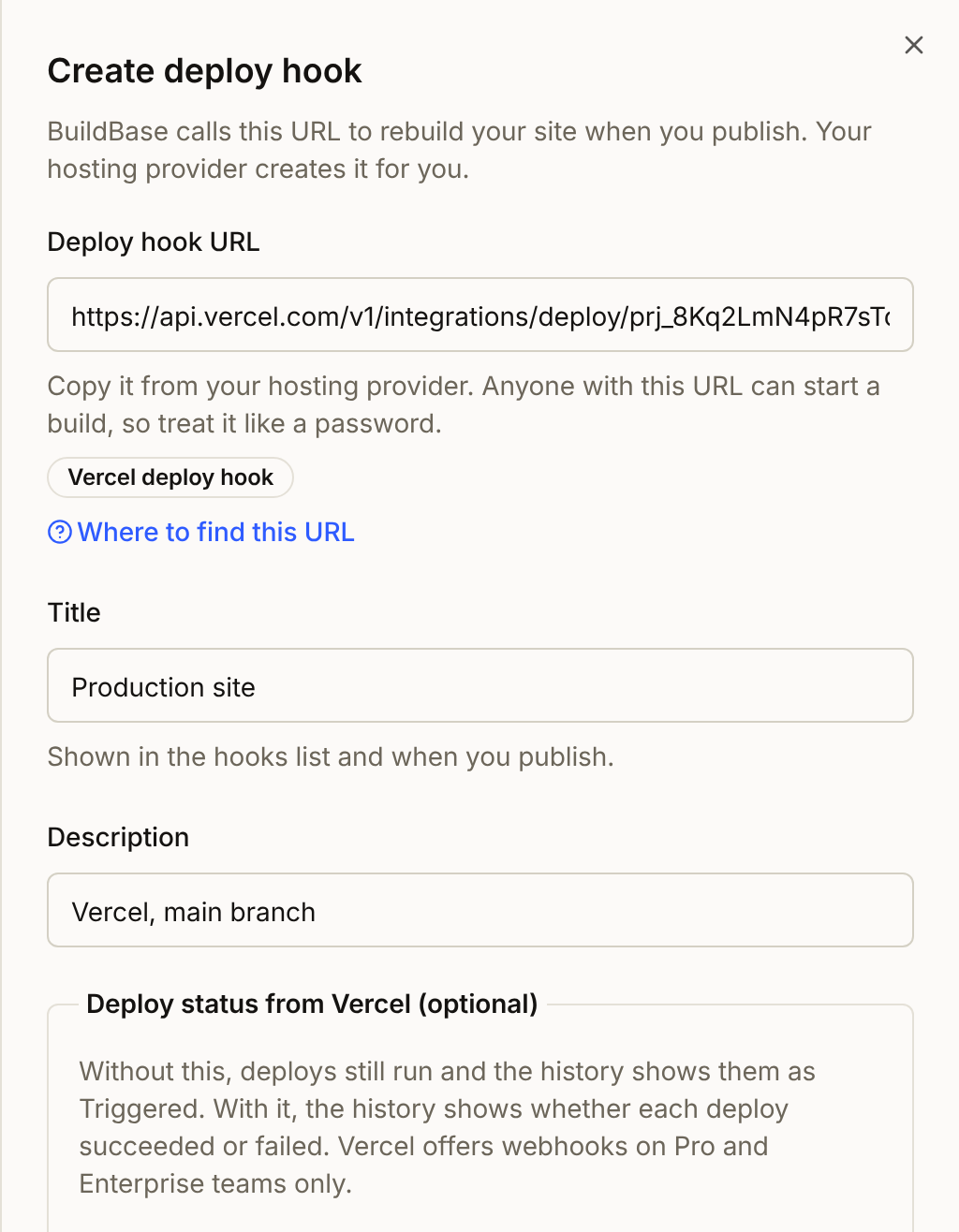
BuildBase recognises the URL as a Vercel deploy hook and adds an optional section for the webhook. Give the hook a title, such as Production site, and a description, such as Vercel, main branch.
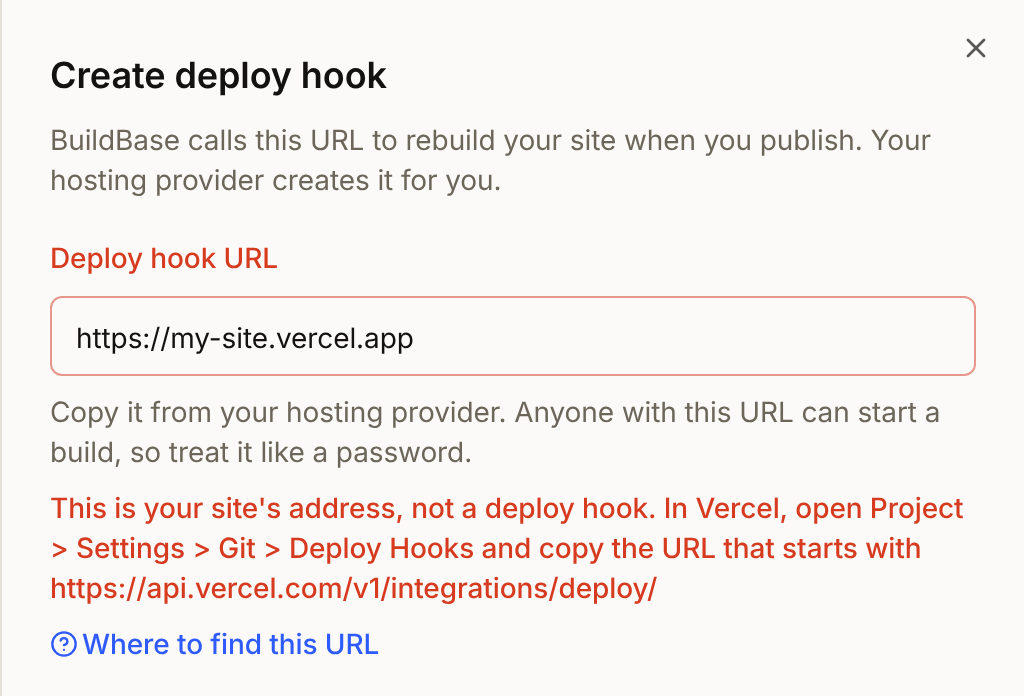
If the URL cannot start a build, selecting Create hook says why and points you to the right URL. That covers your site's .vercel.app address, a Vercel dashboard or docs link, and the BuildBase status URL from part 3. A site address on your own domain gets through, and its first deploy fails, usually with "answered with a web page, not a deploy hook".
On a Hobby team, select Create hook and you are done: skip to part 4. On Pro or Enterprise, keep the sheet open for part 3.
3. Send deploy results back (Pro or Enterprise)
The Deploy status from Vercel section has the same six steps as the list below, and the BuildBase status URL to copy.
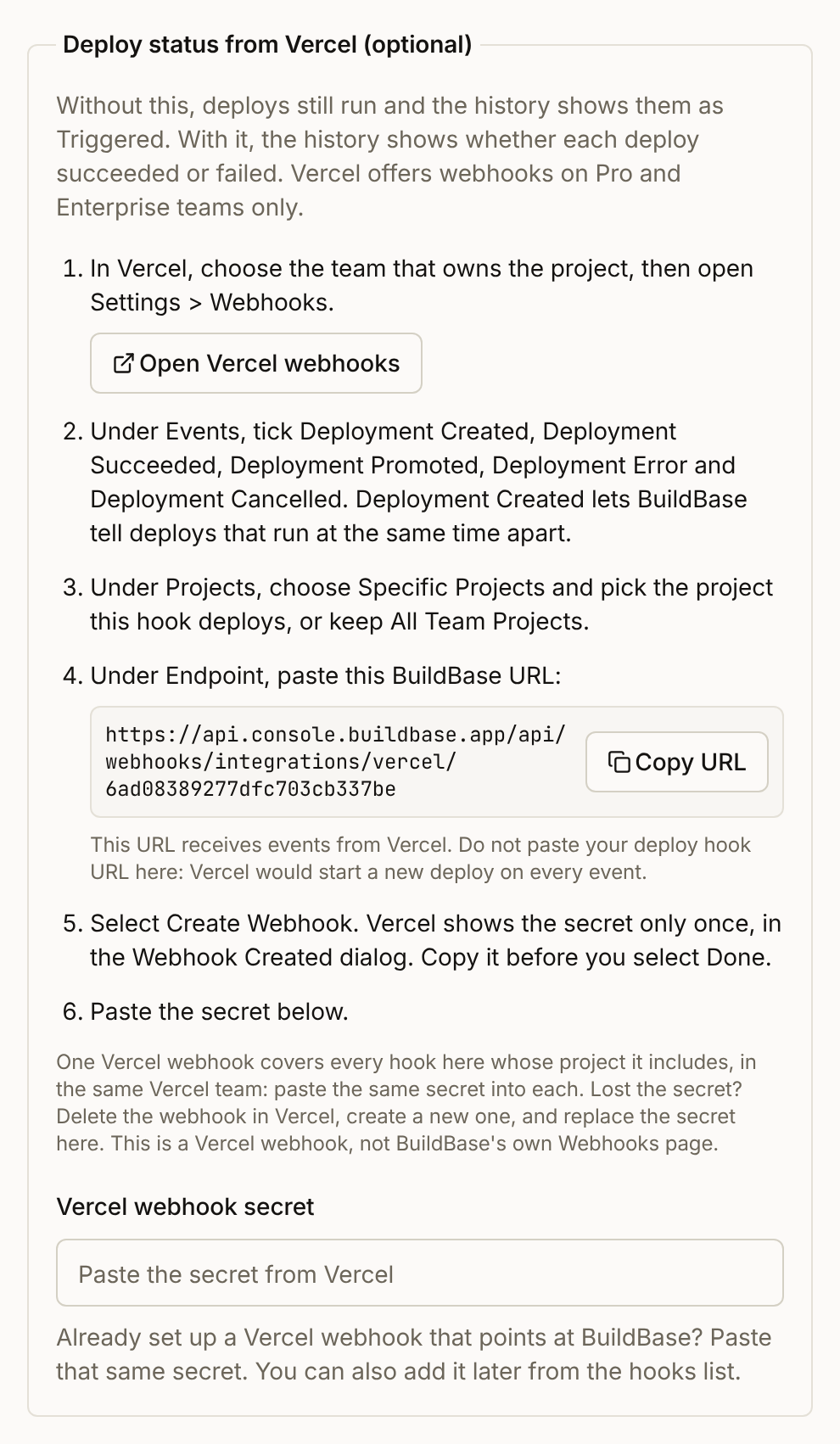
- In Vercel, choose the team that owns the project and open Settings > Webhooks. (Go to Webhooks)
- Under Events, tick Deployment Created, Deployment Succeeded, Deployment Promoted, Deployment Error and Deployment Cancelled. Deployment Created lets BuildBase tell apart deploys that run at the same time.
- Under Projects, choose Specific Projects and pick the project from part 1, or keep All Team Projects.
- Under Endpoint, paste the BuildBase status URL: select Copy URL in BuildBase to copy it. It ends in your organization's ID. Paste it here, not the deploy hook URL: the deploy hook URL would start a new build on every event.
- Select Create Webhook. Vercel shows the secret only once, in the Webhook Created dialog. Copy it before you select Done.
- Back in BuildBase, paste it into Vercel webhook secret and select Create hook.
| Value | Where you get it | Where it goes |
|---|---|---|
| Deploy hook URL | Vercel, project Settings > Git > Deploy Hooks | BuildBase, Deploy hook URL |
| BuildBase status URL | BuildBase, Copy URL under Deploy status from Vercel | Vercel, team Settings > Webhooks > Endpoint |
| Webhook secret | Vercel, the Webhook Created dialog in step 5 | BuildBase, Vercel webhook secret, or Webhook secret under Set up later |
One Vercel webhook covers every BuildBase hook whose project it includes, in the same Vercel team. Paste the same secret into each.
Adding the secret later
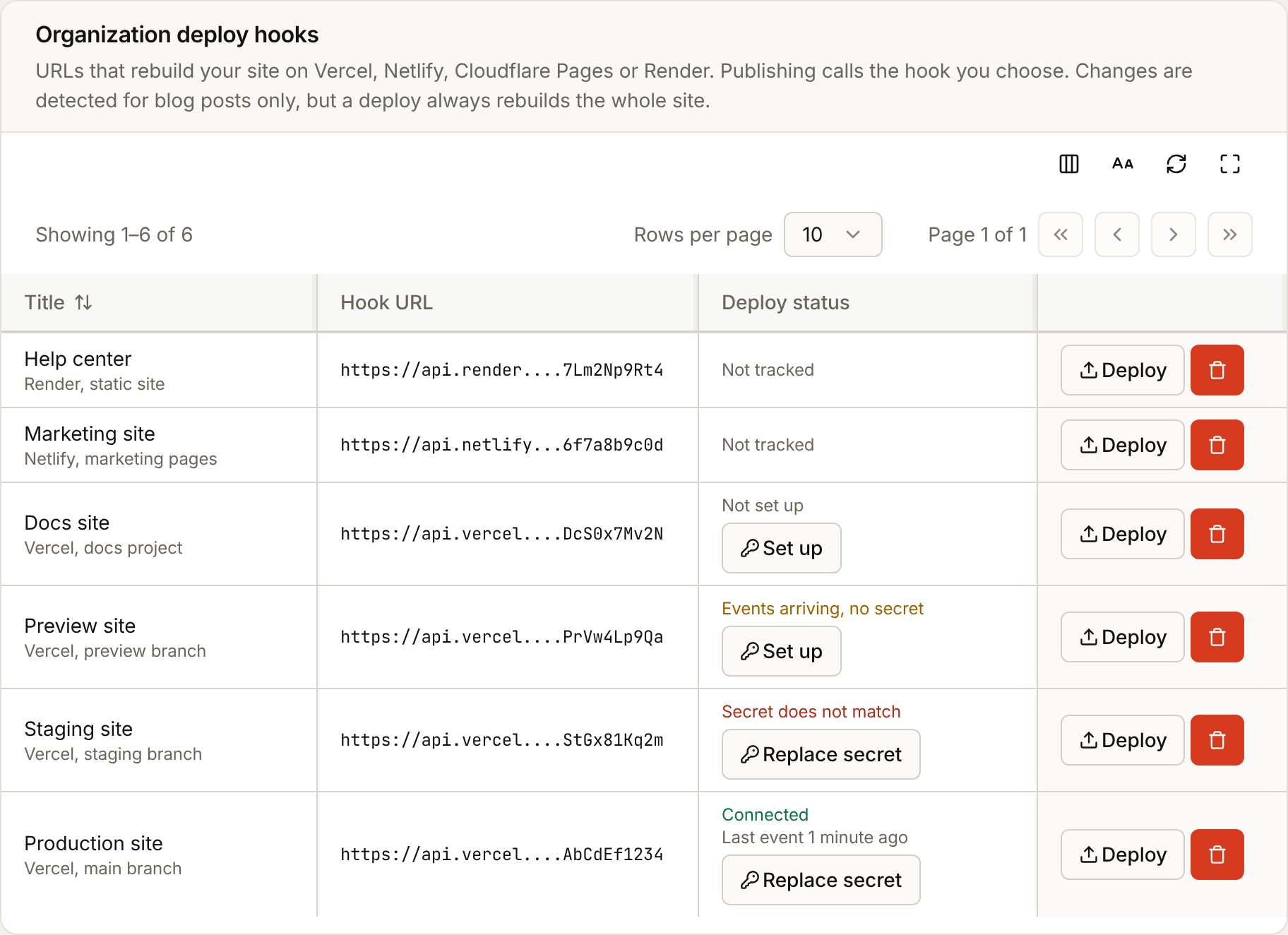
To add the webhook to a hook you already created, select Set up in its Deploy status column in Manage hooks. The dialog has the same steps and the same status URL. Paste the secret into Webhook secret and select Save secret.
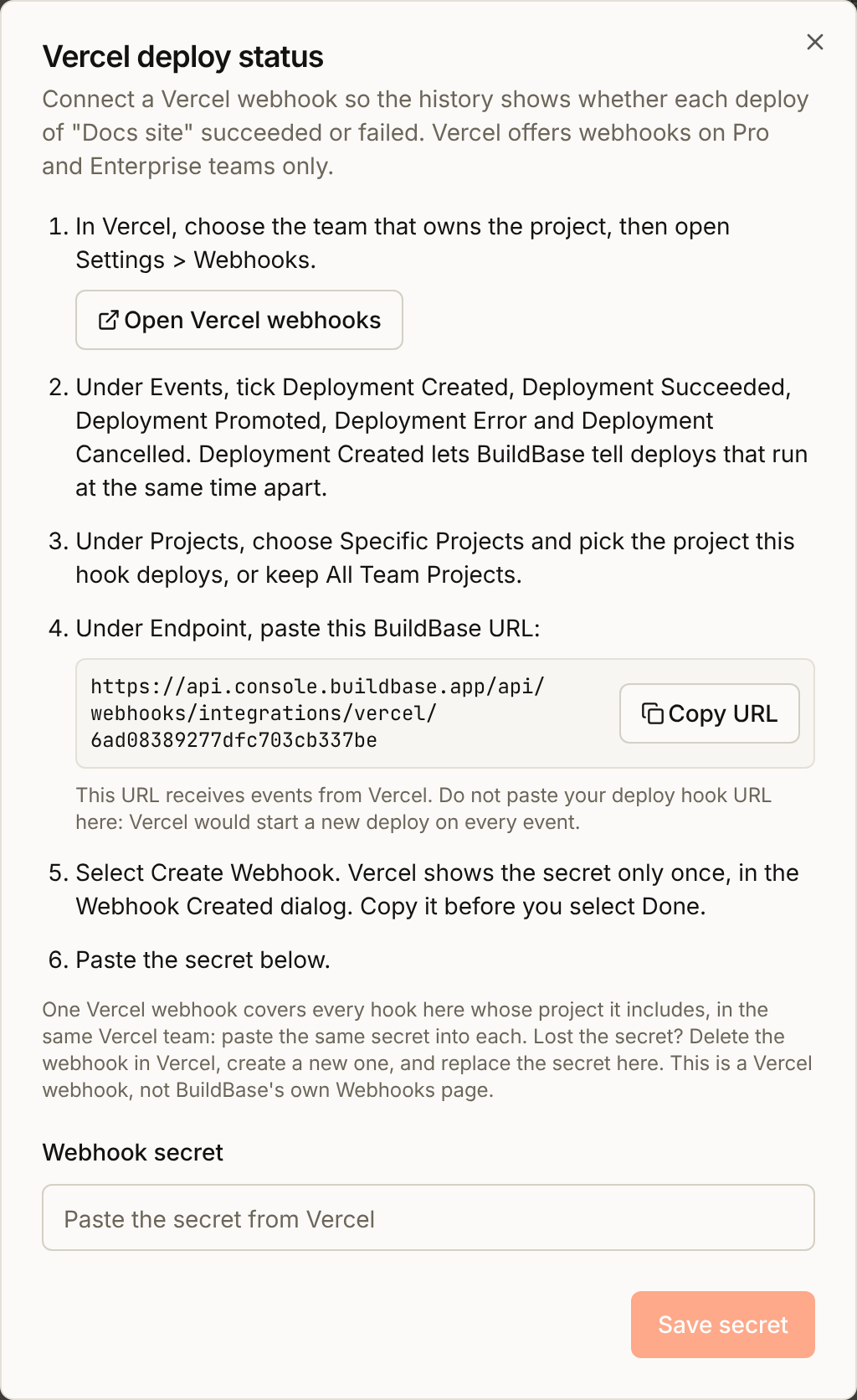
For a hook that has a secret, the button reads Replace secret. Its dialog shows a preview of the saved secret, and the steps and the status URL are under Show setup steps.
If you lose the secret, delete the webhook in Vercel and create a new one. Then save the new secret on every BuildBase hook the old webhook covered: Replace secret on each hook that had one, Set up on any that did not. A hook left on the old secret refuses every event.
Note
Vercel has to reach the BuildBase status URL from the internet. On a self-hosted BuildBase served from localhost or a private address, the console warns you, and deploys still run without results.
4. Check it works
In Manage hooks, select Deploy on the hook and confirm. Then:
- With the webhook from part 3, the deploy reads Pending in Settings > Deploy hooks, then within a few minutes Success or Failed. In Manage hooks, the hook's deploy status reads Connected, with when the last event came.
- Without it (Hobby), the deploy reads Triggered and the hook reads Not set up. That is expected: check the build in your Vercel project's Deployments.
From then on, start a deploy from the banner at the top of the console when posts change, or with Deploy on the hook. Starting a deploy shows both.
With the webhook, when the hook's latest build fails or is canceled on content that is not live yet, the content goes back on the banner: the hook returns to the content it had before the failed build, so you can publish again once the build is fixed.
Vercel also tells a deployment's creator when it fails, in the dashboard and by email, on every plan (Settings > My Notifications > Deployment Failures). Vercel's docs do not say who the creator is for a deployment a deploy hook started. With the webhook in part 3, those deploys read Failed in Settings > Deploy hooks, but BuildBase does not alert anyone. For an alert, keep Deployment Failures on, or point a second Vercel webhook with Deployment Error and Deployment Cancelled at a service of your own (Pro and Enterprise).
Common problems
| What you see | Why | Fix |
|---|---|---|
| The site did not change after you published a post | Publishing a post does not start a deploy | Select Preview changes on the banner, or Deploy on the hook |
| The deploy reads Triggered | The hook has no webhook secret, or the deploy started before you saved one. Those deploys stay Triggered | Do part 3 (Pro or Enterprise): the next deploy reads Pending. Check earlier deploys in Vercel |
| The deploy reads Failed | Vercel reported Deployment Error: the build failed | Open the deployment in Vercel and fix the build, then deploy again: from the banner if it offers the content, otherwise with Deploy on the hook |
| The deploy reads No result yet | No result arrived within an hour | Open the webhook in Vercel: check its events, its project and its recent deliveries, or open Setup guide |
| The hook reads Secret does not match | Vercel signs with a different secret from the one saved here | Replace secret with the one from the Webhook Created dialog, or create a new webhook |
| The hook reads Events arriving, no secret | The webhook exists in Vercel, but the hook has no secret | Set up, and paste the secret |
| The hook reads Some events refused | An older Vercel webhook with another secret still posts here, or you replaced the webhook and this hook has the old secret | Delete the webhooks you no longer use in Vercel, or Replace secret with the new webhook's secret |
| "answered 404 Not Found" | The hook was deleted in Vercel, or this is not the URL Vercel shows now | Create the hook again in Vercel, delete it here, and add the new URL with the same webhook secret |
| "answered with a web page, not a deploy hook" | The URL saved is a site or a page, not a hook | Add the hook again with the URL from Settings > Git > Deploy Hooks |
| "answered 429 Too Many Requests" | Vercel allows 60 deploy hook calls an hour per project | Wait, then deploy again |
| "answered 308 Permanent Redirect, a redirect" | The saved URL redirects somewhere else, and deploy hooks are not redirected | Save the URL it redirects to, usually the one Vercel shows now |
| The deployment reads Blocked in Vercel | On a Hobby team, Vercel blocks a private repository's deploy when the latest commit's author is not on the team | Push a commit of your own, or see Vercel's guide |
| Nothing builds, and Vercel shows no deployment | github.enabled is false in vercel.json, which turns deploy hooks off | Remove it, or check the status check on the commit for the reason |
Vercel limits
- 5 deploy hooks per project on Hobby and Pro, 10 on Enterprise.
- 60 deploy hook calls per hour per project.
- Up to 20 account webhooks per team.
- Vercel retries a failed webhook delivery for up to 24 hours.
References: Vercel deploy hooks and Vercel webhooks.
Next steps
- Deploy hooks - how a deploy reaches your provider, and what each status means
- Set up a Netlify, Cloudflare Pages or Render deploy hook - where each of them keeps its hook