
Add and publish testimonials in the console
Add a customer testimonial with their company in the console, publish it to your site, and archive it to take it down and free its place.
A testimonial is a quote from a customer, with who said it and where they work. Your site reads the published ones. This guide adds a quote from Northwind Traders' head of growth.
Before you start
A console role that can create and update testimonials, and room on your plan for testimonials.
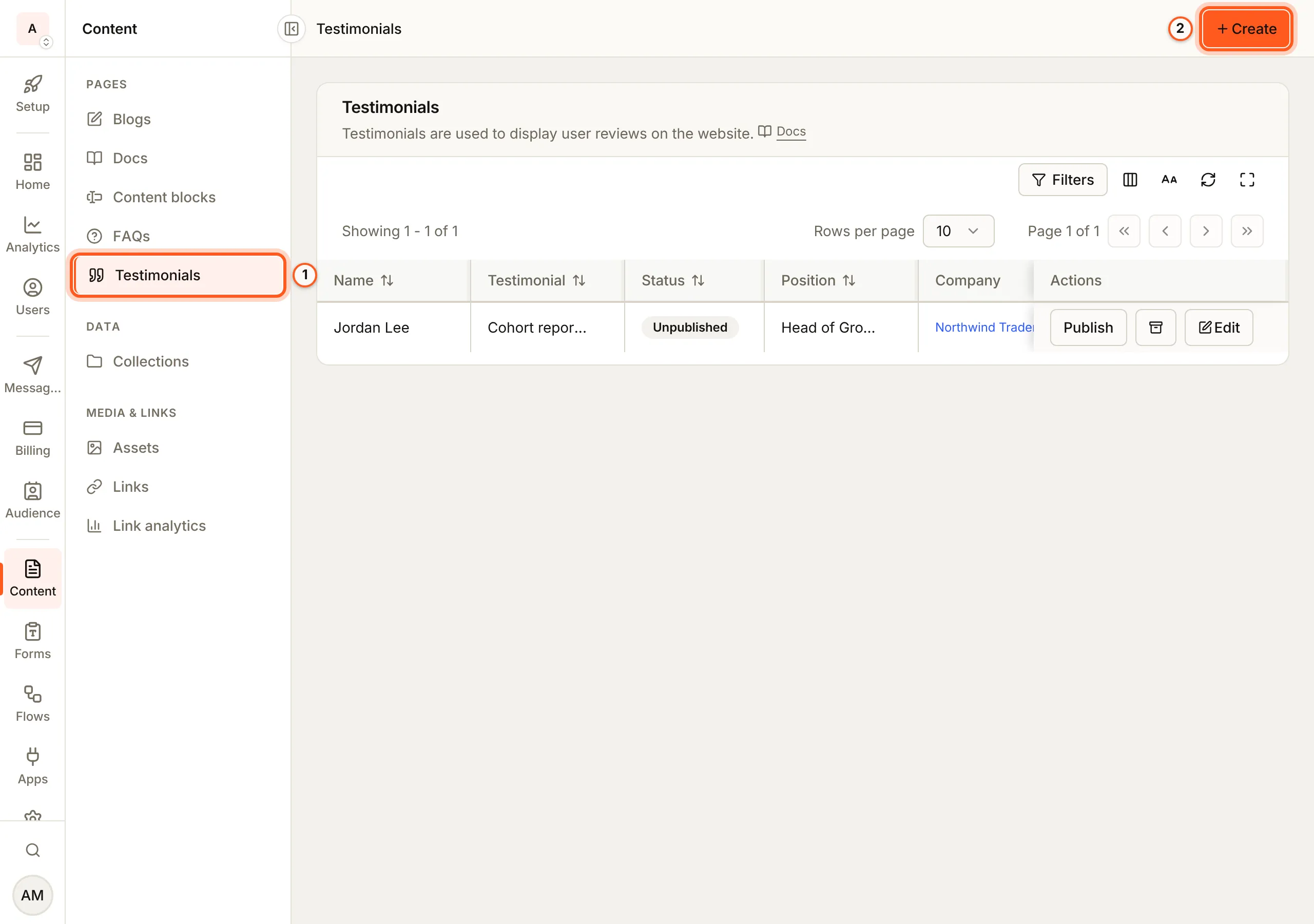
1. Open Testimonials
Open Testimonials in the console (opens the console in a new tab)In the left rail choose Content, then Testimonials under Pages. Press Create.
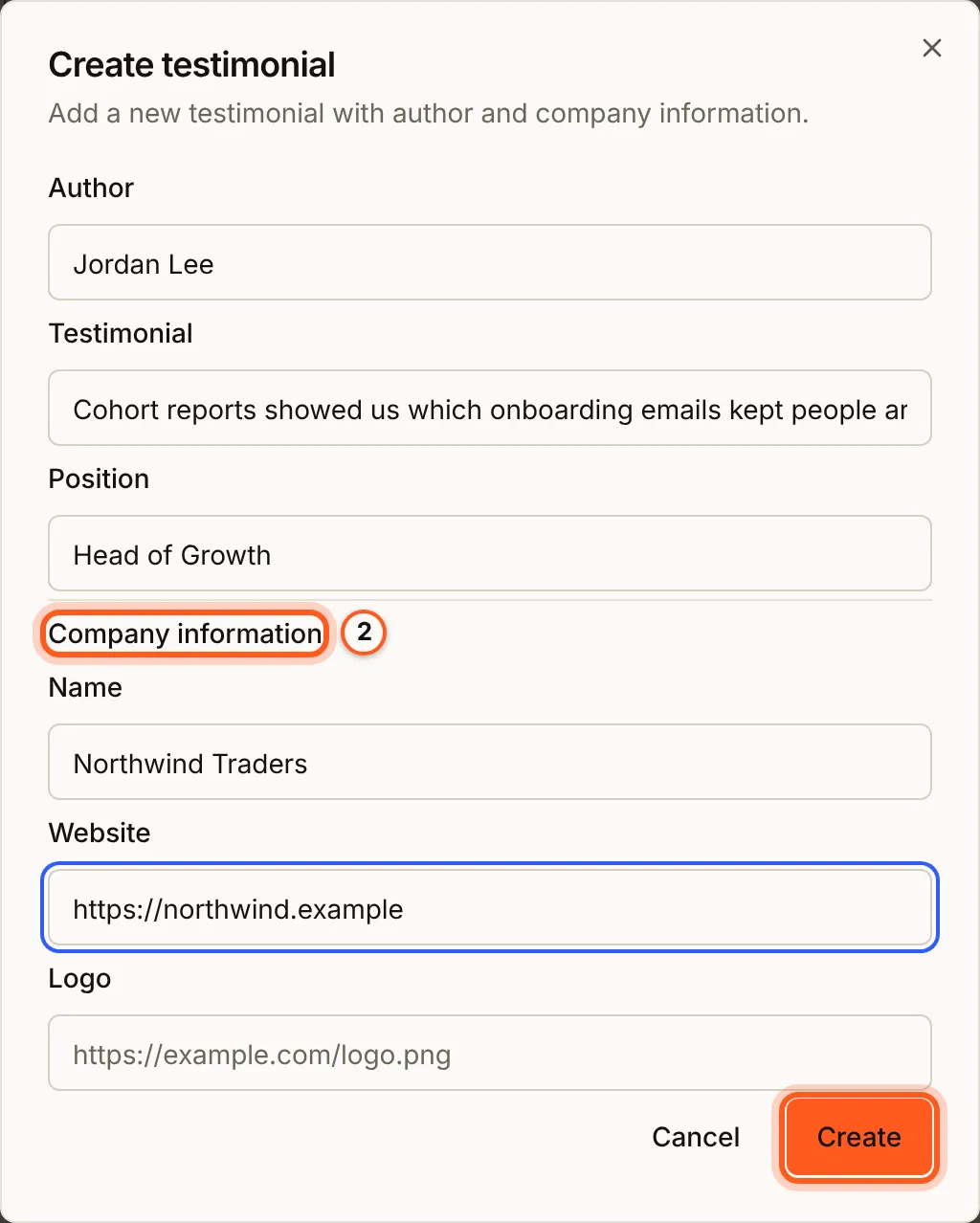
2. Add the quote
In Create testimonial, fill Author, Testimonial and Position. Under Company information, fill the company's Name, Website and Logo, the address of an image (the logo is a link, not an upload). The Website is an http or https address; any other link is refused, and reads return an older one as empty, so your site never renders it. Press Create. A new testimonial is unpublished.
3. Publish it
Press Publish on its row. It shows on your site at once; Unpublish asks first, then takes it down.

4. Archive it
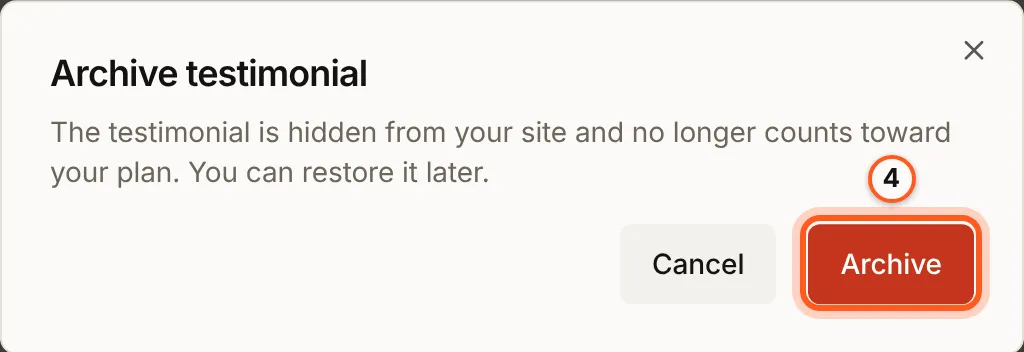
There is no delete. Press the archive button on its row and confirm with Archive: it leaves your site, stops counting against your plan, and drops out of the list. Filter by Archived to find it, and Restore to bring it back unpublished.
Check it works
Read the published testimonials with your org API key:
curl -G https://api.console.buildbase.app/api/testimonials \
  -H "Authorization: Bearer $BUILDBASE_TOKEN" \
  --data-urlencode 'filter={"published":true,"archived":false}'
Or with the server client from @buildbase/sdk/server, which returns the
published ones:
const quotes = await content.testimonials.list();Things to watch out for
- There is no delete. Archive takes a testimonial down and frees its place on your plan.
- Archiving also unpublishes it. Restoring brings it back unpublished, so publish it again.
- The logo is a link, not an upload. Use an image address of at most 2048 characters, such as a public asset.
- The author's photo (
avatar) is set only through the API. The console form has no field for it.
Next Steps
- Content overview - the testimonial routes and fields.
- Delivering content - read testimonials from your site with caching and webhooks.