
Gate a feature by plan or per workspace
Make a workspace flag, switch it on, and choose who decides who has it - your plans, workspace admins, everyone, or you, one workspace at a time.
A workspace flag turns one part of your app on for whole workspaces: advanced analytics on your top plan, an early feature for one customer, or a setting a workspace's admins switch on themselves. You make it in the console and choose who decides; your app shows the part only where it is on. This guide makes Advanced analytics for Acme Analytics.
Before you start
A console role that can create workspace Features, and room in your plan for one more. To tie a flag to a plan, a plan to grant it on (plans).
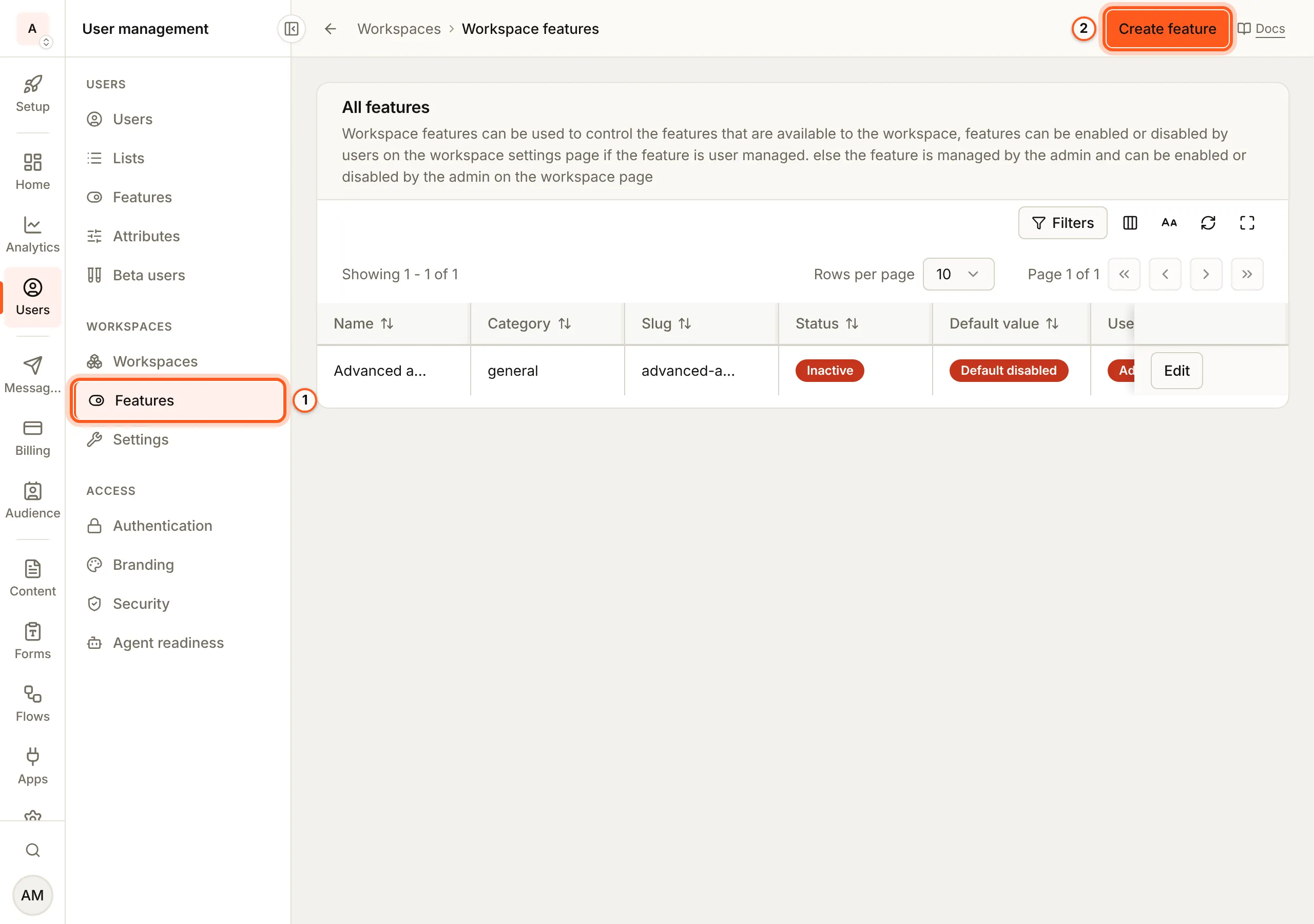
1. Open Features
Open Workspace features in the console
(opens the console in a new tab)In the left rail choose Users, then Features under Workspaces. Workspace features lists each flag with its Status, Default value, whether it is User managed or Subscription managed, and who it is Allowed to.
2. Make the flag
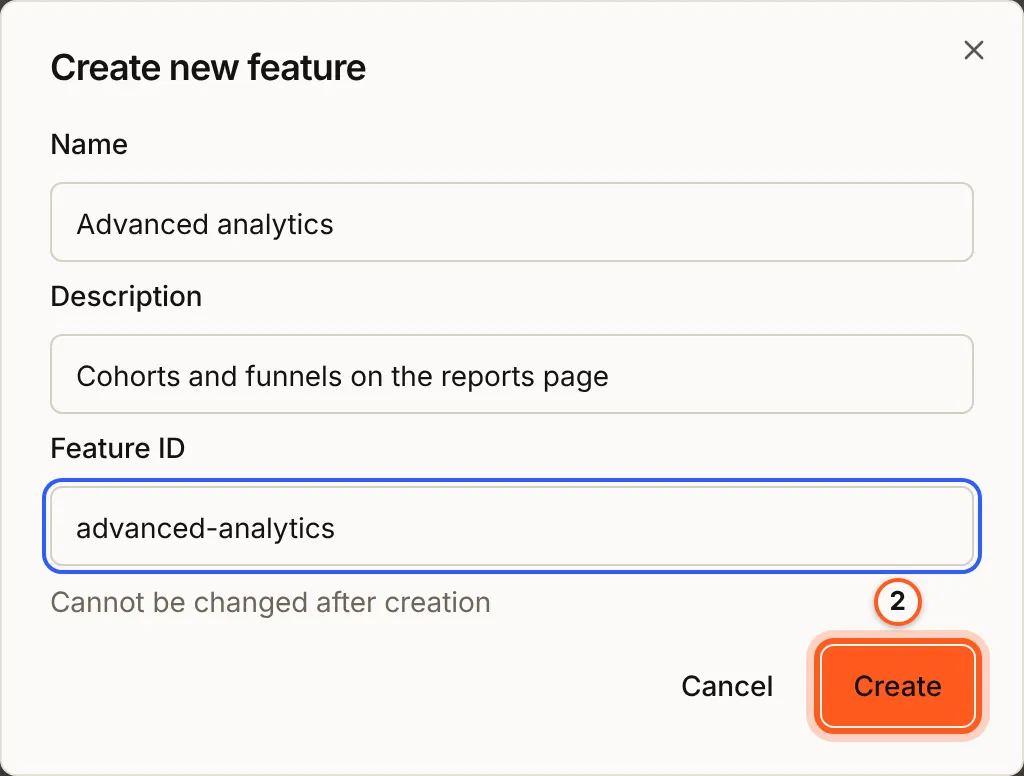
Press Create feature. Fill Name, Description and Feature ID, the
name your code checks, such as advanced-analytics, and press Create. The
ID cannot be changed afterwards.
3. Switch it on and choose who decides
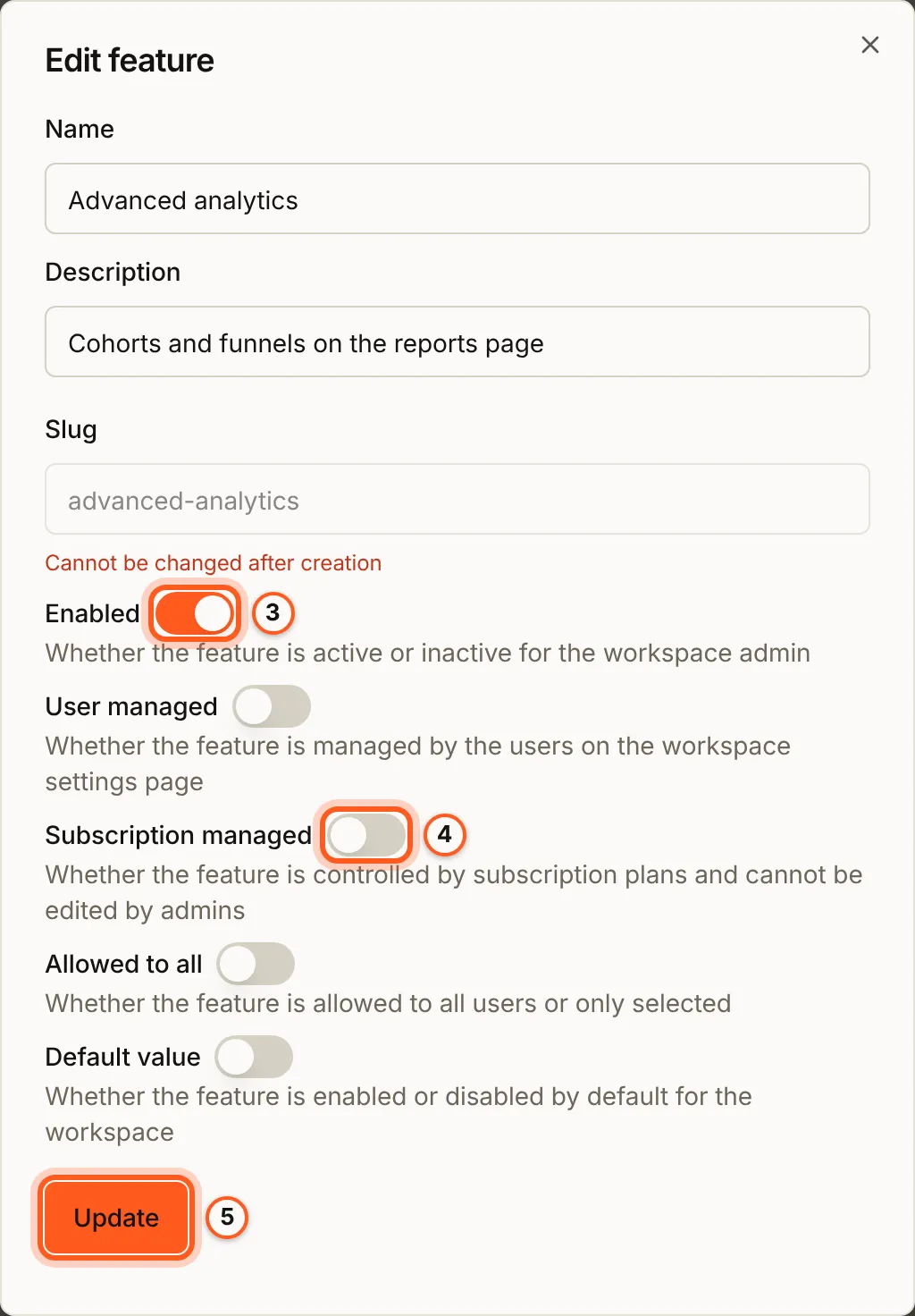
Press Edit on its row. In Edit feature:
- Enabled switches the flag on. A new flag is off, for every workspace.
- Then one of these decides which workspaces have it:
- Subscription managed: your plans. A plan that grants the flag turns it on for the workspaces on it (plans).
- User managed: each workspace's admins, on the features screen in your app.
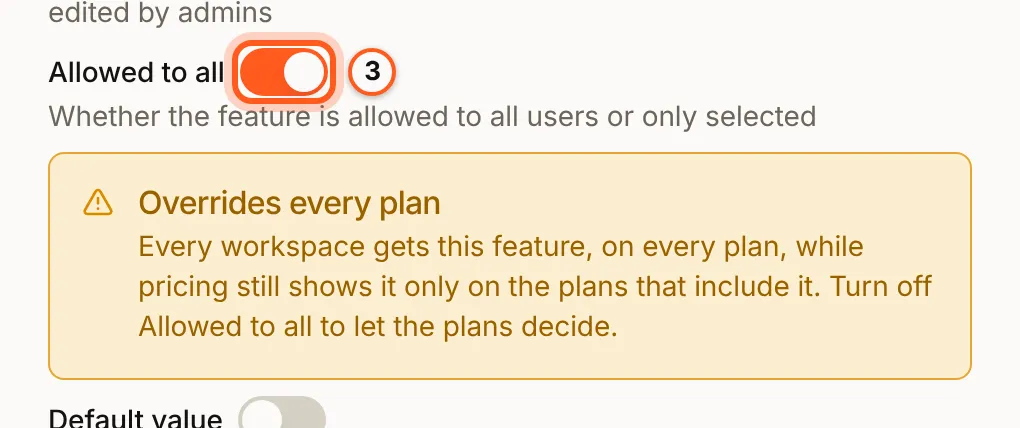
- Allowed to all: every workspace.
- None of them: you, one workspace at a time (step 4).
- Default value: what a workspace gets before anything else decides, such as a workspace with no plan yet when the plans decide.
Press Update. The dialog stays open; close it when you are done.
Allowed to all is not available while Subscription managed is on: the plans decide. A flag saved with both on earlier shows Overrides every plan: every workspace gets it, on every plan, while pricing still shows it only on the plans that include it. Turn Allowed to all off to let the plans decide.
4. One workspace at a time
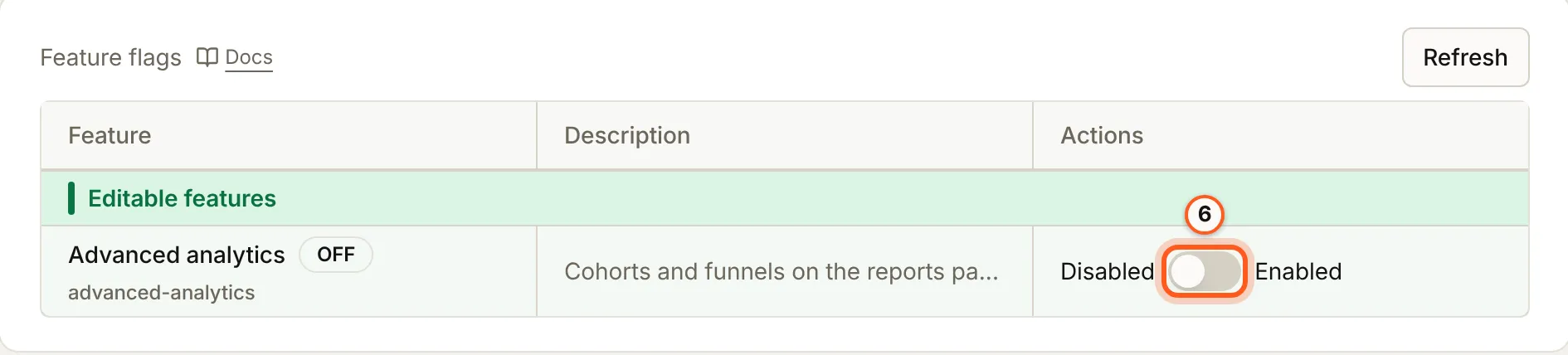
For a flag that none of the three decides, open the workspace under Users, Workspaces, and press View. Its Feature flags card lists the flag under Editable features, with a switch for that workspace alone.
5. Let workspace admins choose
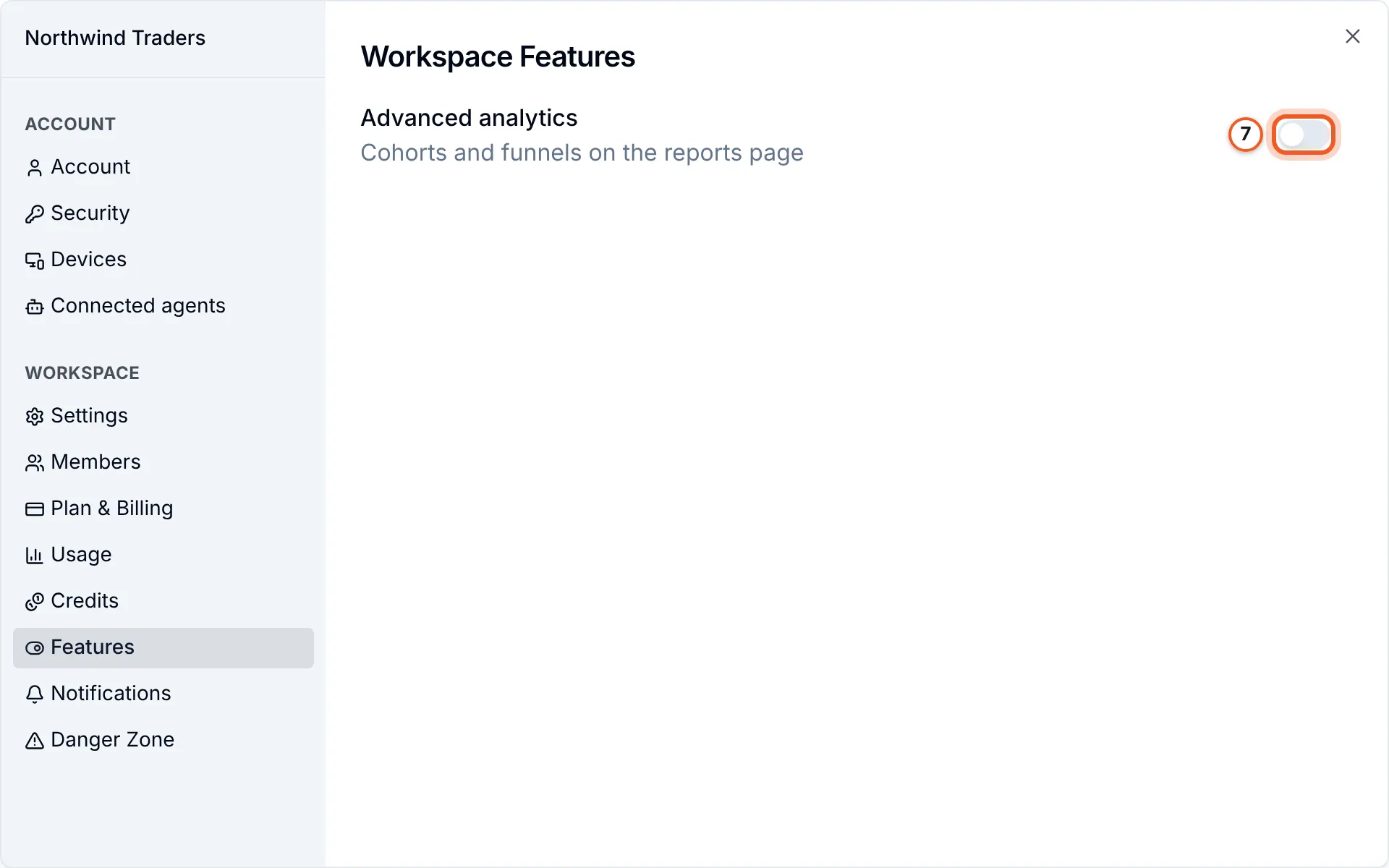
With User managed on, a workspace's admins switch the flag themselves on
the features screen of the SDK's settings dialog, openWorkspaceSettings('features')
(settings screens).
6. Show the feature in your app
Wrap the part of your app in WhenWorkspaceFeatureEnabled with the
Feature ID:
import { WhenWorkspaceFeatureEnabled } from '@buildbase/sdk/react';

export function Reports() {
  return (
    <WhenWorkspaceFeatureEnabled slug="advanced-analytics">
      <Cohorts />
    </WhenWorkspaceFeatureEnabled>
  );
}
For a flag made after the page loaded, whileUnknown="allow" shows the part
until the workspace's value arrives (feature flags overview).
Check it works
Switch the flag on for one workspace (step 4) and open your app in it: the part shows. Open another workspace: it does not.
Things to watch out for
- A new flag is off. Until Enabled is on, no workspace has it.
- Subscription managed and Allowed to all do not mix. With the plans deciding, Allowed to all is not available: "Not available while Subscription managed is on: the plans decide which workspaces get this feature."
- The per-workspace switch is only for flags nobody else decides. A flag that is user managed, subscription managed or allowed to all has no switch on the workspace's page.
- Workspace admins can change only user managed flags. Changing any other from the SDK or the server is refused with
403 FEATURE_NOT_USER_MANAGED.
Next Steps
- User flags - a feature for chosen people.
- Feature flags overview - every gate, and the hooks behind them.
- Looking up a workspace - a workspace's flags, plan and credits.