
Make your first API call
From nothing to a working BuildBase API request - get a key in the console, call the API with curl, Postman or the SDK, and read the answer.
In short
An API call is a message your computer sends to BuildBase, asking for something. To be allowed in, the message carries a key, like a password for programs. You make the key in the console, swap it for a session, then ask BuildBase for your workspaces. It takes about five minutes, and every command below can be copied as it is.
Before you start
A BuildBase organization, and a console role that may create API keys: owners
and admins can. You also need a terminal with curl (built in on macOS, Linux
and Windows 10 or later), or Postman.
1. Copy your Organization ID
Open Organization settings in the console
(opens the console in a new tab)Your Organization ID sits beside General. Press it to copy it, then keep it in your terminal:
export BUILDBASE_ORG_ID="paste-your-organization-id"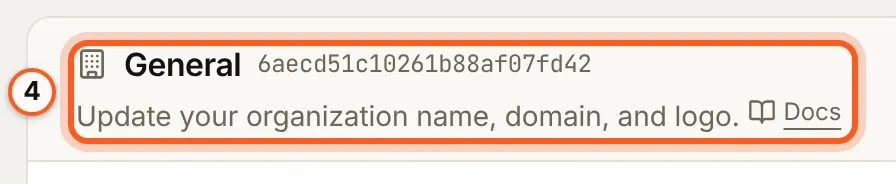
2. Create an API key
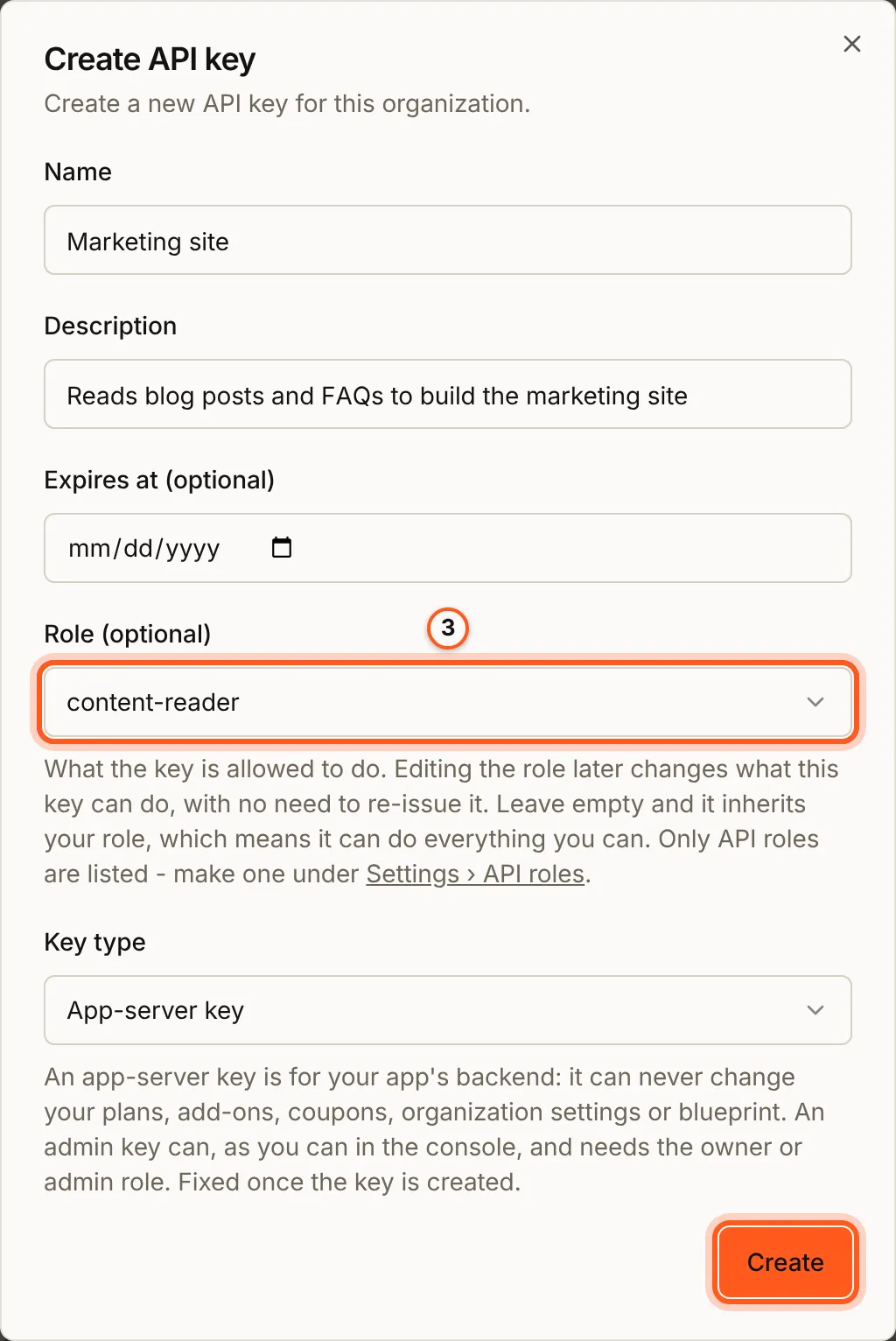
Open API keys in the console (opens the console in a new tab)- In the left rail choose Settings, then API keys under Organization.
- Press Create API key at the top right.
- Give it a Name such as
First API call, leave Role empty or pick a narrow API role, keep Key type on App-server key, and press Create. - Copy your API key shows the whole key,
orgId:secret, this once. Press Copy key.
export BUILDBASE_API_TOKEN="paste-the-key-you-copied"The key is a secret. Keep it in an environment variable on a server or your own machine, never in browser code or a chat. Make an API key for your server covers roles and retiring a key.
3. Call the API with curl
BuildBase's cloud API is at https://api.console.buildbase.app. The app API acts for one person, so it takes a session. Swap the key for one:
curl -s -X POST "https://api.console.buildbase.app/api/v1/public/token/exchange" \
  -H "Content-Type: application/json" \
-d "{\"token\":\"$BUILDBASE_API_TOKEN\",\"expiresIn\":3600}"{
"sessionId": "example-session-id-a-long-random-string",
"expiresIn": 3600,
"userId": "665f1c2e9b1d4a0012ab34ce",
"orgId": "665f1c2e9b1d4a0012ab34cf"
}The session is for the key's own user, for one hour. Copy sessionId, then ask for that user's workspaces:
export BUILDBASE_SESSION_ID="paste-the-sessionId"

curl -s "https://api.console.buildbase.app/api/v1/public/workspaces" \
  -H "x-session-id: $BUILDBASE_SESSION_ID"
A list comes back: the workspaces that user belongs to, or [] when there are none. Both mean the call worked.
4. Or call it with Postman
- In Postman choose Import, paste
https://docs.buildbase.app/openapi/public-v1.json, and import it as a collection. Every operation becomes a request, filed by tag. - Open the collection's Variables and check
baseUrlishttps://api.console.buildbase.app(or your own server). - In the Token folder open
POST /api/v1/public/token/exchange, put{"token": "<your key>"}in Body as raw JSON, and press Send. - In the Workspaces folder open
GET /api/v1/public/workspaces, add the headerx-session-idwith thesessionIdfrom step 3, and press Send.
Postman stores what you type in its own workspace: use a Postman environment variable marked secret for the key, not the request body of a shared collection.
5. Or call it with the SDK
In JavaScript or TypeScript, the server SDK sends the same requests:
import BuildBase from '@buildbase/sdk';

const bb = BuildBase({
  serverUrl: 'https://api.console.buildbase.app',
  orgId: process.env.BUILDBASE_ORG_ID!,
});

const workspaces = await bb
  .withSession(process.env.BUILDBASE_SESSION_ID!)
  .workspace.list();

console.log(workspaces);
6. Read the answer
Every answer has a status (a number) and a body (JSON). curl -i shows the status and headers above the body.
| Status | Means | What to do |
|---|---|---|
200 | It worked | Read the body |
400 | Something in the request is wrong; path names the field | Fix the field the message names |
401 | The key or session is missing, mistyped, expired or revoked | Check the header name and value; exchange the key again |
429 | Too many requests | Wait the seconds in Retry-After, then send it again |
HTTP API errors lists every status and body shape.
Screens on this page
The screenshots are the console's own, from Your organization and API keys, with example data only.
Next steps
- Authenticate API requests - sessions for your users, OAuth 2.0 for agents, and key lifetimes.
- Base URLs, environments and CORS - call a self-hosted server or a staging environment.
- The OpenAPI spec - every operation, for Postman and code generators.