
Create, publish and share a form
Make a form on a collection in the console, publish it, protect it from spam, share its link or embed it, and read what visitors send in.
A form is a public page, or an embed on your site, that writes what a visitor types into a collection: contact requests, sign-ups for an event, feedback. This guide makes Contact us for Acme Analytics, on the Contact requests collection the collections guide made, and sends it a first request.
Before you start
A plan with forms, a console role that can create forms, and a collection with a live version to fill (create a collection).
1. Open Forms
Open Forms in the console (opens the console in a new tab)In the left rail choose Forms. All forms lists each form with its title, how many submissions it has had, and its status. Press Create form.
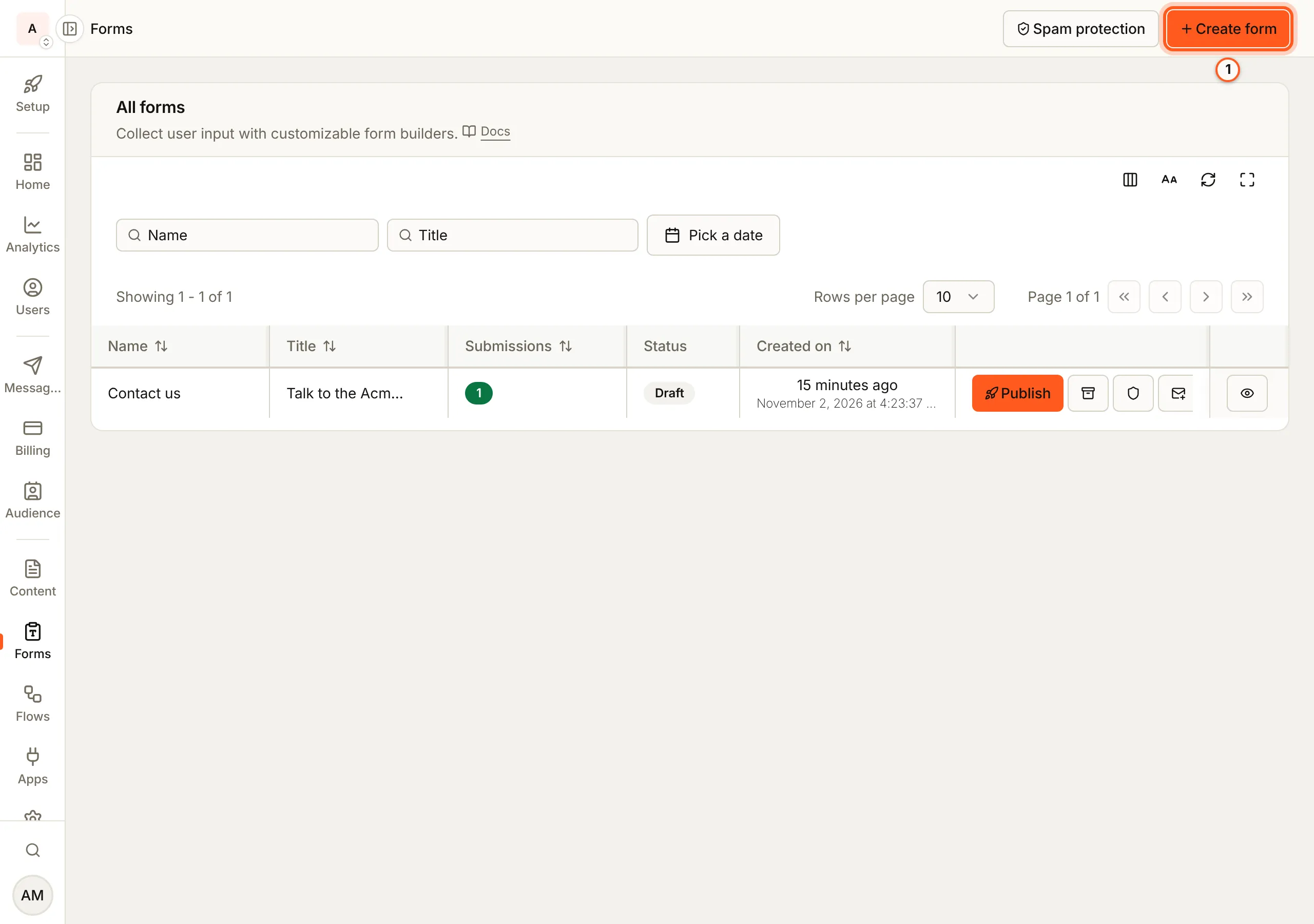
2. Name it and choose what it fills
In Create new form, fill Name (what your team reads), Title and Description (what the visitor reads), then choose the Collection and its Collection version. The form asks for the version's fields. Press Create.
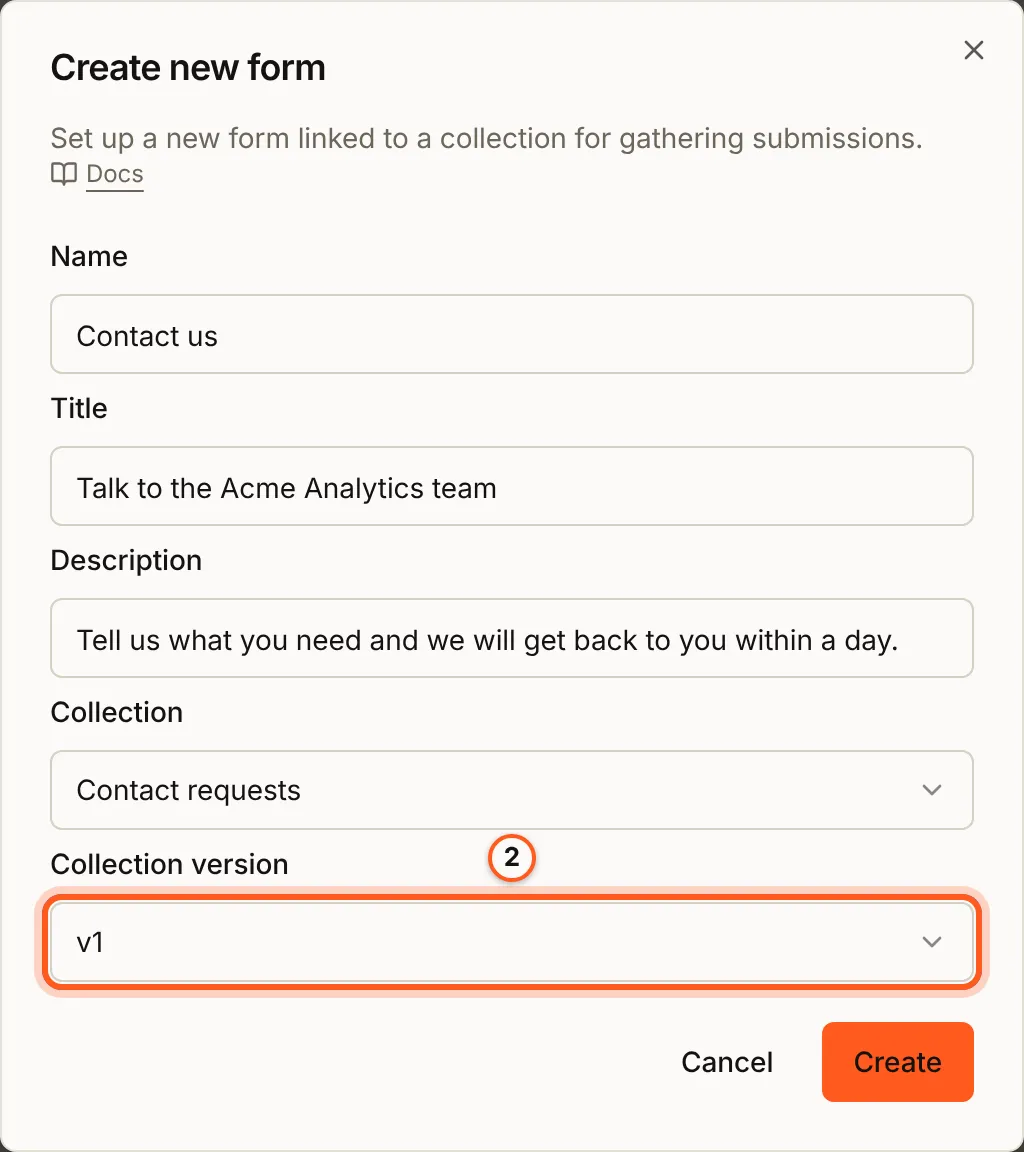
3. Publish it
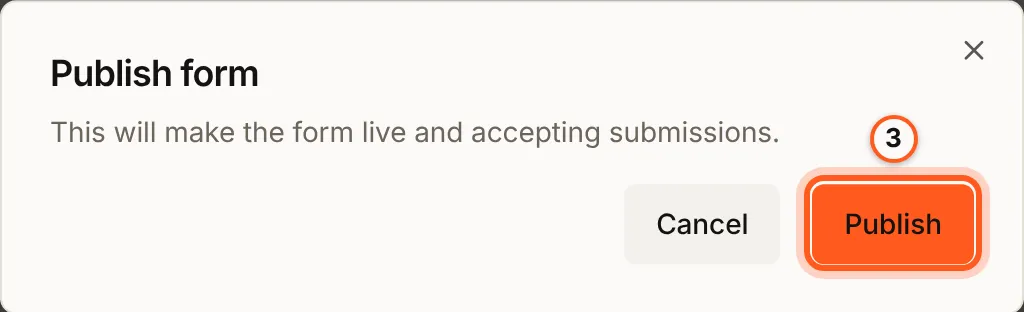
A new form is a Draft: its link, its embed and every public endpoint answer
404. Press Publish on its row and confirm with Publish.
4. Choose your captcha, once
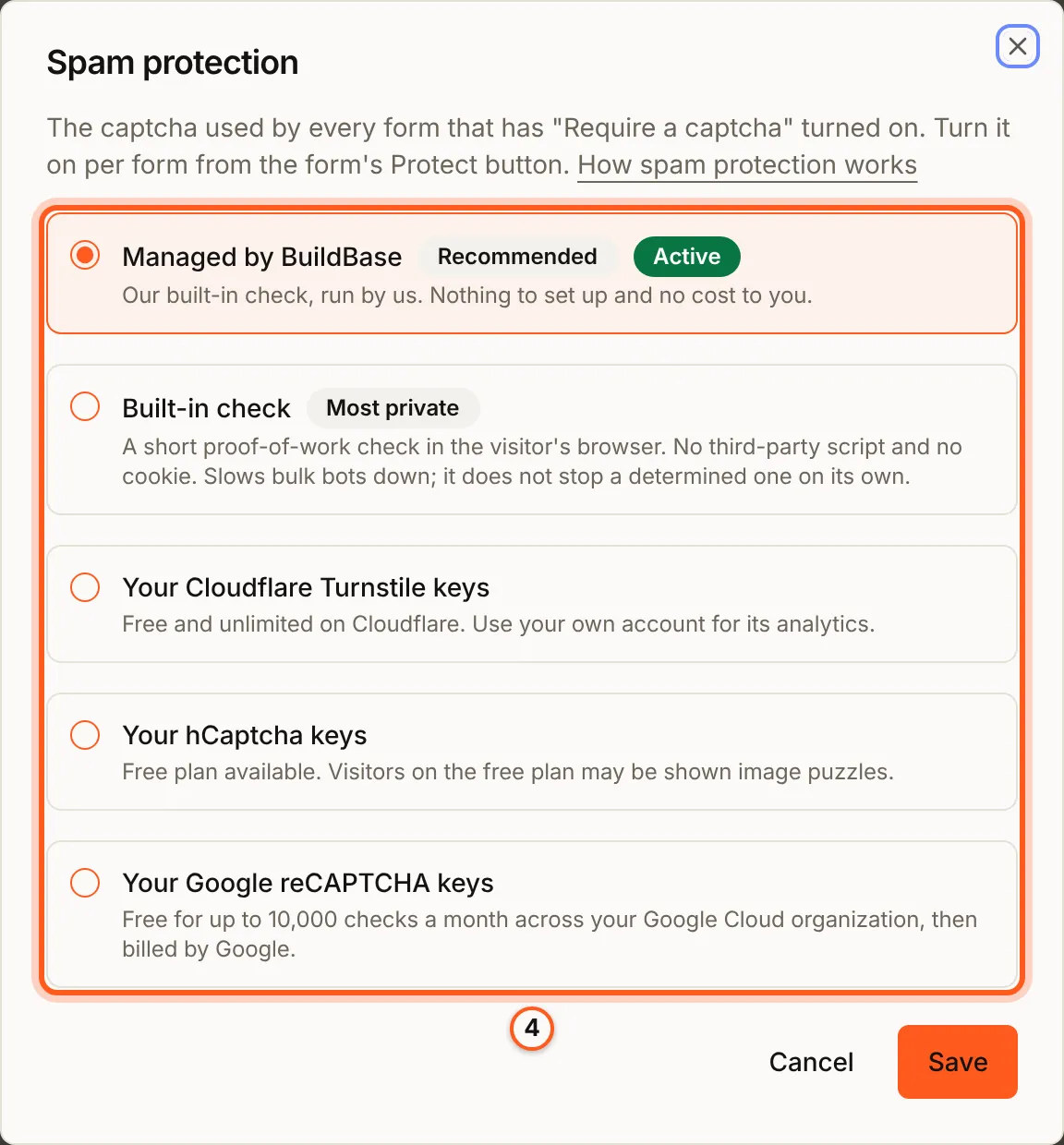
Spam protection, at the top of Forms, picks the captcha every protected form uses: Managed by BuildBase (nothing to set up), the Built-in check, or your own Cloudflare Turnstile, hCaptcha or Google reCAPTCHA keys. Press Save if you change it (spam protection).
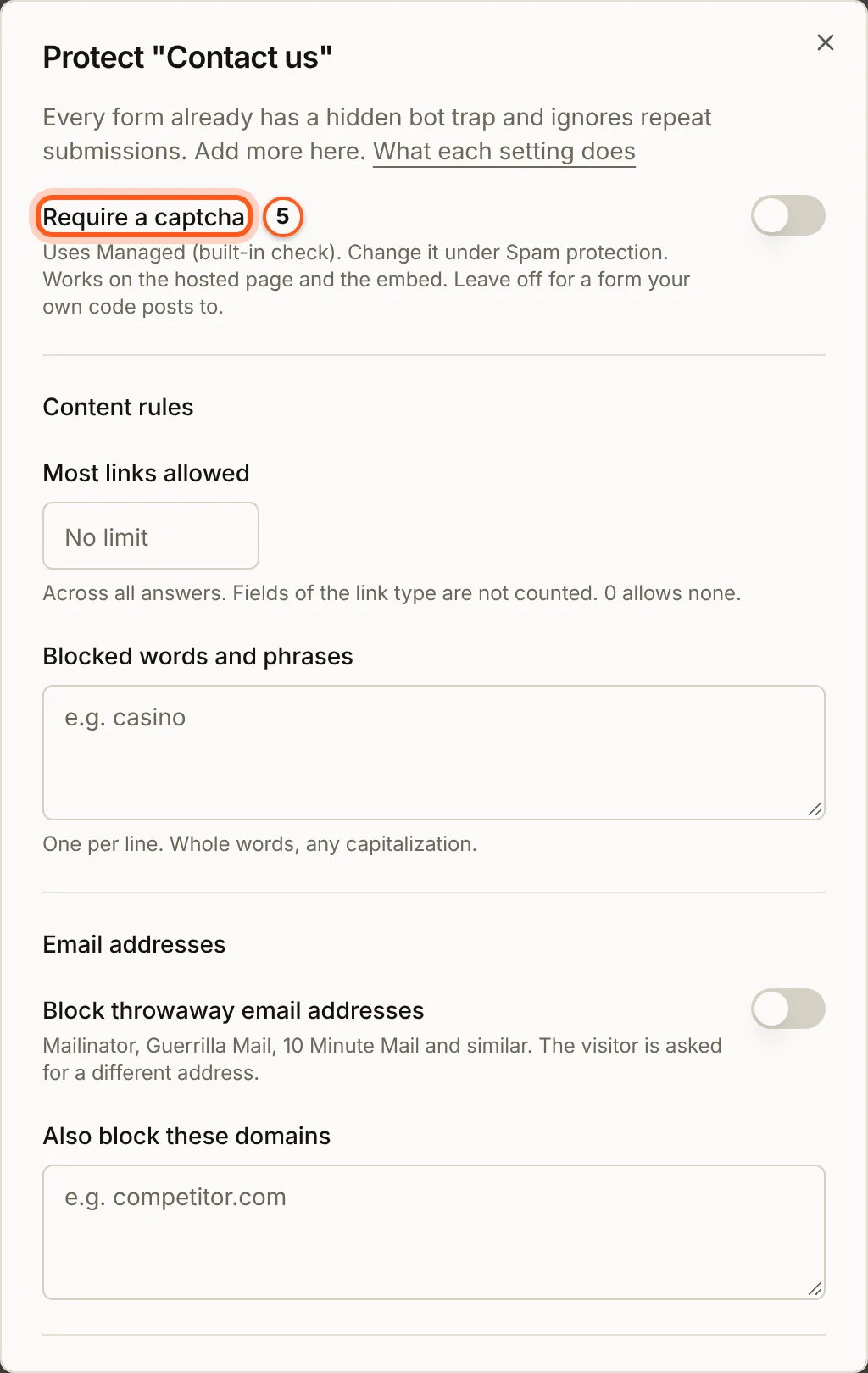
5. Protect this form
Press the shield on its row. Require a captcha turns the captcha on for this form. Below it, Content rules cap the links in an answer and block words, and Email addresses turns away throwaway inboxes and domains you name. Every form already has a hidden bot trap and ignores repeat submissions. Press Save.
The envelope on its row, Collect subscribers, adds the people who fill the form to your audience, with a confirmation email if you want one.
6. Share it or embed it
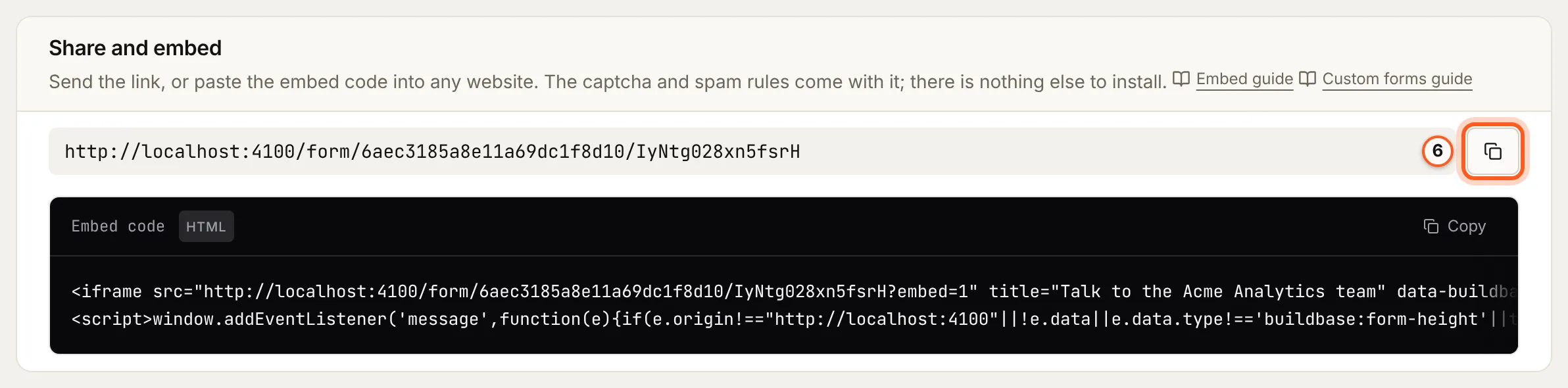
Press the eye on its row to open it. Share and embed has its link, with a copy button, and an Embed code to paste into any page of your site. The captcha and spam rules come with both (share and embed).
7. Send it a test
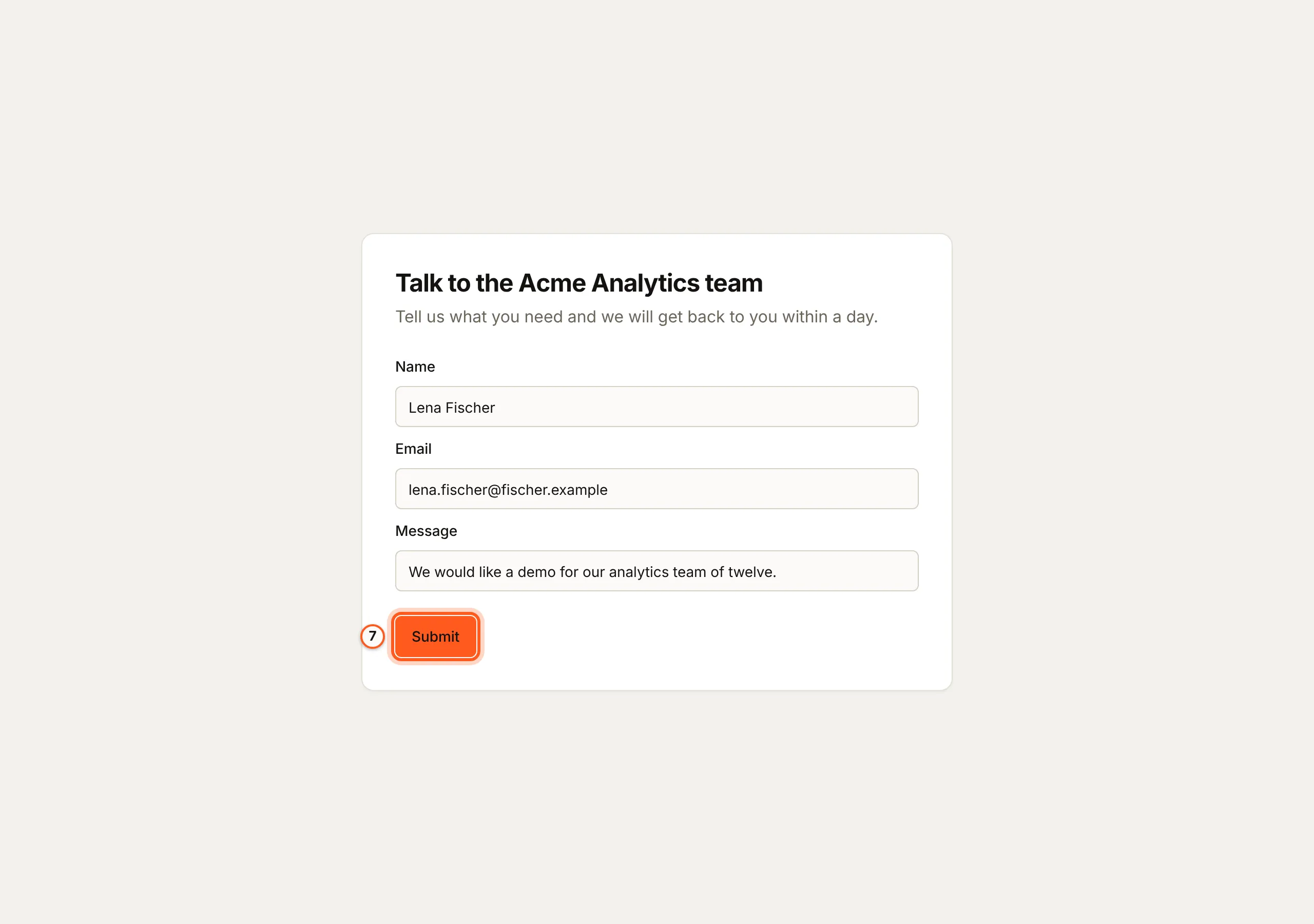
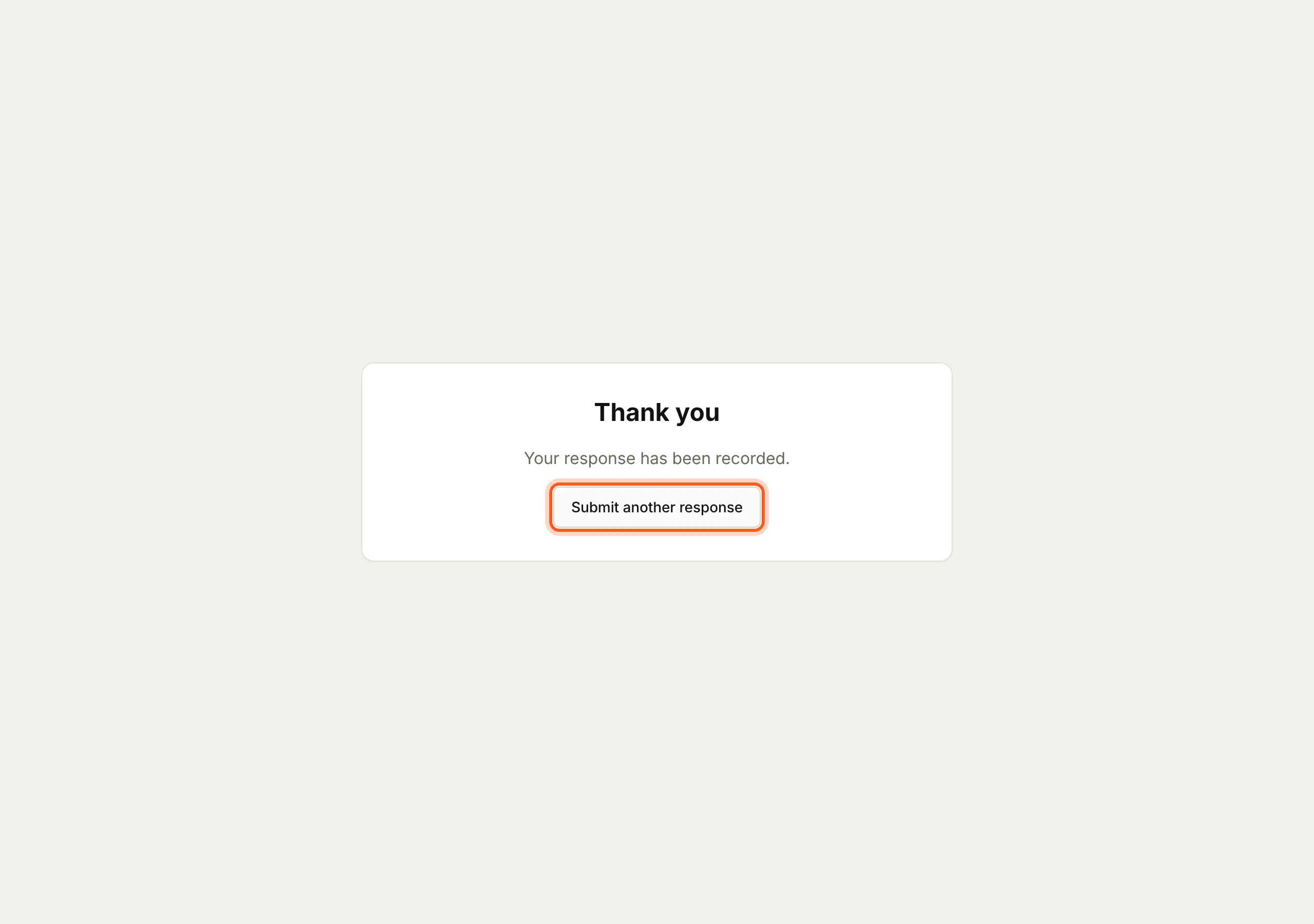
Press Open public form, at the top of its page. Fill it in as a visitor would and press Submit. The visitor sees Thank you.
8. Read what came in
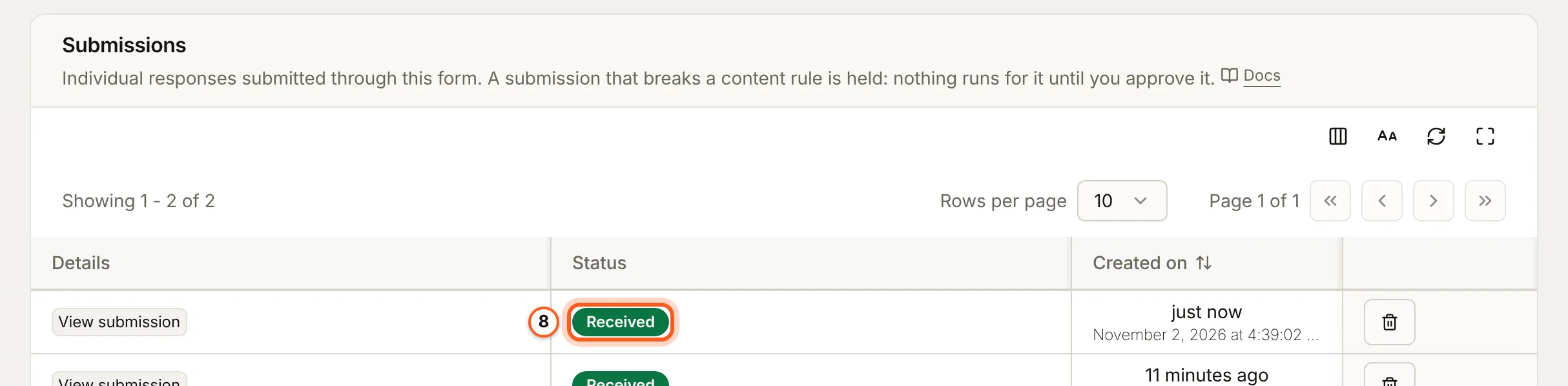
Back on the form's page, Submissions lists each one with its status: Received, or Held for review when it broke a content rule. View submission shows the answers, and the record is in the collection too. A held one fires nothing until you press Approve submission; Delete submission removes it.
To act on each one, use a workflow on Form Submitted, or the Form Submission to Webhook template.
Check it works
Submit the form from its link: the entry is Received under Submissions, and a record is in Contact requests.
Things to watch out for
- Only a published form answers. A Draft or Archived form's link, embed and endpoints answer
404. - A form cannot be deleted, and an archived one keeps its name. Archive a form to free its place under your plan's form count; restoring brings it back as a Draft. Creating another with the same name is refused: "Name ... is already in use. Choose a different name."
- Submissions are rate limited: 10 a minute and 20 an hour from one address, and 5,000 a day for your organization. A form your own server posts to meets the first limit sooner.
- A held submission fires nothing until you approve it. Approving fires
form.submitted. - With your own captcha keys, the widget's allowed hostnames must include the console hostname the Spam protection dialog shows, not only your site's.
Next Steps
- Spam protection - each setting, and your own captcha keys.
- Share and embed - the link and the embed in detail.
- Custom forms - post to a form from your own UI.