
Let your app's users upload images
Turn on uploads for your app's users in the console, set the largest file and a per-user total, and see what the SDK and the upload routes do with them.
Your app's signed-in users can upload a workspace image or a profile picture through the SDK. Their files are yours: stored for your organization, counted against its storage, public so they can be shown, and kept until you delete them in Assets. This guide sets what Acme Analytics' users may upload.
Before you start
A console role that can change organization settings, and @buildbase/sdk
0.0.84 or
later in your app. An older SDK has no upload control: its workspace image is
an emoji or a URL.
1. Open Billing
Open Billing in the console
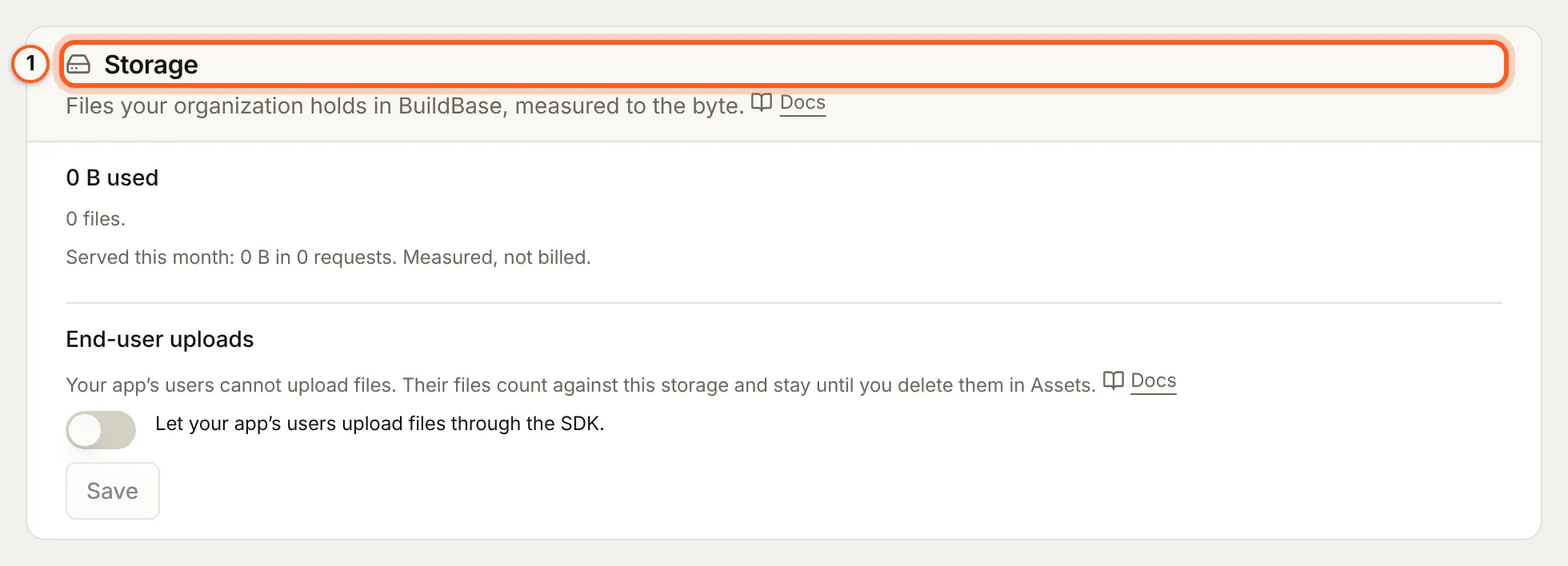
(opens the console in a new tab)Choose Settings, then Billing under Organization. The Storage card says how much your organization holds; its last part is End-user uploads.
2. Turn uploads on
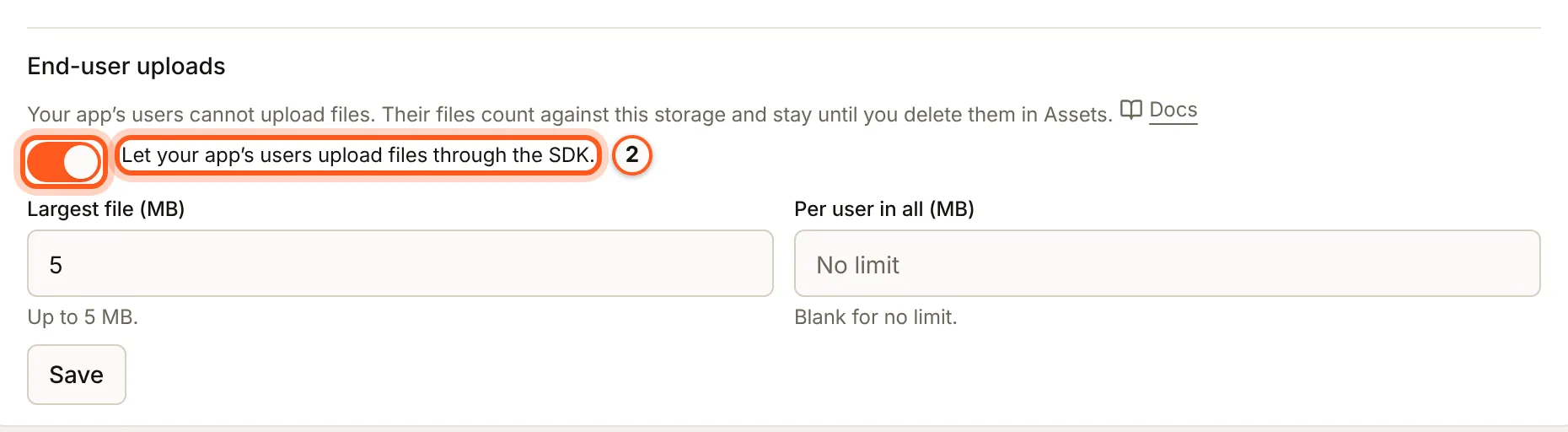
Under End-user uploads, turn on "Let your app's users upload files through the SDK." The sentence above the switch says what is allowed now. Uploads are on until you turn them off.
3. Set the limits
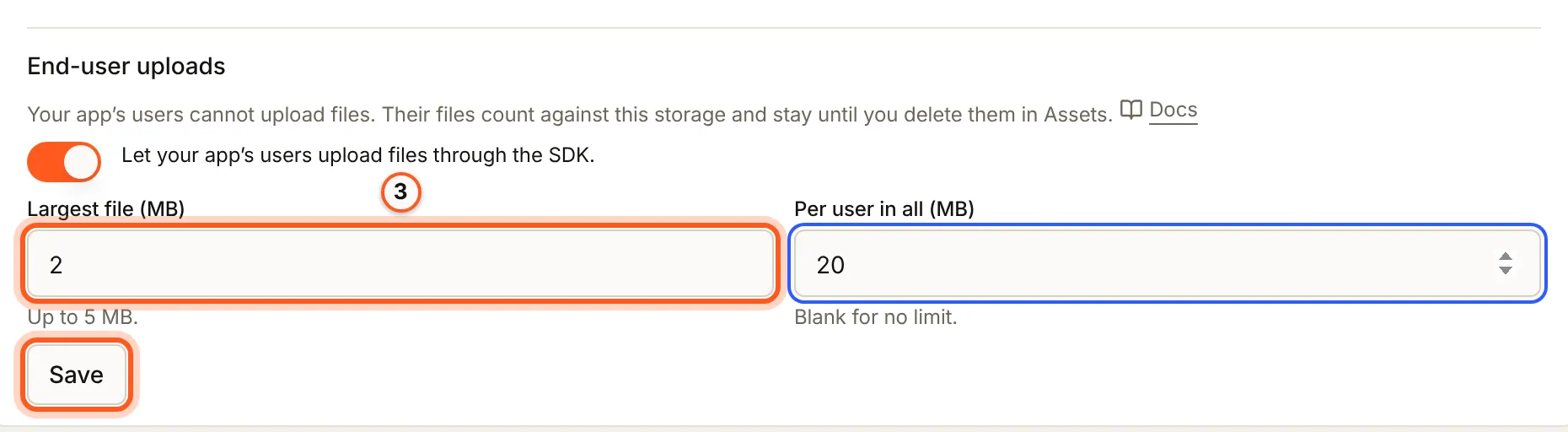
Set Largest file (MB), up to 5 MB, and Per user in all (MB), or leave it blank for no limit per user. Press Save. The sentence then reads, for example, "Your app's users can upload files up to 2 MB each, 20 MB per user in all."
4. Optional: stop at your allowance
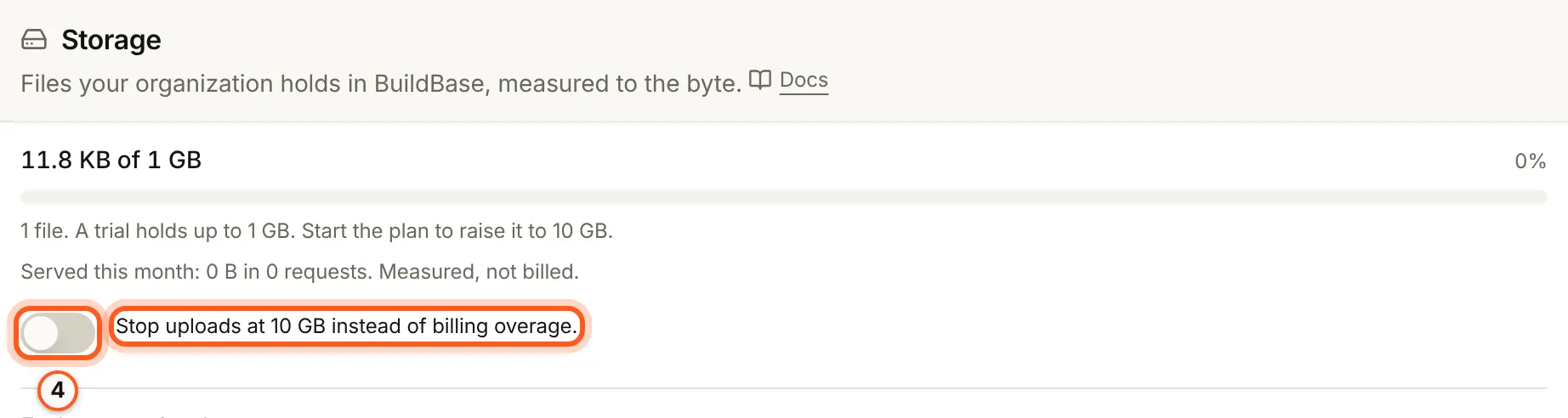
On a plan that bills storage overage, the Storage card also has "Stop uploads at X instead of billing overage." With it on, every upload stops at your plan's allowance, your users' included, instead of being billed (turning overage off).
5. Your users upload
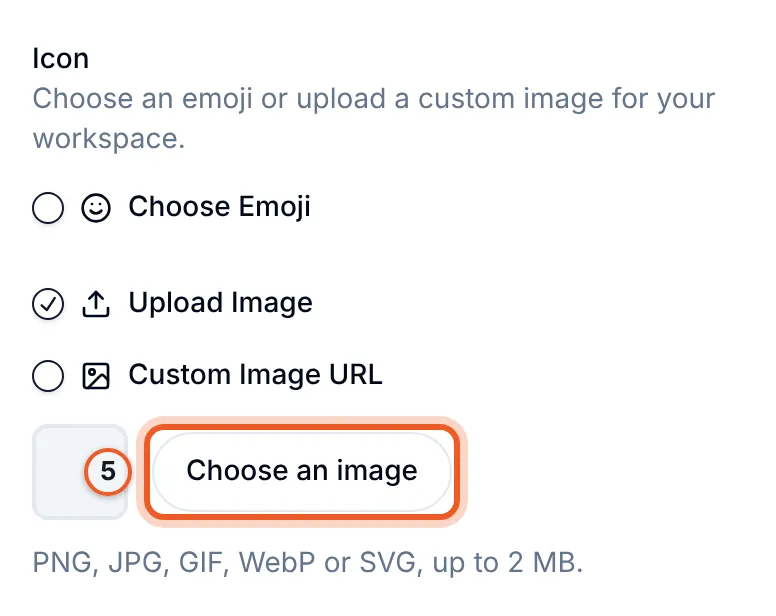
The SDK's own workspace settings offer an image upload under General, and the profile screen a picture upload, whenever uploads are on. In General, under Icon, your user picks Upload Image, then Choose an image; the line beneath says the largest file you allow.

For your own screen, useUpload does the whole upload:
import { useUpload } from '@buildbase/sdk/react';

function WorkspaceImage({ onUploaded }: { onUploaded: (url: string) => void }) {
  const { upload, loading, error, enabled, maxLabel } =
    useUpload('workspace-image');
  if (!enabled) return null;
  return (
    <label>
      Workspace image (up to {maxLabel})
      <input
        type="file"
        accept="image/*"
        disabled={loading}
        onChange={async (e) => {
          const file = e.target.files?.[0];
          if (file) onUploaded((await upload(file)).url);
        }}
      />
      {error && <p role="alert">{error}</p>}
    </label>
  );
}
enabled and maxBytes come from the settings above, so hide or limit the
control with them rather than waiting for a refusal. The hook's fields are in
the API reference.
Check it works
Upload a workspace image from your app, then open Content, then Assets: the file is there, public, with the user as its creator, and the storage meter is higher by its size.
Things to watch out for
- Files your users upload are yours. They count against your storage and stay until you delete them in Assets.
- The largest file is 100 KB to 5 MB, and a per-user total is at least 100 KB, or no limit.
- Turning uploads off hides the control in the SDK. Files already uploaded stay.
- On a self-hosted install, Billing is not in the console's menu. Set the policy with
PATCH /api/storage/settings, below.
Setting it over the API
Set the same three values with PATCH /api/storage/settings:
curl -X PATCH https://api.console.buildbase.app/api/storage/settings \
  -H "Authorization: Bearer $BUILDBASE_TOKEN" \
  -H "Content-Type: application/json" \
-d '{"endUserUploads":{"enabled":true,"maxFileBytes":1048576,"perUserBytes":null}}'| Field | Contents | Default |
|---|---|---|
enabled | Whether your app's users may upload at all | true |
maxFileBytes | The largest one file may be, from 102,400 (100 KB) to 5,242,880 (5 MB) | 5 MB |
perUserBytes | The most one user may hold in all, at least 100 KB, or null for no per-user limit | null |
Send any of the three; the others keep their values. It takes the permission to
change organization settings, and answers the usage response with the new
endUserUploads. The SDK reads the policy from your public settings, which
GET /api/v1/public/:orgId/settings answers as uploads: { enabled, maxFileBytes }. enabled there is also false when the server has no direct
uploads, so the SDK offers an upload only when one can succeed.
The requests
useUpload does all of this; the routes matter when you build your own. Each
runs with the signed-in user's session, like every SDK call.
| Method | Path | Body or answer |
|---|---|---|
POST | /api/v1/public/uploads | { purpose, name, size, contentType }, answered like an asset intent: uploadId, url, method, headers, expiresAt, maxBytes |
PUT | the signed url | The file, with exactly the headers returned |
POST | /api/v1/public/uploads/:id/complete | { id, name, size, mimeType, url, width, height } - url is the file's public URL |
purpose is workspace-image or profile-image, and the intent takes no
other field. Only the user who started an upload can complete it; anyone else
gets 404.
| Status | Code | When |
|---|---|---|
400 | INVALID_UPLOAD | A purpose other than the two above, a missing size, a type that is not an image, or a file that is not what it was declared as |
403 | UPLOADS_DISABLED | You turned end-user uploads off |
403 | USER_UPLOAD_LIMIT | The file would take the user past perUserBytes; the body carries heldBytes and limitBytes |
413 | UPLOAD_TOO_LARGE | The file is over maxFileBytes, or an SVG over 1 MB; on complete, what arrived is larger than declared. The body carries maxBytes |
429 | Too many uploads from one address, or for your organization today | |
503 | UPLOADS_UNAVAILABLE | Your organization cannot take the file: storage full, or a plan limit |
501 | UPLOADS_UNAVAILABLE | The server has no direct uploads configured |
409 | UPLOAD_NOT_RECEIVED, UPLOAD_FINALIZING | On complete: the PUT has not arrived, or the file is still being checked. Try again in a moment |
The 503 is deliberately neutral: your user cannot act on your plan, and your
storage meter already says why. The 402 your team gets when storage is full
(when an upload does not fit)
is never sent to them.
Saving the result
The upload answers a URL; store it where the image belongs:
- A workspace image: send it as
imagewhen creating or updating the workspace (PUT /api/v1/public/workspaces/:idwithnameandimage). - A profile picture:
PATCH /api/v1/public/profilewith{ "image": url }. An empty string removes the picture.
Both fields take any image URL up to 2048 characters, not only an uploaded one.
Next Steps
- Assets overview - storage, billing and every upload refusal.
- Upload and share images in the console - the Assets screen.
- Error codes - every upload refusal in one table.