
Workflow versions, history and limits
Compare and restore published versions, export and import a workflow as JSON, clone it, set exit conditions and frequency caps, and read per-step metrics.
Every time you publish a workflow, BuildBase keeps that version. If a change goes wrong, compare it with an earlier one and put the old one back.
This page also covers moving a workflow between organizations as a JSON file, ending a run early once the person has done what the workflow was nudging them toward, capping how many messages one person gets, and seeing how each step performs.
# List the published versions, then put version 3 back into the draft
curl https://api.console.buildbase.app/api/workflows/$WORKFLOW_ID/versions \
  -H "Authorization: $BUILDBASE_TOKEN"

curl -X POST https://api.console.buildbase.app/api/workflows/$WORKFLOW_ID/history/$VERSION_ID/restore \
  -H "Authorization: $BUILDBASE_TOKEN"
Before you start
Build and publish the workflow in the console under Workflows first. A workflow that was never published has no versions yet.
Versions
Each publish saves a version that never changes afterwards: the flow, the trigger, when and by whom it was published, and the change description if you gave one. Editing a published workflow changes only its draft. What runs stays the same until the next publish.
Below, an instance is one run of the workflow, for one person or one event.
| Method | Path | Purpose |
|---|---|---|
GET | /api/workflows/:id/versions | Every published version |
GET | /api/workflows/:id/versions/:versionId | One version, with its flow |
GET | /api/workflows/:id/publish-preview | What publishing the draft would change |
POST | /api/workflows/:id/history/:versionId/restore | Copy a version into the draft |
POST | /api/workflows/:id/versions/:version/pause | Pause the running instances on that version |
POST | /api/workflows/:id/versions/:version/resume | Resume them |
In the builder, Versions opens the version history, and Compare versions there puts any two published versions side by side. Restore never publishes on its own. The old flow lands in the draft with the message "Version restored to draft. Publish to activate.", so you review it and publish it as the next version.
Pausing by version stops the instances still running an old flow, without touching those on the new one.
In the builder
Open Workflows in the console (opens the console in a new tab)Open a workflow from All workflows and press Versions in the header.

Version history lists every version, newest first, with the message it was published with, when, and how many nodes and connections it has; the one running is marked current. Press Compare versions to put two side by side, or Restore on an older one to copy it into the draft.
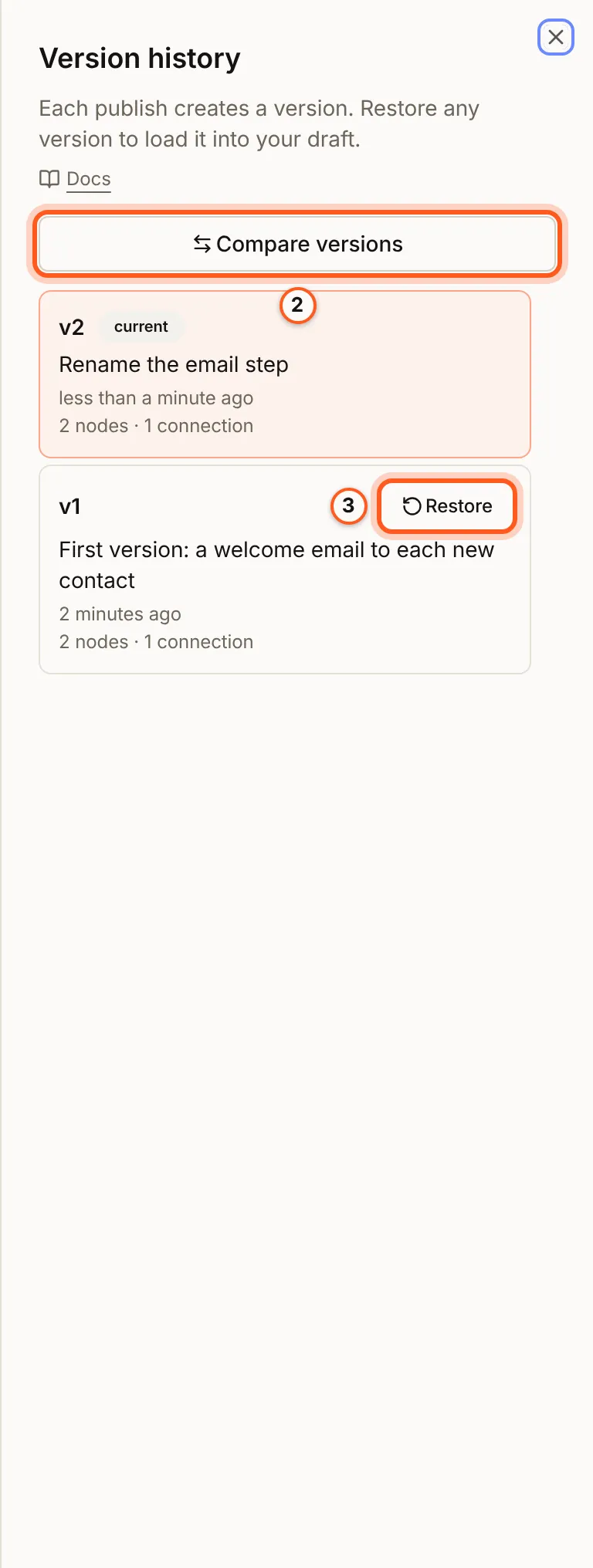
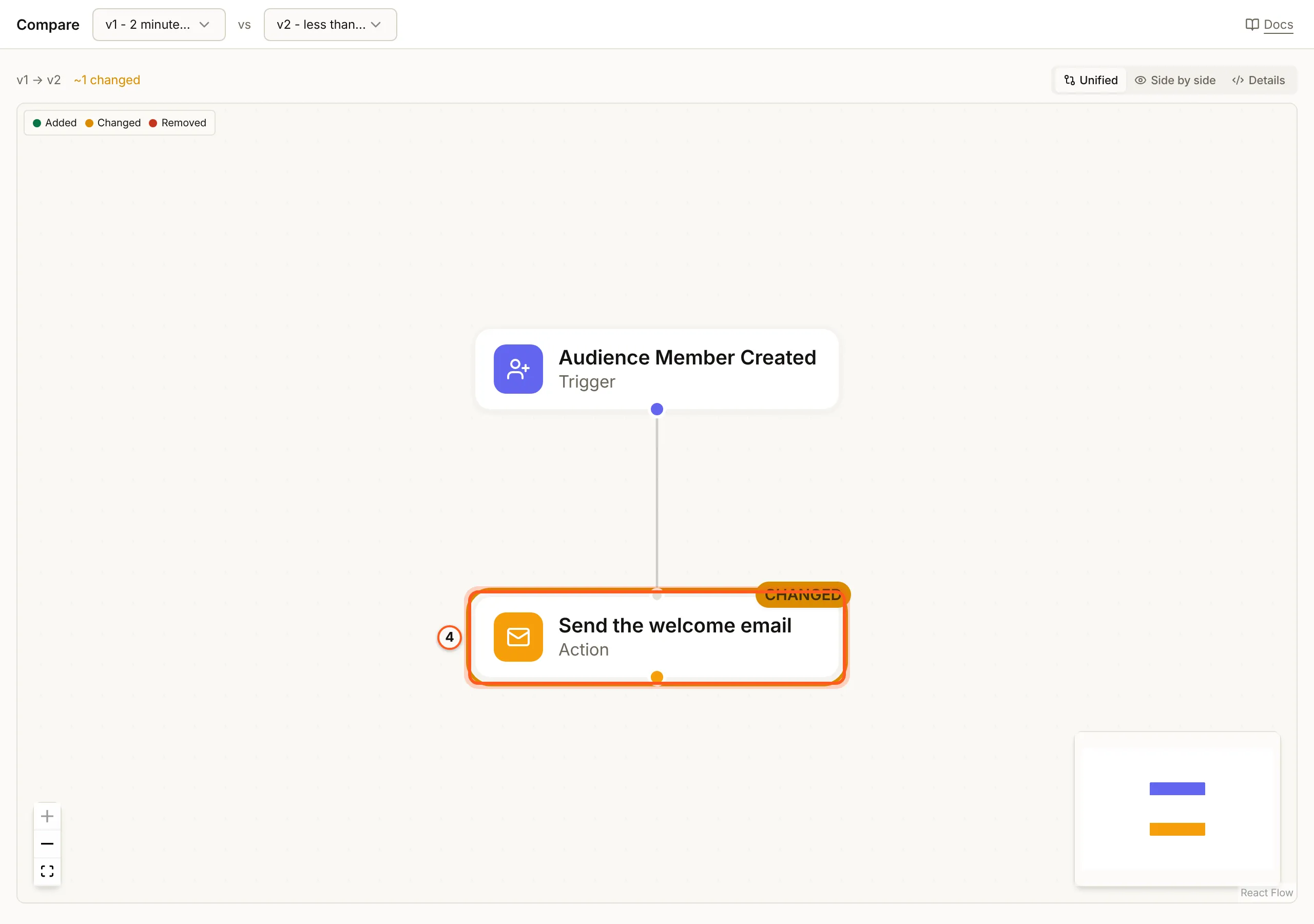
Compare versions picks any two versions and marks each step Added, Changed or Removed, on one flow (Unified) or two (Side by side). Details lists what changed in each step.
Audit log
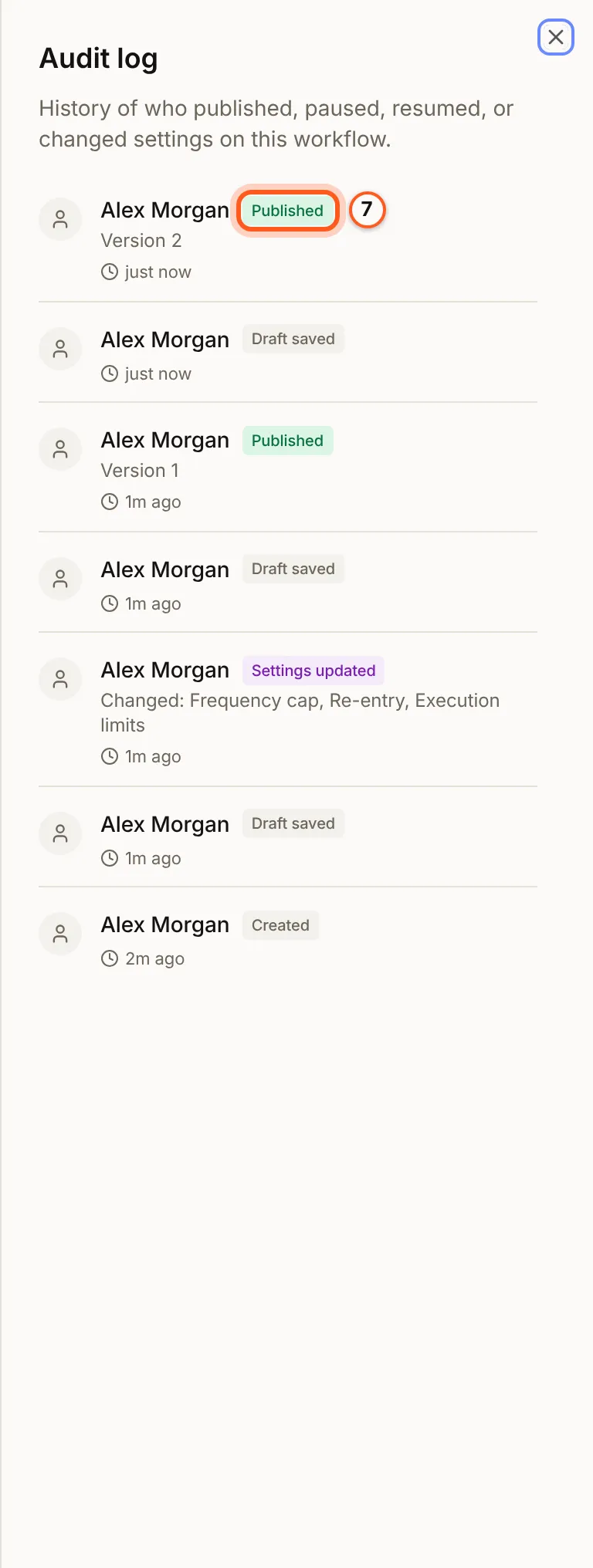
Audit log in the builder's header lists who did what to the workflow and when: created, published, paused, resumed, settings changed, a version restored, a run canceled or a step retried.
Export, import and clone
Export a workflow to a JSON file, and import that file somewhere else.
| Method | Path | What it does |
|---|---|---|
GET | /api/workflows/:id/export | The name, description, trigger and draft flow as JSON |
POST | /api/workflows/import | A new draft from that JSON |
POST | /api/workflows/:id/clone | A copy of the workflow, as a draft |
An import is checked the way a publish is. Every step type (node) in it must exist, and a flow with a structural error is refused. Blank fields are allowed, since the builder shows them. An import also counts against your plan's workflow limit, and refuses a step your plan does not include.
Use export and import to move a workflow from a staging organization to production, or to keep a copy in your repository.
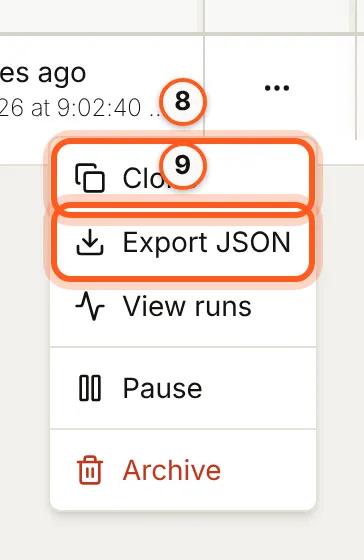
In the console, a workflow's menu on All workflows has Clone and Export JSON, and Import beside New workflow takes the file.

Inside one organization, a development or staging environment promotes workflows from the console's Changes screen instead. Each one lands as a draft, and nothing goes live until someone publishes it there.
Exit conditions
An exit condition ends a run as soon as it becomes true. A sequence nudging
someone to upgrade, for example, stops once they are in your customers list.
Set them in the workflow's settings, up to 50. Combine them with OR (any one
is enough, the default) or AND (all must hold).
| Type | Stops the instance when |
|---|---|
field_check | A field in the run's data (what the trigger sent, or a step's output) matches the field, operator and value |
audience_in_list | The contact is in an audience list |
audience_not_in_list | The contact is not in an audience list |
instance_node_failed | A step of this instance failed |
curl -X PUT https://api.console.buildbase.app/api/workflows/$WORKFLOW_ID/exit-conditions \
  -H "Authorization: $BUILDBASE_TOKEN" \
  -H "Content-Type: application/json" \
  -d '{"exitConditions":[{"type":"audience_in_list","label":"Became a customer","enabled":true,"params":{"listId":"LIST_ID"}}],"exitConditionsCombinator":"OR"}'
Conditions are checked before each step runs. A running instance keeps the conditions it started with.
Saved conditions take effect at the next publish: runs that start after it use them. A publish also needs a change to the steps, so after changing only the exit conditions, publish together with your next change to the flow.
Frequency caps
A frequency cap limits how many emails, and how many push notifications, one
person gets from workflows in a day. A message over the cap is skipped, with
skipReason: "frequency_cap" in the step's output, so a later step can branch
on it.
| Where | Applies to |
|---|---|
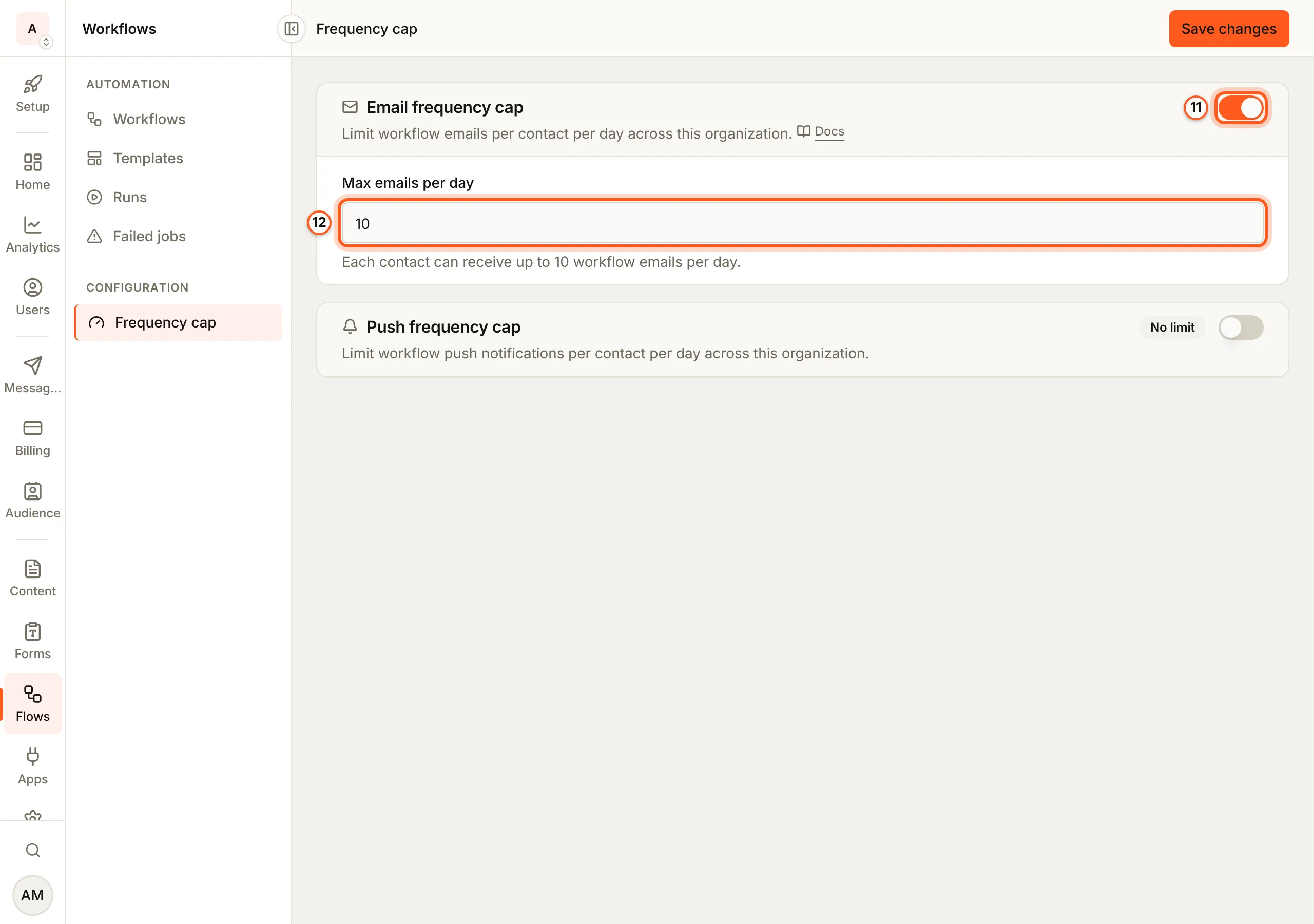
| Workflows > Frequency cap in the console | Every workflow in the organization |
| The workflow's own settings panel | That workflow, when no organization cap is set |
On the organization's page each cap is off, no limit, until you turn on
Email frequency cap or Push frequency cap, set the most per day and
press Save changes. In
a workflow's settings, 0 means no limit. The organization's cap wins over a
workflow's own.
Metrics
See how a workflow is doing, overall and step by step.
| Method | Path | Returns |
|---|---|---|
GET | /api/workflows/:id/metrics | Runs over time, bucket=daily or hourly, up to 1,000 buckets |
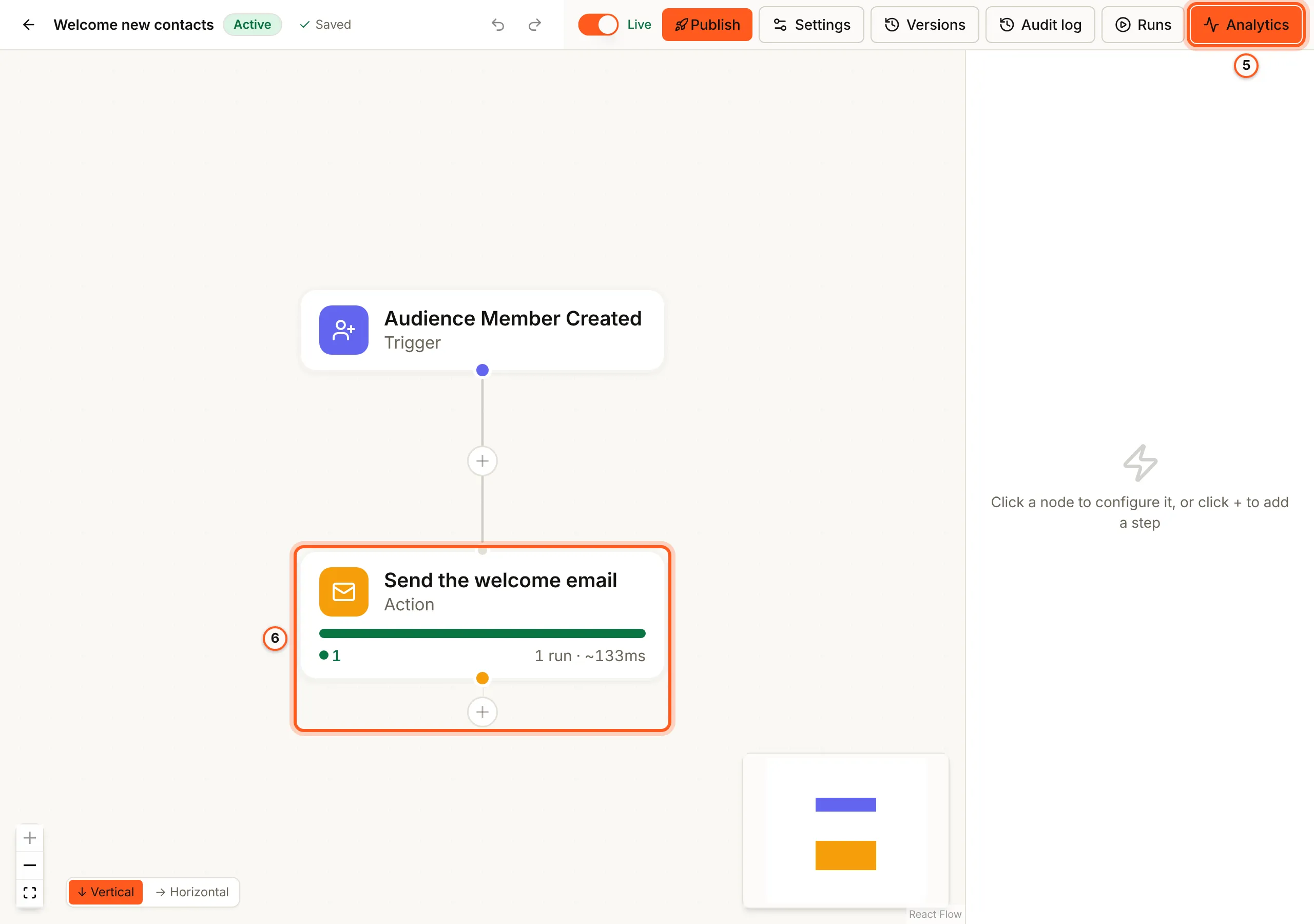
GET | /api/workflows/:id/analytics/nodes | For each step: how often it completed and failed, and its average duration |
Press Analytics in the builder's header to draw the per-step numbers on the workflow's canvas. The step where people drop out, or where runs fail, is the one that stands out.
Next Steps
- Monitoring - instances, retries, the dead-letter queue and the emergency stop.
- Workflow overview - the lifecycle, re-entry and testing before you publish.
- Triggers and actions - the 100+ triggers and every other node you can put in a flow.