
Create, share and track a short link
Make a short link in the console, copy it, change where it goes without breaking a shared copy, read its clicks, then archive or delete it.
A short link is an address you share instead of a long one: in an email, a post or a slide. It counts each click, and you can change where it goes after you have shared it. This guide makes one for Acme Analytics' November webinar slides.
Before you start
A console role that can create and update links, and read link analytics for the charts. Your plan sets how many links you may keep; archived ones do not count.
1. Open Links
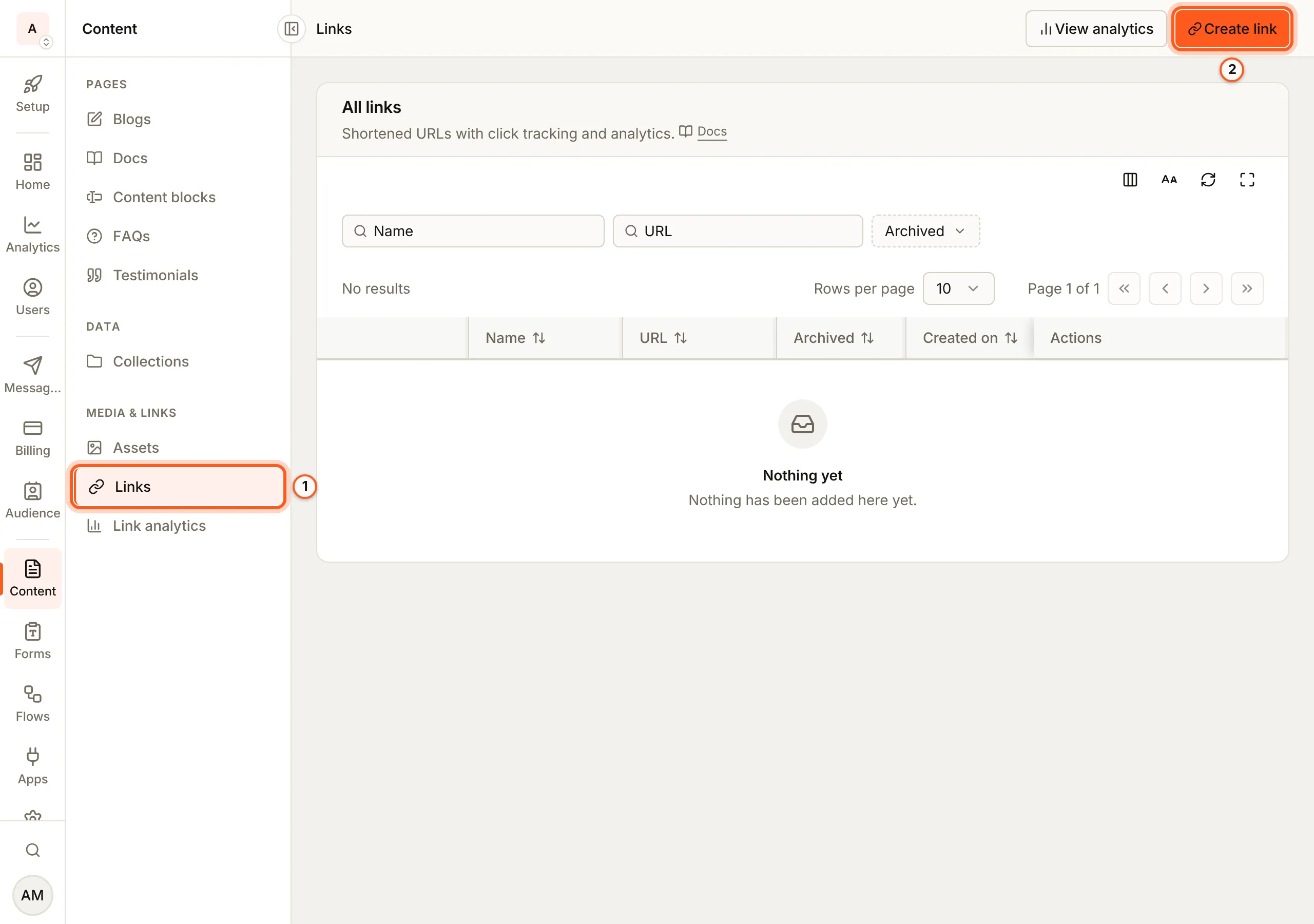
Open Links in the console (opens the console in a new tab)In the left rail choose Content, then Links under Media & links. All links lists each link. Press Create link.
2. Name it and set where it goes
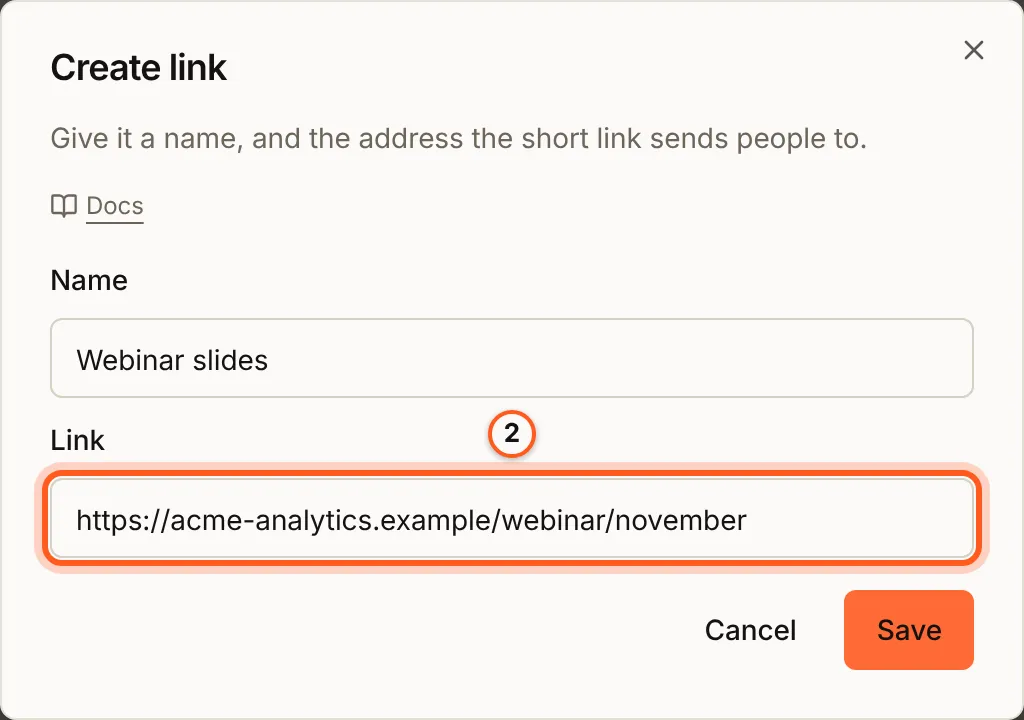
In Create link, fill Name and Link, the https:// address it sends
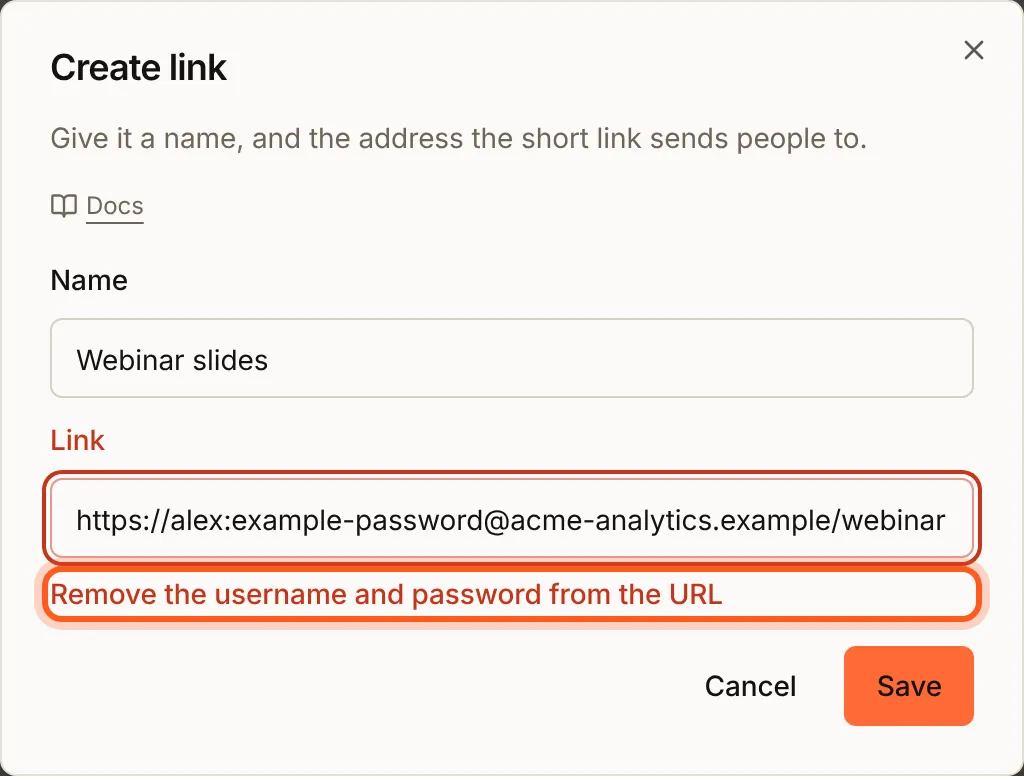
people to, and press Save. An address with a username and password in it is
refused ("Remove the username and password from the URL"), and so is one a
safety check has flagged (link safety).
3. Copy the short link
Its row has Copy under Dynamic URL: that is the short link to share.

4. Change where it goes
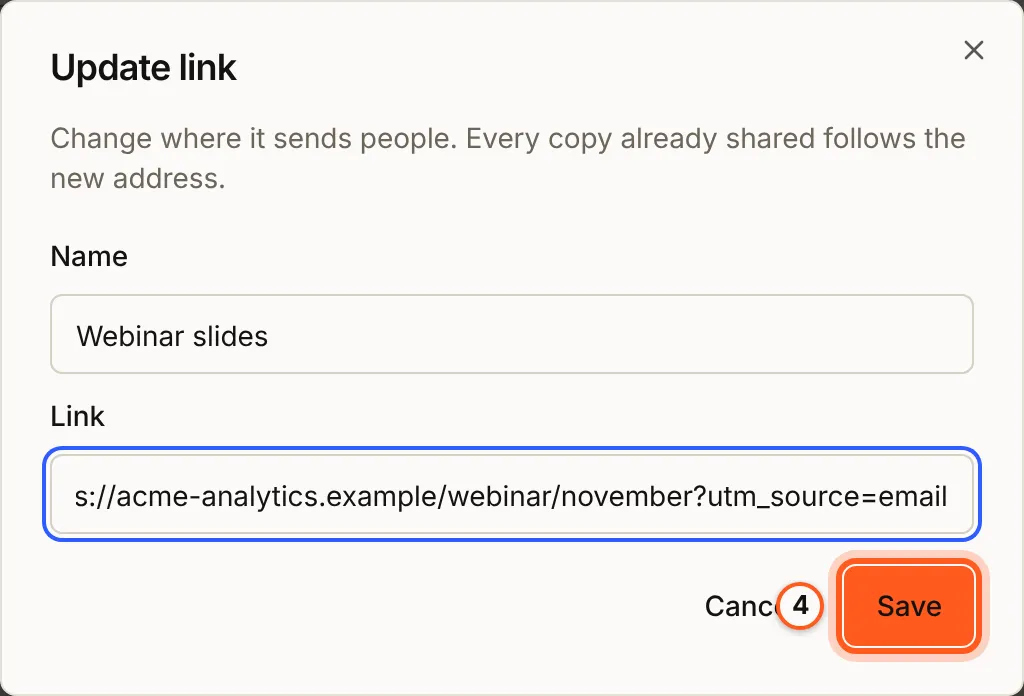
Press Edit, change Link in Update link, and press Save. Every copy you already shared now goes to the new address.
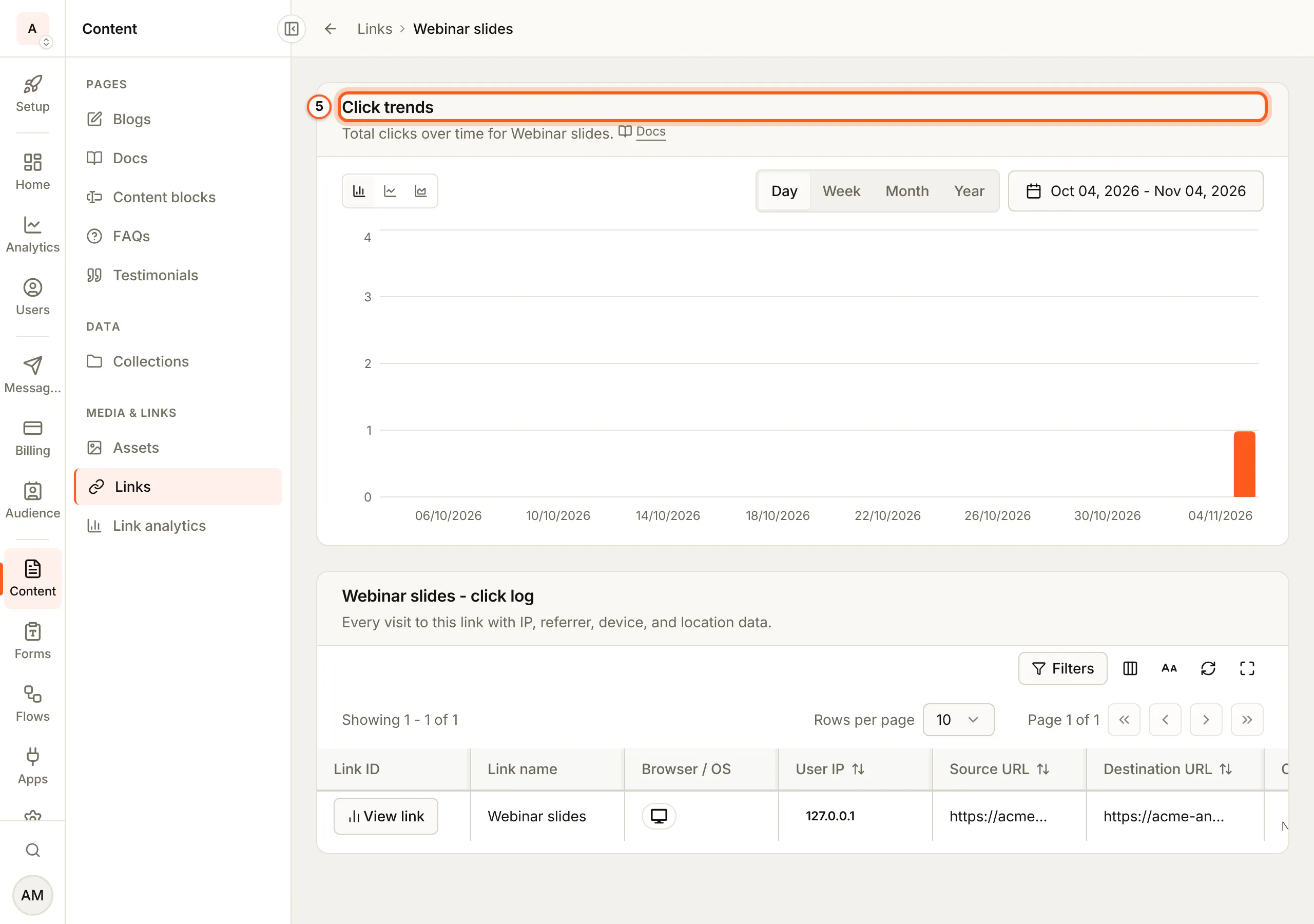
5. Read its clicks
Press Analytics on its row. Click trends counts its clicks over time, and the click log below lists each visit with its browser, IP address, where it came from and where it went (what a click records).
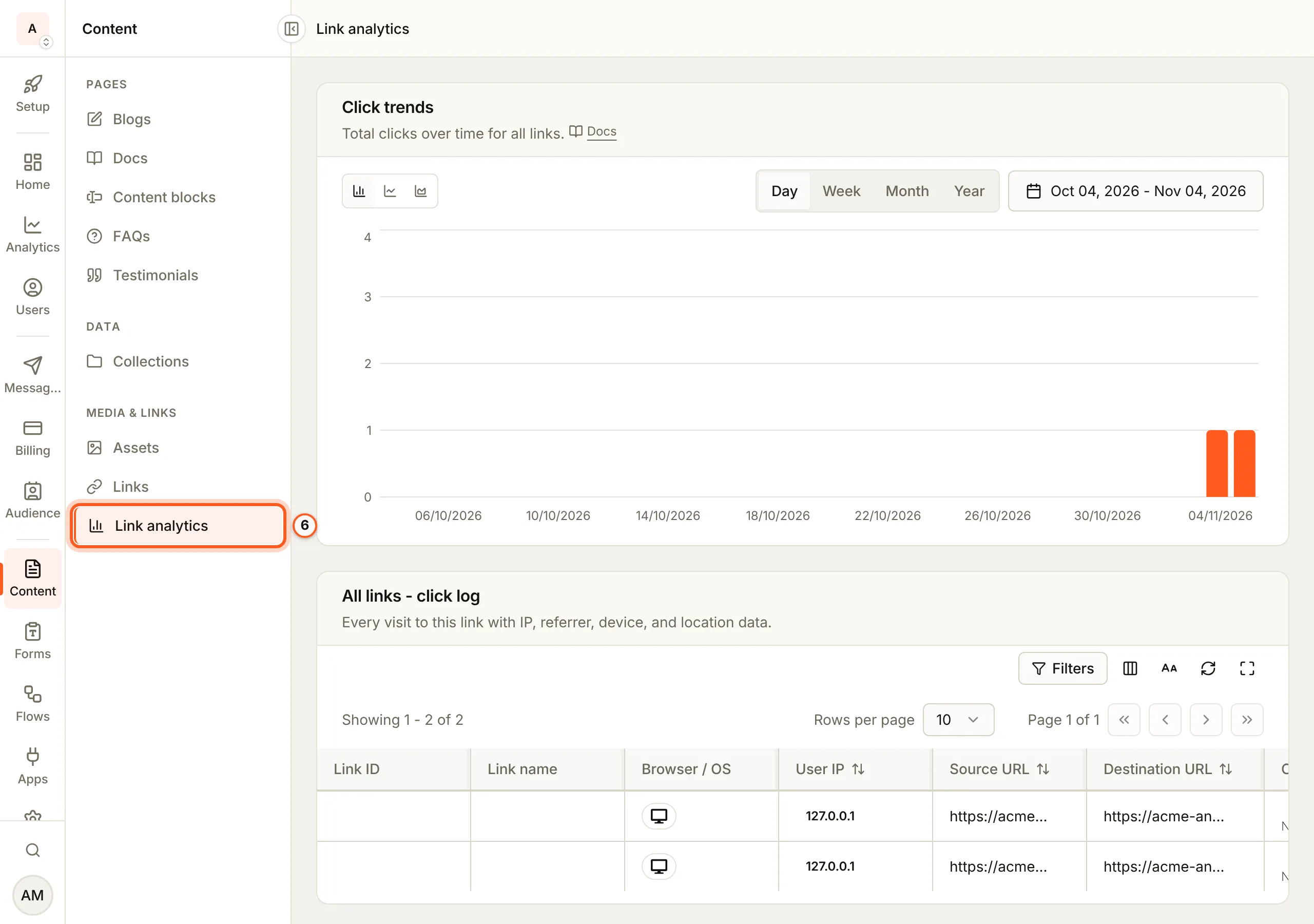
6. Every link at once
Link analytics, in the menu, shows the same for all your links together.
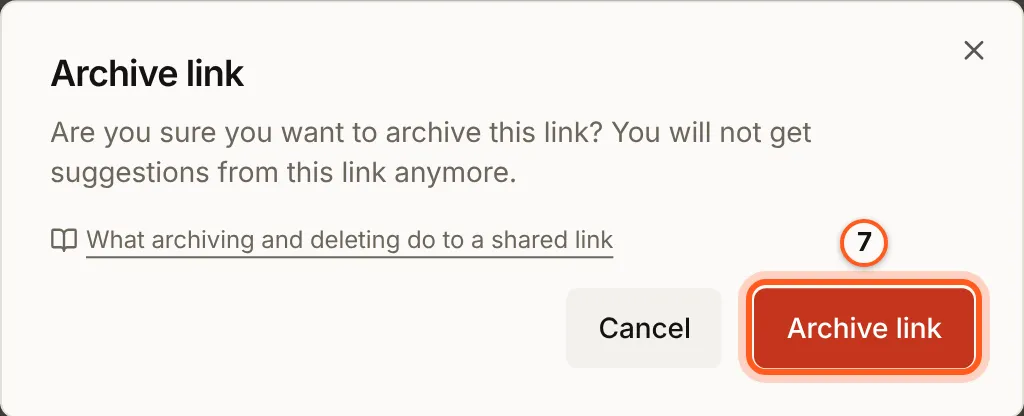
7. Archive it
Press Archive on its row and confirm with Archive link. The short link stops working, and the link no longer counts against your plan.
8. Bring it back, or delete it
An archived link has Activate, which makes it work again, and Delete, which removes it for good.

What a visitor sees
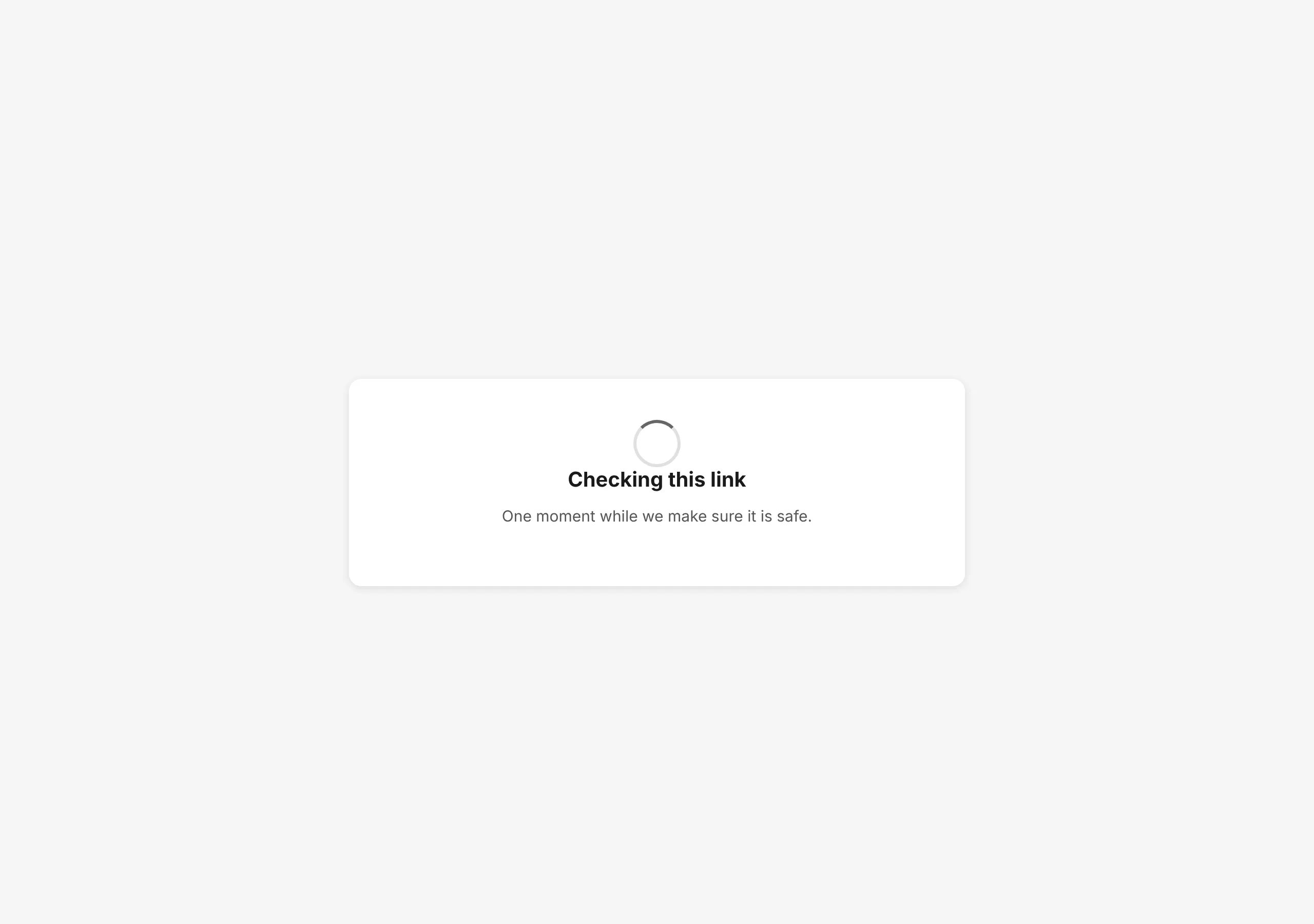
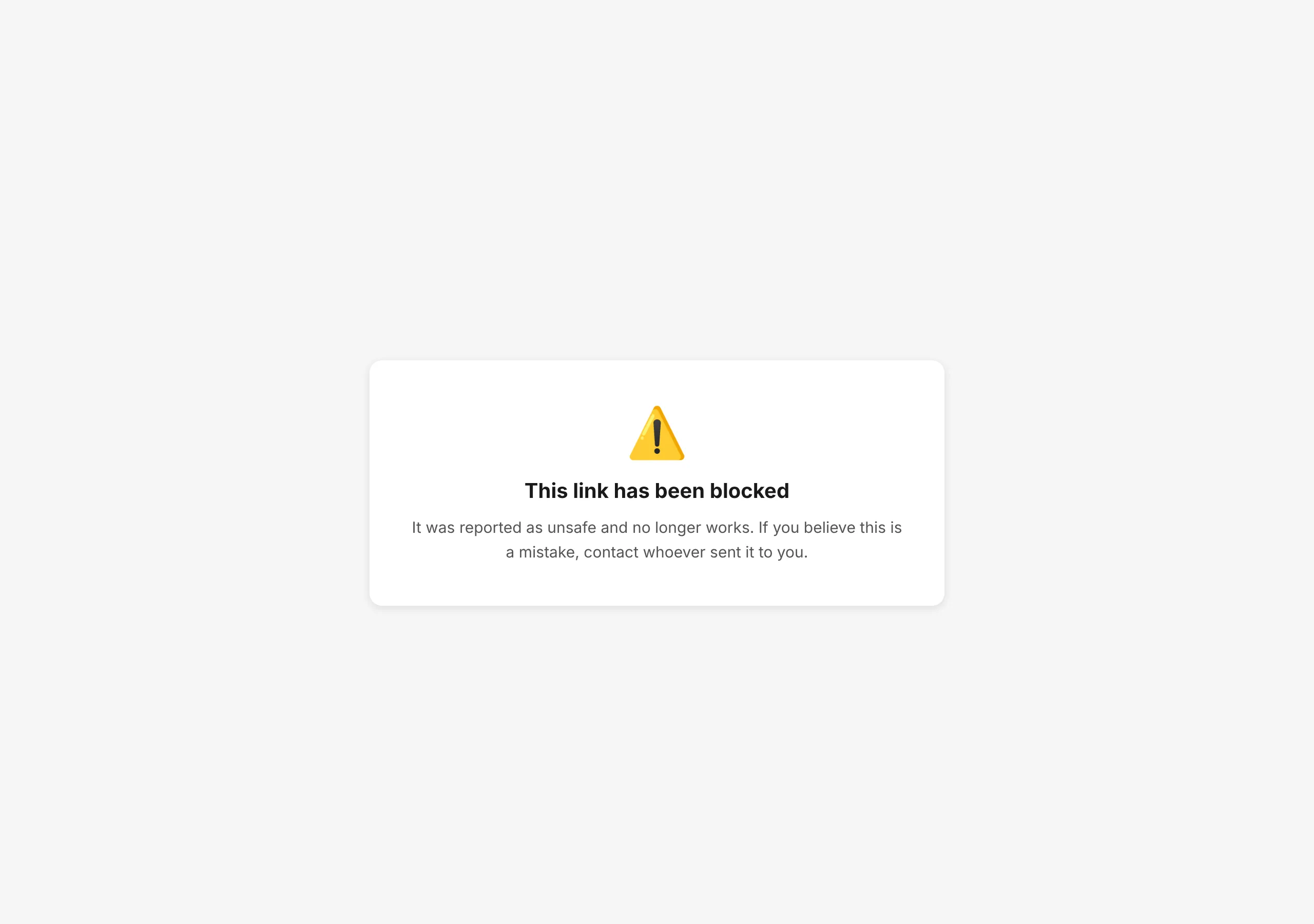
A short link to an address BuildBase does not already trust first shows "Checking this link" while the address is checked, then goes on to it. A link whose address has been blocked shows "This link has been blocked" instead (link safety).
Check it works
Open the short link in a private window: it lands on the address you set, and a new row appears in its click log.
Things to watch out for
- You cannot choose the short id or use your own domain. The short link is always on BuildBase's address.
- Archiving and deleting both break every copy already shared. Change where it goes instead, if the old address is wrong.
- Clicks are counted, never refused. They count toward your plan's link clicks, but a link keeps working past it.
- Crawlers, link previews and email scanners count as clicks. Expect a click or two the moment you send a link.
- Click rows are kept for 730 days, and your plan sets how far back the log reads.
Next Steps
- Short links overview - what a click records, analytics and link safety.
- Sending campaigns - put a short link in a campaign.