# Set up sign-in, step by step
The pieces of BuildBase sign-in in plain words, the order to set them up in, and a guide for every way your users can sign in.
BuildBase runs the sign-in for your app. Your users press **Sign in** in your app, land on a sign-in page that BuildBase hosts for you, sign in there with the methods you chose, and come back to your app signed in. This page explains the pieces you set up in the BuildBase console, the order to set them up in, and how to test it all with an account of your own. The guides after it take each way of signing in one at a time.
The examples use an organization called **Acme** with one app, **Acme Analytics**, that will live at `https://app.acme.example`.
> **Note:**
- A BuildBase organization, and a console role that can change authentication settings.
- An email address you can read, to test with.
- For the last step only: someone who can change your app's code.
## The pieces
| Piece | What it is | Where it is in the console |
| ----------------------- | ------------------------------------------------------------------------------------------------------------------------------------------------------------------------------------------------------------------- | ---------------------------------------------------------- |
| Your organization | Your company in BuildBase, here Acme. Your users, apps and settings all belong to it. | The whole console: you always work inside one organization |
| An app, or "client" | Each website or app that people sign in to. It has a **client ID**, which goes in your app's code and is safe to share, and a **client secret**, which only your server may know. | **Authentication**, **Settings** tab |
| Redirect URLs | The addresses of your app that people are sent back to after they sign in. Each app keeps its own list. | The app's **Edit** sheet |
| Sign-in methods | The ways people can sign in: email and password, an emailed link or code, Google, a phone code and more. You add each one once, for the whole organization. | **Authentication**, **Methods** tab |
| The hosted sign-in page | The page BuildBase shows your users. It shows only the methods ticked on the app they came from, in your name, colours and words, in any of 8 languages. | **Authentication**, **Sign-in page** tab |
| The live preview | A picture of your sign-in page beside its settings, which follows your edits before you save. | **Sign-in page** tab, on the right |
| An email sender | The email account sign-in codes, links and password resets are sent from. Without one, no sign-in email goes out. | **Messaging**, **Sender accounts** |
| The SDK in your app | The `@buildbase/sdk` package your developers add to your app. It shows the **Sign in** button, sends people to the hosted page, and shows account screens such as **Security** inside your app. | Your app's code |
## The order to do things in
1. **Connect an email sender**, under **Messaging**, **Sender accounts**. Most methods send an email at some point: a verification code, a reset code or a sign-in link. See [the email sender](/sign-in-setup/magic-link-and-email-code#the-email-sender).
2. **Create your app** (a client) on the **Settings** tab, copy its secret, and add its redirect URLs.
3. **Add the sign-in methods** you want on the **Methods** tab. The guides below say what each one needs first.
4. **Tick the methods on your app**, in its **Edit** sheet, and press **Update**. A method shows on the sign-in page only once it is ticked on the app.
5. **Decide who can sign up** on the **Sign-up** tab, and turn on **bot protection** on the **Security** tab before you go live.
6. **Make the page yours** on the **Sign-in page** tab: name, logo, colours and words.
7. **Test it** with **Test** beside your app, using an account of your own.
8. **Connect your app's code** with the SDK.
## Find the Authentication area
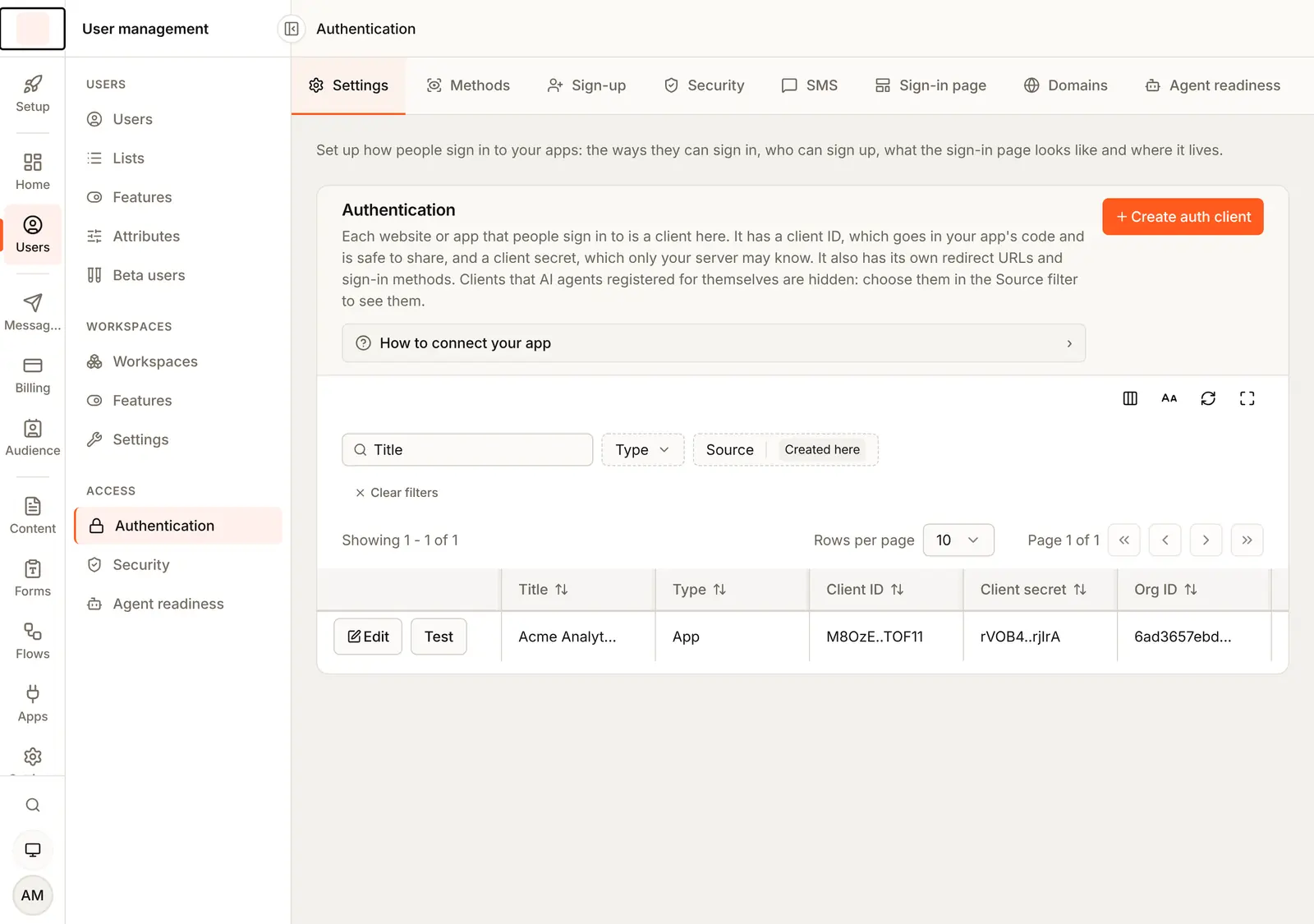
In the console's left rail, choose **Users**. The **User management** menu opens. Choose **Authentication** under **Access**. Everything on this page happens in its tabs: **Settings**, **Methods**, **Sign-up**, **Security**, **SMS**, **Sign-in page**, **Domains** and **Agent readiness**.
## Your app and its redirect URLs
The **Settings** tab lists your apps. The **How to connect your app** guide on it walks through the whole connection in five steps.
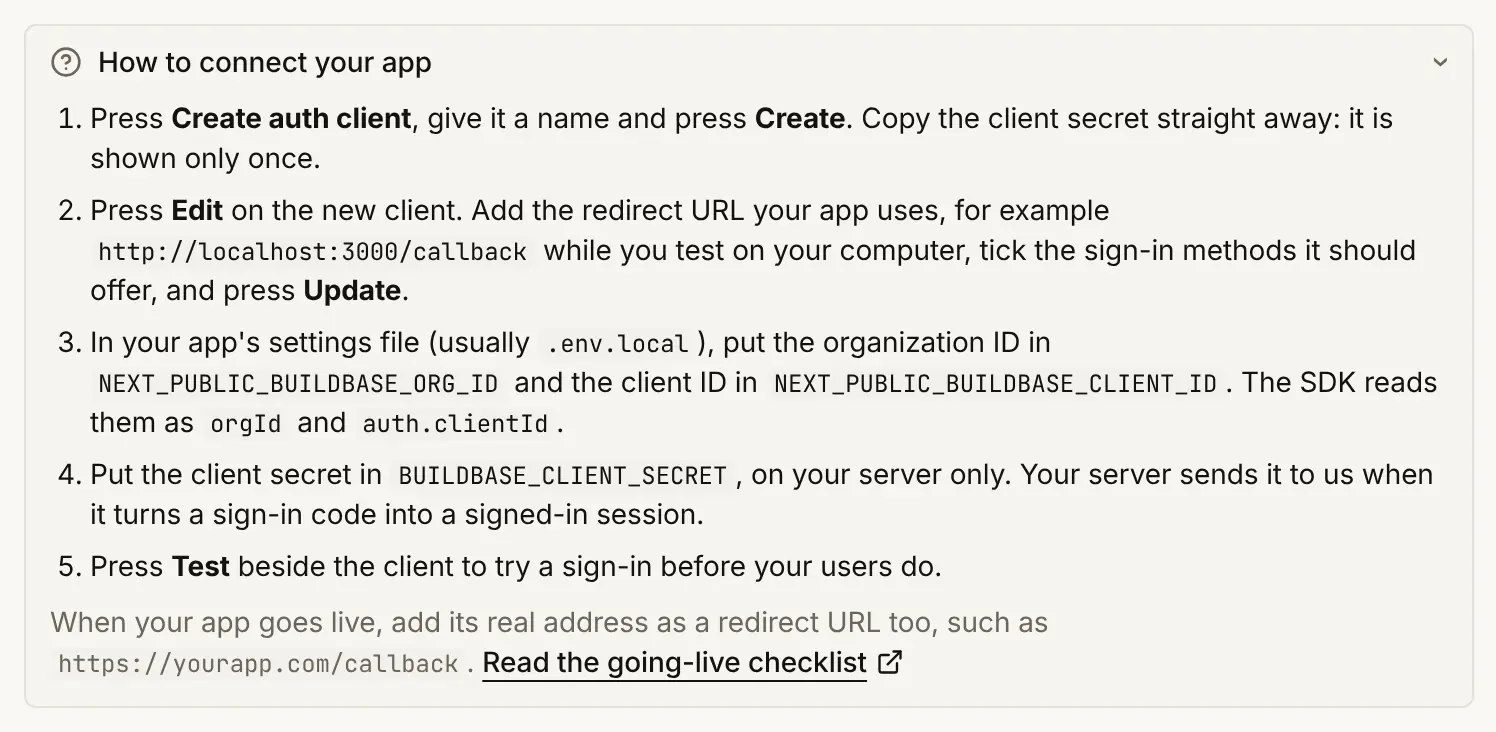
1. Press **Create auth client**. Type a **Title** your team will recognise, such as `Acme Analytics`, keep the type **Your app's sign-in**, and press **Create**.
2. The console shows the organization ID, the client ID and the client secret. Copy the secret now, with **Copy client secret** or **Copy all three**: it is shown only once. If it is lost, **Regenerate** in the **Edit** sheet makes a new one.
3. Press **I've copied the secret**, then press **Edit** on the new app.
4. Under **Redirect URLs**, press **Add redirect URL** and type each address your app uses for signing in, for example `http://localhost:3000/callback` while you test on your computer and `https://app.acme.example/callback` for the live app.
5. Press **Update** at the bottom of the sheet.
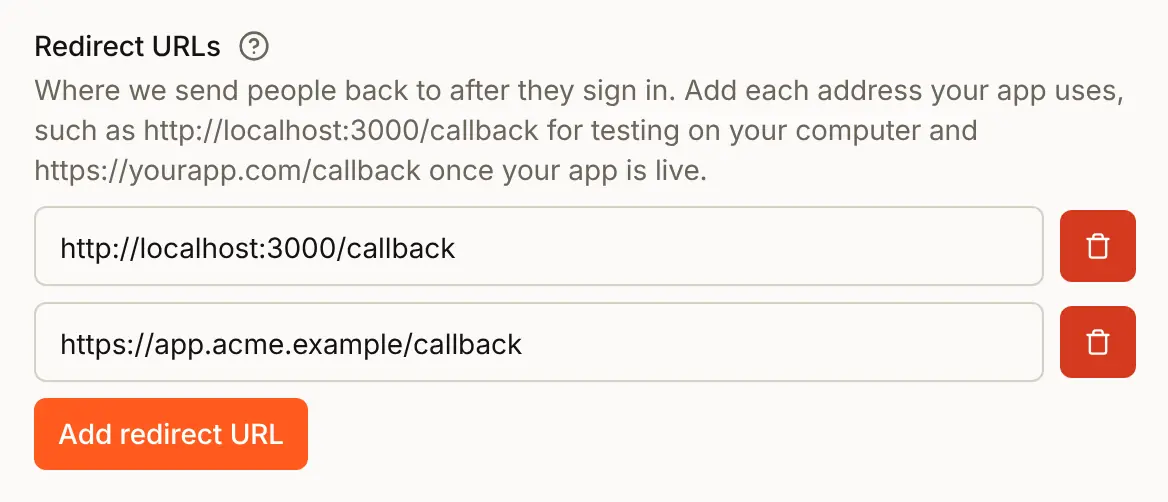
A redirect URL has to match letter for letter: `http` or `https`, the domain, the port and the path, even a slash at the end. On your own computer (`localhost`) the port may differ. For an app with a subdomain per customer, one entry with a `*` as the first part covers them all, such as `https://*.app.acme.example/callback`. An address missing from the list stops sign-in with "Invalid redirect URL". The [going-live checklist](/quick-start/production) covers adding the live address.
## Add a sign-in method
Open the **Methods** tab. **Login methods** lists the methods your organization has. Each row says, in one line, what the person signing in does.
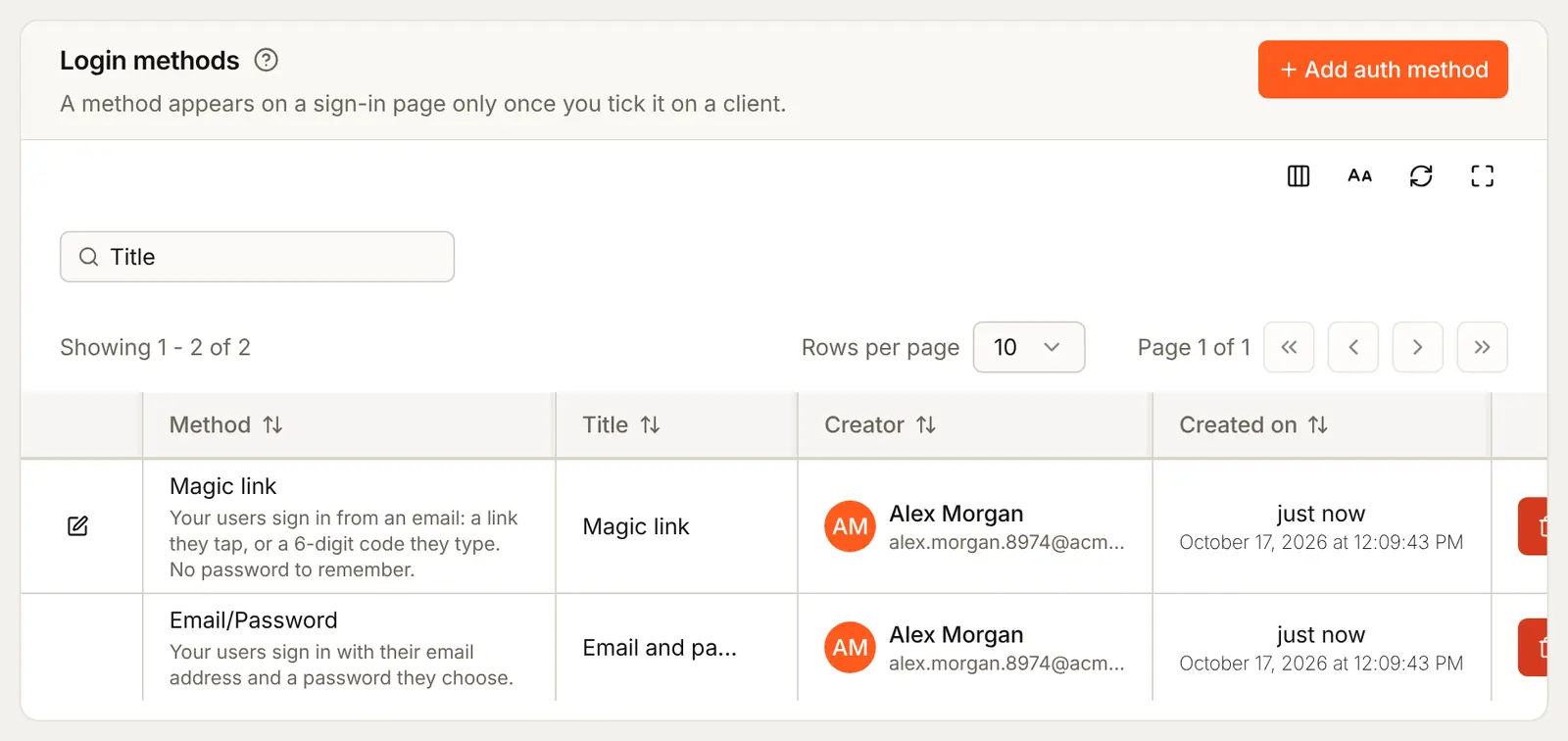
Press **Add auth method**. Each choice says what it is for and what else it needs. Pick one, fill in what it asks for, and press **Create**. The guide for each method, listed [at the end of this page](#every-guide-in-this-section), covers its fields.
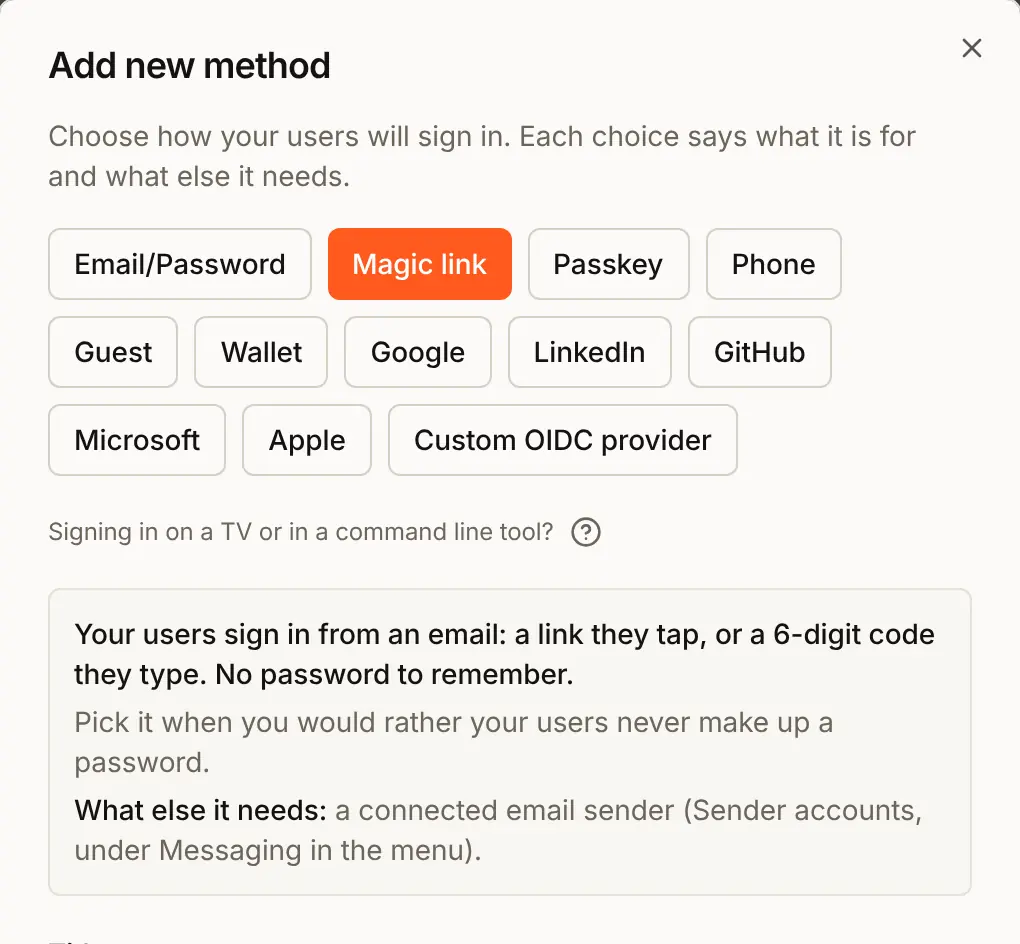
A method your plan does not include is greyed out, and pointing at it says "Your plan does not include" and the feature. Signing in on a TV or in a command line tool is not a method here: it is a switch on an OAuth 2.0 client. See [Device code sign-in](/sign-in-setup/device-code).
## Attach a method to your app
A method shows on the sign-in page only once it is ticked on the app. Adding it on the **Methods** tab is not enough.
1. Open the **Settings** tab and press **Edit** beside **Acme Analytics**.
2. Under **Methods**, tick each method this app should offer.
3. Press **Update**.
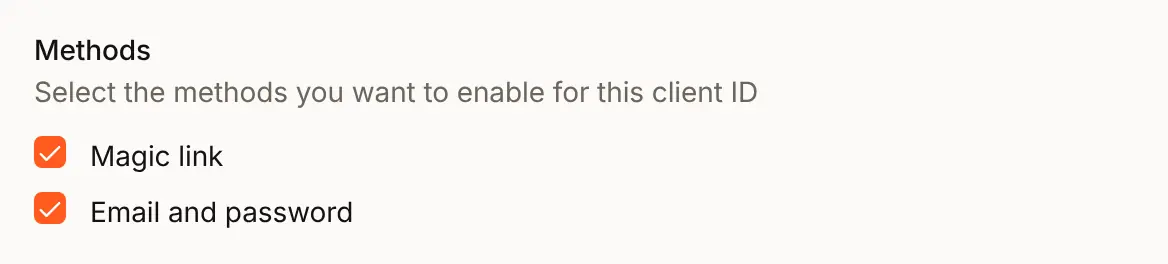
Each app keeps its own list, so a staff app can offer only Google while the customer app offers email and password too.
## Check the preview
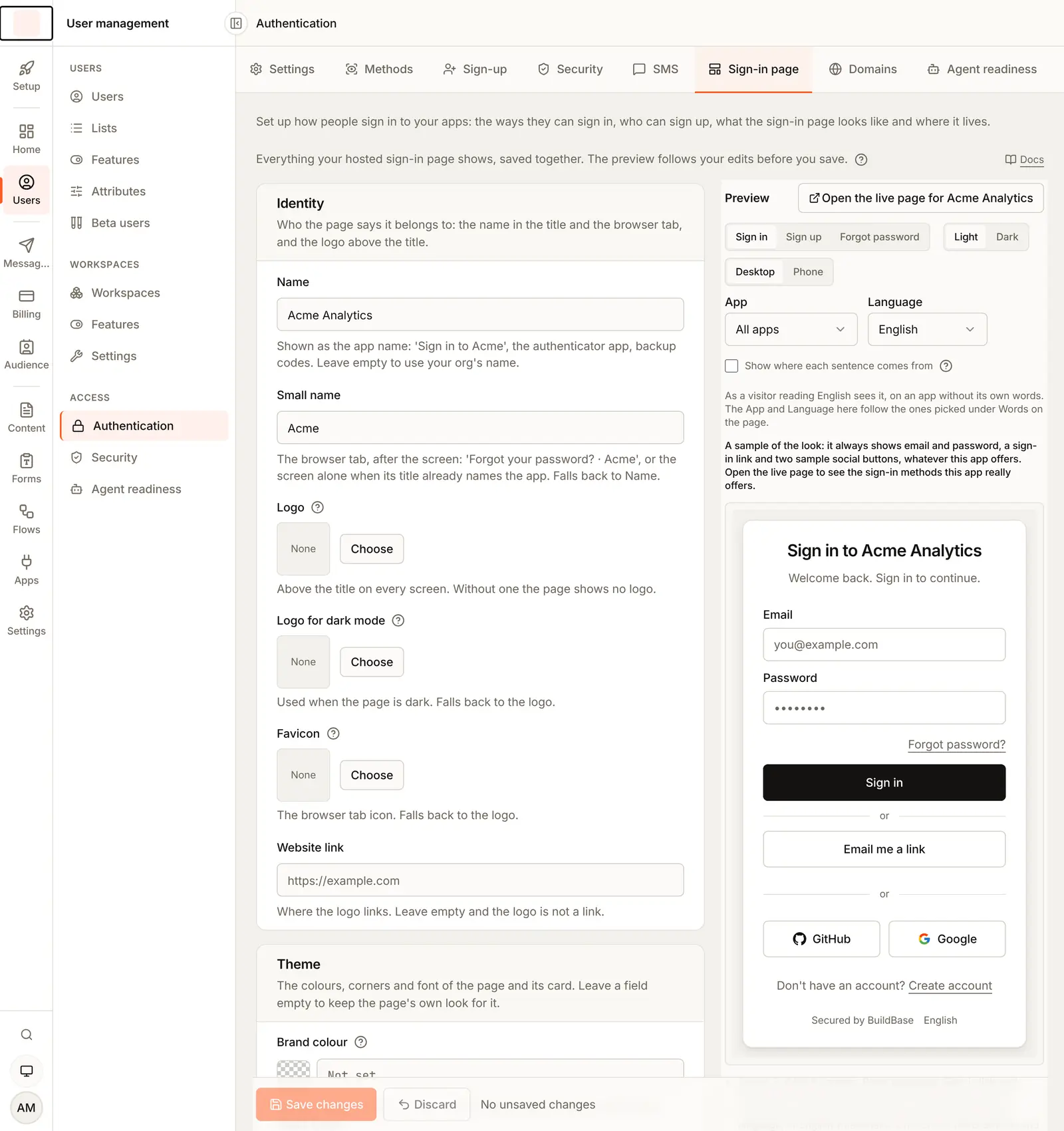
Open the **Sign-in page** tab. The settings for the page are on the left, and the **Preview** is on the right. It follows your name, logo, colours and words as you type, before you save, and switches between **Sign in**, **Sign up** and **Forgot password**, **Light** and **Dark**, and **Desktop** and **Phone**.
> **Note:**
The preview draws the same sample card for every app: email and password, an
**Email me a link** button and two sample providers, GitHub and Google. It
does not read which methods your app has ticked. To see exactly what your
users see, press **Open the live page for Acme Analytics** above it. That
opens the real sign-in page in a new tab, with what is saved.
## What people see
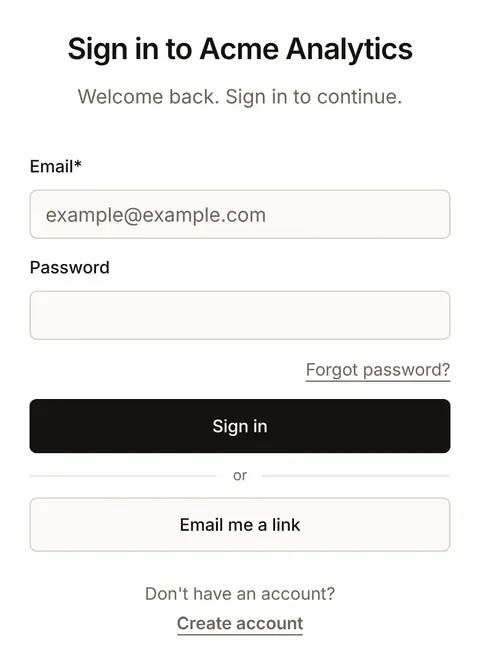
This is the real sign-in page for Acme Analytics with **Email and password** and **Magic link** ticked. The title uses the **Name** from the **Sign-in page** tab.
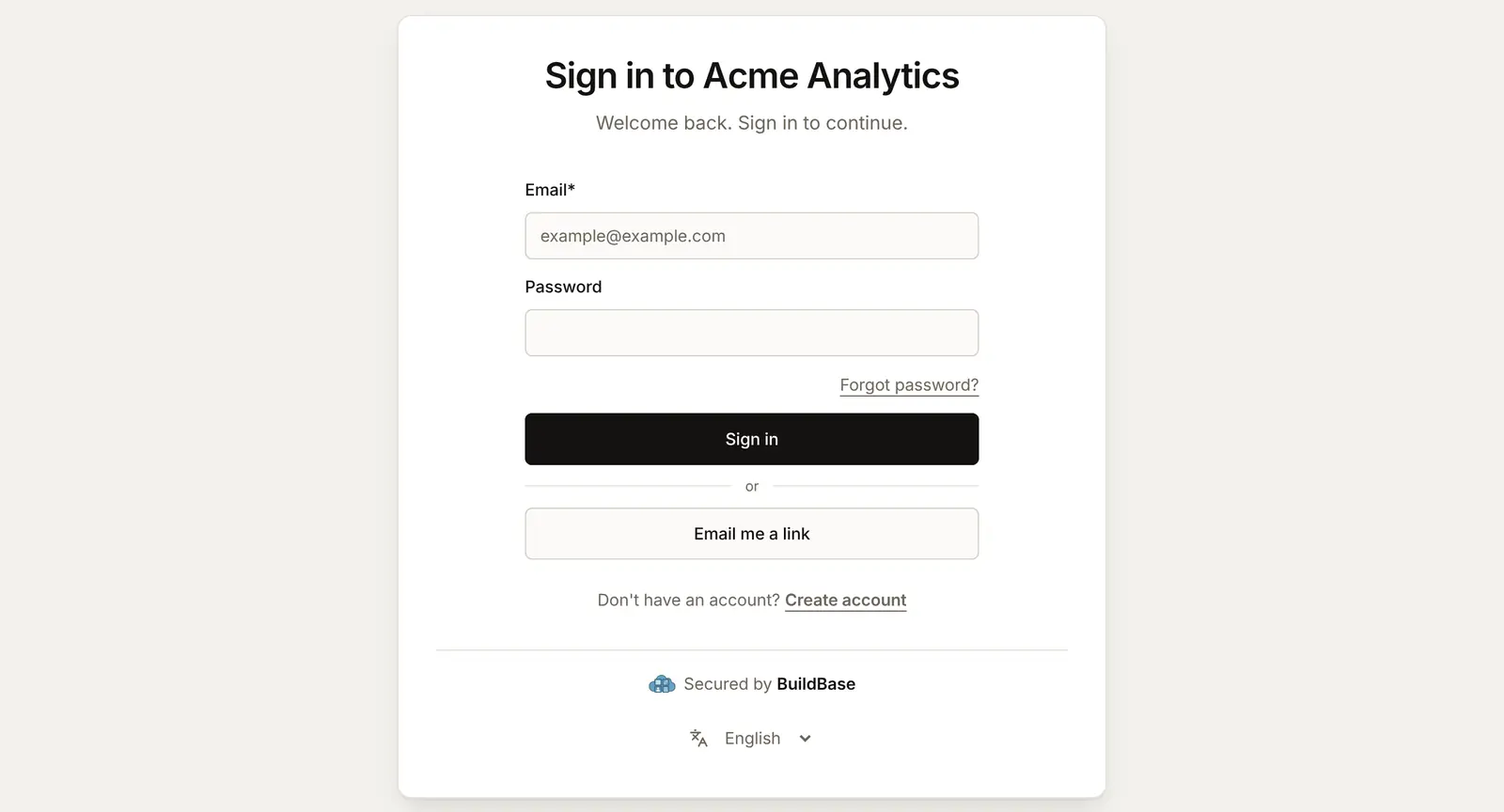
On a phone the card fills the screen.
## Test with a test account
Try every change yourself before your users meet it. A test account is an ordinary account in your app, made with an address you can read.
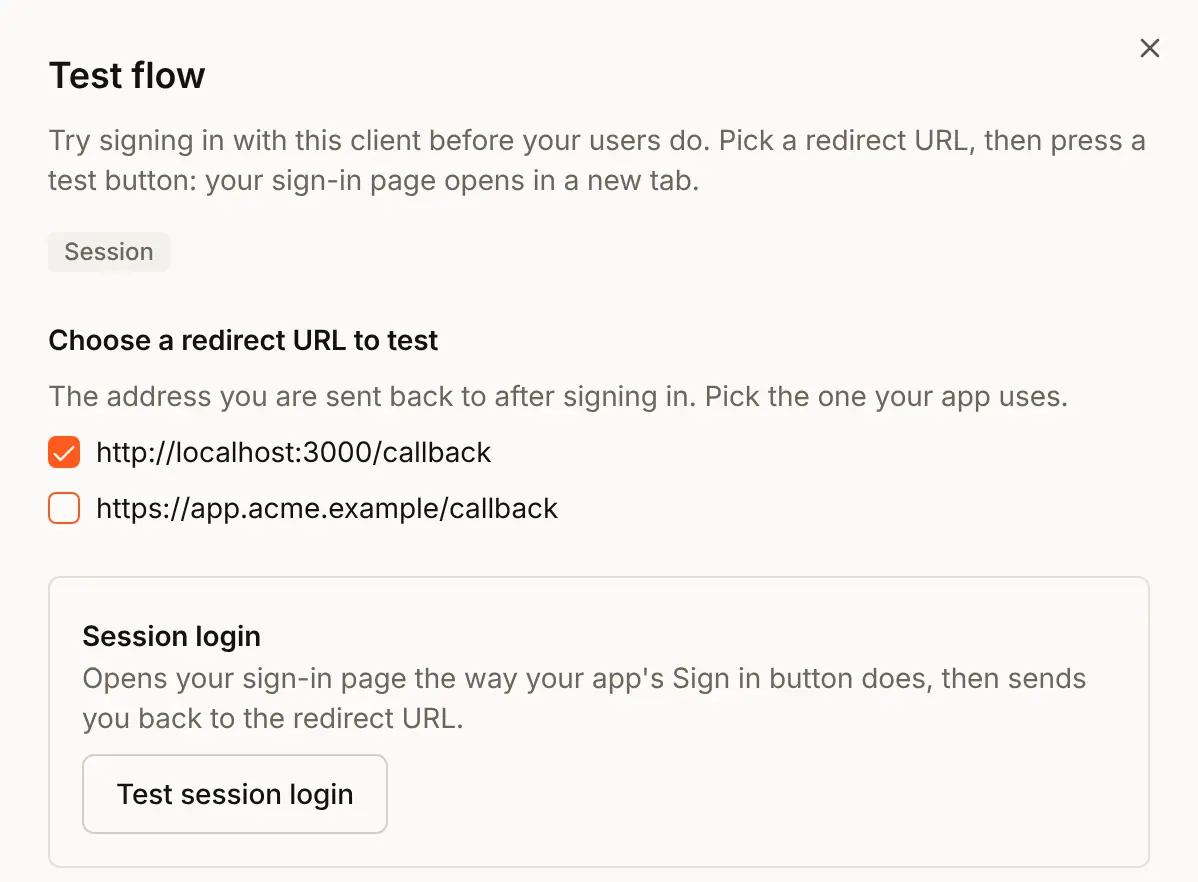
1. On the **Settings** tab, press **Test** beside **Acme Analytics**.
2. Under **Choose a redirect URL to test**, tick the address to come back to.
3. Press **Test session login**. Your sign-in page opens in a new tab, the same way your app's **Sign in** button opens it. If nothing opens, allow pop-ups for the console in your browser.
4. Press **Create account** and sign up with an address of yours, then sign in the way your users will.
5. After signing in, the page sends you to the redirect URL you ticked. If your app is not running at that address yet, the browser shows that it cannot reach the page. That is expected: the sign-in itself worked.
6. Open **Users** under **User management**. The test account is in the list. To remove it, open it and press **Delete**, then **Delete user now**.
Use a new private browser window for each test, so a device you trusted in an earlier test does not skip a step.
## The SDK in your app
Your developers connect your app's code once. The console's **How to connect your app** guide names the three values it needs:
| Value | Where it goes | Secret? |
| --------------- | ---------------------------------------------------------- | ------- |
| Organization ID | `NEXT_PUBLIC_BUILDBASE_ORG_ID`, read as `orgId` | No |
| Client ID | `NEXT_PUBLIC_BUILDBASE_CLIENT_ID`, read as `auth.clientId` | No |
| Client secret | `BUILDBASE_CLIENT_SECRET`, on your server only | Yes |
```tsx title="app/providers.tsx"
import { ApiVersion, SaaSOSProvider, useSaaSAuth } from '@buildbase/sdk/react';
export function Providers({ children }: { children: React.ReactNode }) {
return (
{
const res = await fetch('/api/auth/verify', {
method: 'POST',
body: JSON.stringify({ code }),
});
return { sessionId: (await res.json()).sessionId };
},
},
}}
>
{children}
);
}
export function SignInButton() {
const { signIn } = useSaaSAuth();
return ;
}
```
The `redirectUrl` must be one of the app's **Redirect URLs**. The server route that swaps the code for a session is in [Going to Production](/quick-start/production#2-auth-callback-api-route), and the full setup in the [Quickstart](/quick-start/quickstart).
## Things to watch out for
- **The client secret is shown once.** Copy it when you create the app. If it is lost, **Regenerate** in the app's **Edit** sheet makes a new one, and your server needs the new one.
- **A redirect URL is compared letter for letter.** `https://app.acme.example/callback` and `https://app.acme.example/callback/` are two different addresses. Only an address with no path and the same address ending in `/` count as one.
- **A `*` stands for exactly one part of the address.** `https://*.app.acme.example/callback` lets in `https://eu.app.acme.example/callback`, but not `https://app.acme.example/callback` or `https://a.eu.app.acme.example/callback`. The `https://`, the port and the path still have to match.
- **A method you add does nothing until it is ticked on the app.** Adding it on the **Methods** tab is not enough, and each app keeps its own list.
- **The preview is a sample card.** It always shows email and password, **Email me a link**, GitHub and Google. Check your real methods with **Open the live page** or **Test**.
- **Most methods need an email sender.** Without one, codes, links and password resets are refused with "Email sign-in is unavailable for this organization."
- **A device you trusted skips steps.** Test in a new private window each time, or a device you trusted earlier can hide a two-step code from you.
## Every guide in this section
| Guide | What it is for | What you need for it |
| ------------------------------------------------------------------------- | ------------------------------------------------------------------------------------------------------ | ---------------------------------------------------------------------------------------------- |
| [Email and password](/sign-in-setup/email-password) | Sign-in with an email address and a password, with forgot password and email verification | An email sender |
| [Sign-in links and email codes](/sign-in-setup/magic-link-and-email-code) | Sign-in without a password, from a link or a 6-digit code sent by email | An email sender |
| [Usernames](/sign-in-setup/usernames) | A short name people can type instead of their email on the password form | The Email and password method |
| [Who can sign up](/sign-in-setup/sign-up-access) | Open sign-up, invite-only, an allowlist, a blocklist, a waitlist you approve, and no throwaway inboxes | Nothing else |
| [Bot protection](/sign-in-setup/bot-protection) | A Cloudflare Turnstile check that a person, not a script, is signing up or asking for a code | Nothing on the BuildBase sign-in address; a free Cloudflare account on your own domain |
| [Google](/sign-in-setup/google) | A **Continue with Google** button | A Google Cloud project and its OAuth client |
| [GitHub](/sign-in-setup/github) | A **Continue with GitHub** button | A GitHub OAuth app |
| [Microsoft](/sign-in-setup/microsoft) | A **Continue with Microsoft** button, for work, school and personal accounts | An app registration in Microsoft Entra |
| [LinkedIn](/sign-in-setup/linkedin) | A **Continue with LinkedIn** button | A LinkedIn developer app |
| [Apple](/sign-in-setup/apple) | A **Continue with Apple** button | A paid Apple Developer Program membership |
| [Custom OIDC provider](/sign-in-setup/custom-oidc) | One button for a provider BuildBase has not built, such as Keycloak or your company's own | An OpenID Connect or OAuth 2.0 provider, and a plan with custom OIDC |
| [Google One Tap](/sign-in-setup/google-one-tap) | Google's small box that signs people in with the Google account already in their browser | The Google method set up |
| [Importing users](/sign-in-setup/importing-users) | Bringing your users from Clerk, Auth0, Firebase, Supabase or your own system, passwords included | An export from the old system and an API token |
| [Phone](/sign-in-setup/phone) | Sign-in with a 6-digit code by text message, WhatsApp or a voice call | Your own SMS provider (Twilio, or a webhook), and a plan with phone codes |
| [Two-step sign-in](/sign-in-setup/two-step) | A second code from an authenticator app or a text message after the first step | Nothing for the app; an SMS provider for text message codes |
| [Passkeys](/sign-in-setup/passkeys) | Sign-in with a fingerprint, a face or the screen lock | A plan with passkeys |
| [Account security screens](/sign-in-setup/account-security-screens) | What your users see inside your app: password, two-step, devices, connected accounts | The SDK in your app |
| [Continue as guest](/sign-in-setup/guests) | Trying your app without an account, then keeping everything after signing up | A plan with guest users, and sign-up open to anyone |
| [Crypto wallets](/sign-in-setup/wallets) | Sign-in by signing a message with an Ethereum or Solana wallet | A plan with wallet sign-in |
| [Device code](/sign-in-setup/device-code) | Sign-in on a TV or in a command line tool, approved on a phone or computer | An OAuth 2.0 client with device code sign-in switched on, and a plan with the OAuth 2.0 server |
| [Agents and other apps](/sign-in-setup/agent-access) | Letting AI agents and other companies' apps act for your users, with their consent | The **Agent readiness** tab |
| [The sign-in page](/sign-in-setup/sign-in-page) | Your name, logo, colours, layout, words and languages on the hosted page, and your own domain | Your logo and colours |
| [Signing in as a user](/sign-in-setup/sign-in-as-a-user) | Seeing your app as one of your users, to help with a support request | A console role that can create users and read auth settings |
## Next steps
- [Email and password](/sign-in-setup/email-password) - the first method most apps add.
- [Sign-in links and email codes](/sign-in-setup/magic-link-and-email-code) - sign-in without a password.
- [Authentication overview](/authentication/overview) - the same features from the developer's side.