# Unsubscribes, preferences and double opt-in

Unsubscribe groups, the preference center, one-click unsubscribe from the inbox, and double opt-in for people who join through a form.

The law, Gmail and Yahoo all expect your users to have an easy way to stop your
emails. BuildBase builds in every way out of your list: an unsubscribe link, a
page where people choose which emails they get, and the inbox's own
**Unsubscribe** button. It also guards the way in. Anyone who joins through a
form confirms by email first, so nobody can sign someone else up.

```html
<!-- In a campaign template -->
<p>
  <a href="{{unsubscribe}}">Unsubscribe</a> -
  <a href="{{manage-preference}}">Choose which emails you get</a>
</p>
```

> **Note:**
  Create unsubscribe groups in the console under **Messaging** >
  **Unsubscribe groups**, and pick a group on each template that should carry
  one.

## Set it up in the console

[Open Unsubscribe groups in the console](https://console.buildbase.app/dashboard/admin/emails/unsubscribe-groups)

### 1. Open Unsubscribe groups

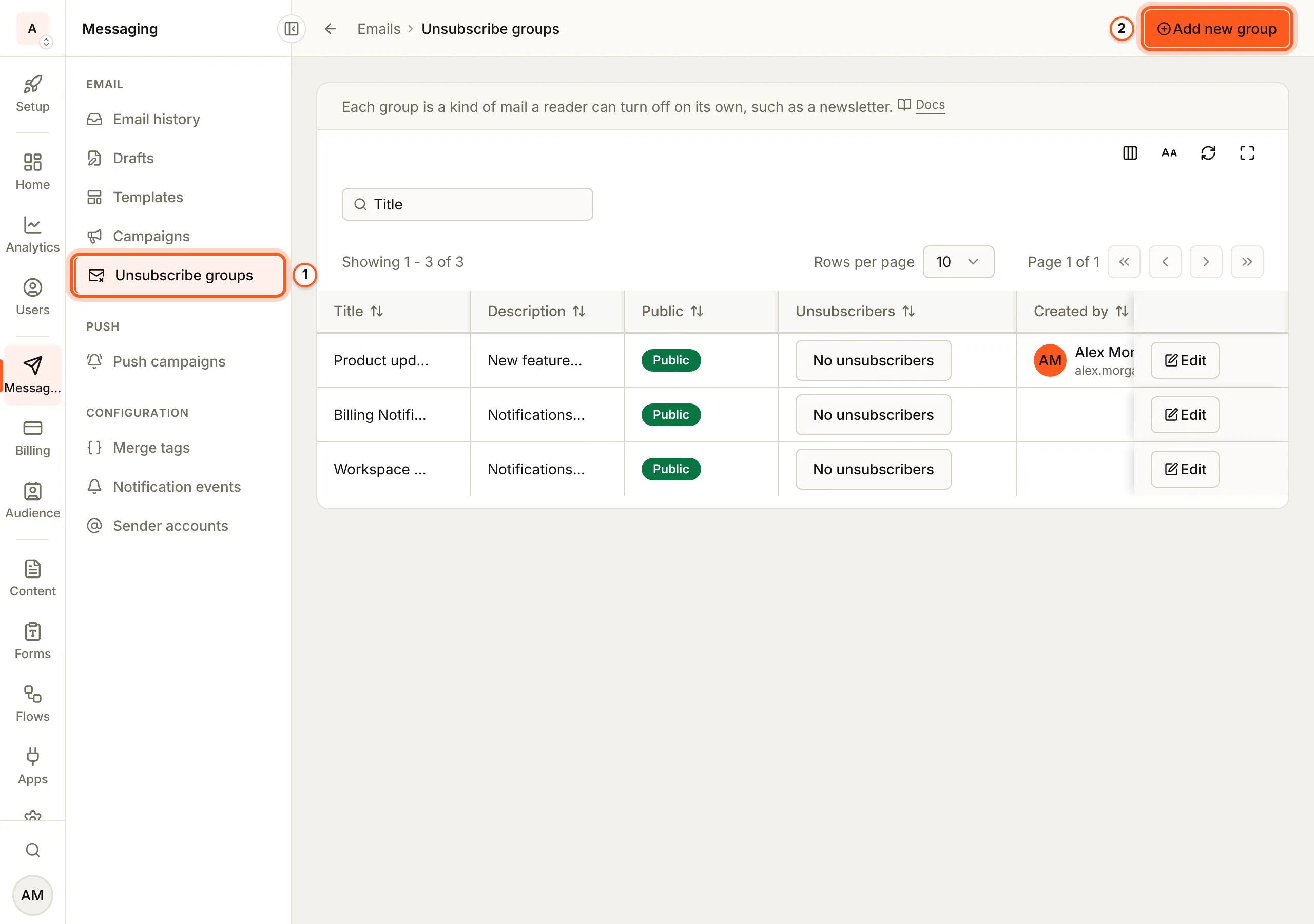
In the left rail choose **Messaging**, then **Unsubscribe groups**. BuildBase
keeps groups of its own for workspace and billing mail. Press **Add new
group**.
![Unsubscribe groups under Messaging, with the menu item highlighted as step 1 and the Add new group button as step 2](/images/email/unsubscribes-and-opt-in/groups.webp)

### 2. Add a group

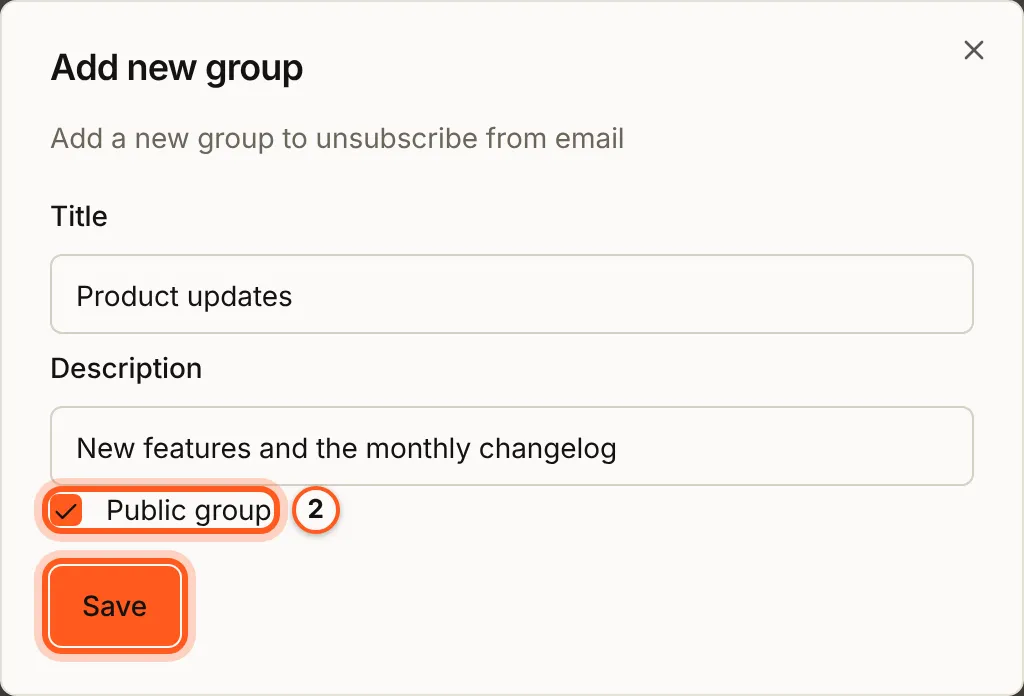
Fill **Title** and **Description**: a reader sees both in the preference
center. Tick **Public group** to list it there, and press **Save**. Then pick
it as the **Unsubscribe group** of each template it covers ([create a
template](/email/create-a-template#5-attach-the-unsubscribe-group)).
![The Add new group dialog: Title Product updates, its description, Public group ticked and highlighted as step 2, and the Save button](/images/email/unsubscribes-and-opt-in/add-group.webp)

### 3. What a reader sees when they leave

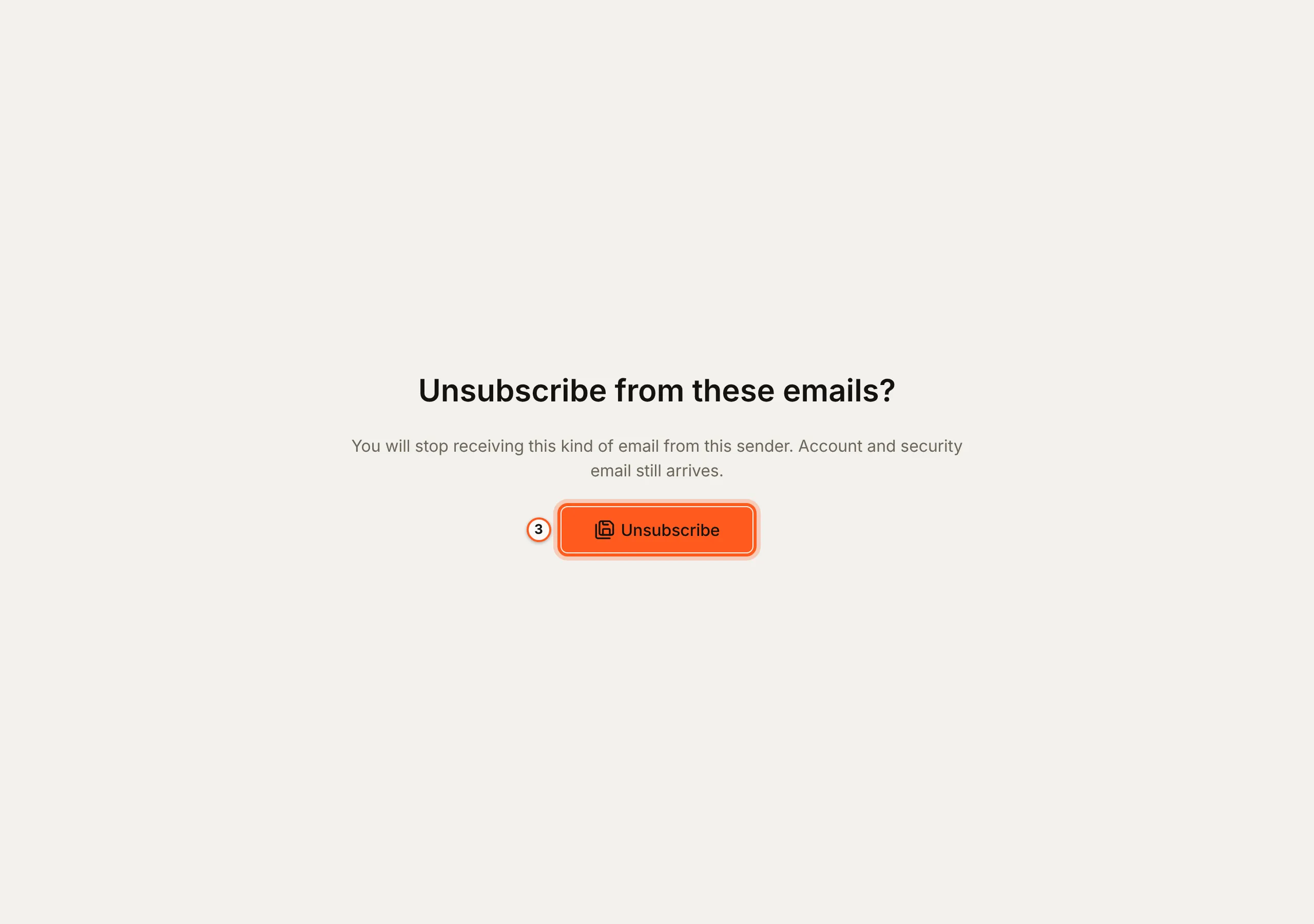
The message's unsubscribe link opens **Unsubscribe from these emails?**. Its
**Unsubscribe** button takes them out of this group only: account and security
email still arrives.
![The public page Unsubscribe from these emails?, with the Unsubscribe button highlighted as step 3](/images/email/unsubscribes-and-opt-in/public-unsubscribe.webp)

### 4. The preference center

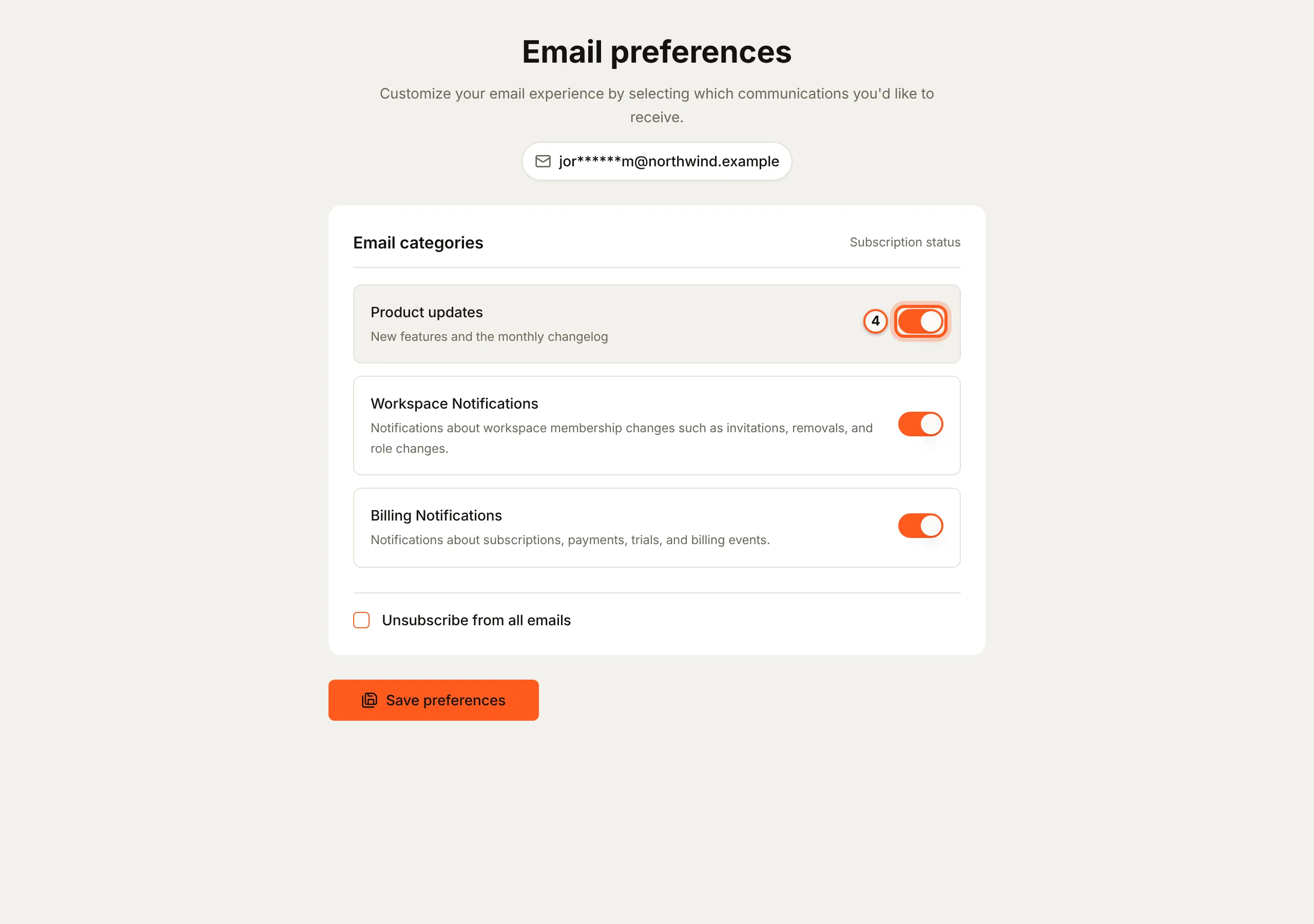
**Manage your email preferences** on that page, or the
`{{manage-preference}}` link, opens **Email preferences**: a switch for each
public group, and **Unsubscribe from all emails**. A reader can turn a group
back on and press **Save preferences**.
![The Email preferences page: the address, masked, a switch for Product updates highlighted as step 4, the other public groups, Unsubscribe from all emails and Save preferences](/images/email/unsubscribes-and-opt-in/preference-center.webp)

### 5. Who left

On **Unsubscribe groups**, each row's **Unsubscribers** count opens the group's
history. It is a snapshot taken every hour, so a reader who just left shows at
the next one.

![The group's row: Product updates, public, and its Unsubscribers count highlighted as step 5](/images/email/unsubscribes-and-opt-in/group-row.webp)

![The group's history: each entry is a snapshot of the group, highlighted as step 5](/images/email/unsubscribes-and-opt-in/history.webp)

## Unsubscribe groups

A group is one kind of mail a person can leave on its own: product updates, a
weekly digest, offers. Leaving one group keeps the person on every other group,
and never stops their sign-in mail.

Mark a group **Public group** to list it in the preference center, the page
where a person picks which groups they want. Their order there cannot be
changed yet.

A public group can also have a [newsletter archive](/email/newsletter-archive):
a public page of the campaigns sent under it, with a subscribe box.

## The links in a message

Two merge tags (placeholders BuildBase fills in for each recipient) put the
links in your template:

| Merge tag               | Opens                                                              |
| ----------------------- | ------------------------------------------------------------------ |
| `{{unsubscribe}}`       | A page that unsubscribes the person from the message's group       |
| `{{manage-preference}}` | The preference center: every public group, or unsubscribe from all |

Both carry a per-recipient token, so the page knows who the person is without a
login. A message with no group unsubscribes from all marketing mail. The
[pre-send check](/email/sending-campaigns#the-pre-send-check) refuses a
campaign whose template has neither tag.

## One-click unsubscribe from the inbox

Gmail and Yahoo show their own **Unsubscribe** button next to the sender's name
when a message tells them how. It does that with two headers, hidden lines at
the top of the message. `List-Unsubscribe` gives the address to unsubscribe
at, and `List-Unsubscribe-Post` says one click is enough. Gmail and Yahoo
require both from bulk senders. Marketing mail, and any message sent under a
group, carries them:

```text
List-Unsubscribe: <https://api.console.buildbase.app/api/email/unsubscribe/TOKEN>
List-Unsubscribe-Post: List-Unsubscribe=One-Click
```

When the person presses the mailbox's button, it posts
`List-Unsubscribe=One-Click` to that address with no cookie and no session, and
the person is unsubscribed. That is the one-click flow RFC 8058, the standard
behind these headers, describes.

A `GET` of the same address changes nothing. Link scanners (security tools that
open every link in a message) would otherwise unsubscribe people by accident.
So a `GET` redirects to the confirmation page, where a person presses the
button.

## Double opt-in for form sign-ups

Double opt-in means a new subscriber confirms their address by email before you
can mail them. Without it, anyone can type anyone's address into a form, and
that person starts getting campaigns they never asked for. They complain, and
complaints are what get a sending domain blocked.

Turn on **Collect subscribers** on a form. You'll find it behind the envelope
button on the form's row under **Forms**, which opens **Subscribers from
"(your form)"**. Keep **Ask them to confirm (double opt-in)** on, as it is by
default. Then:

1. A submission adds the person to your audience as **pending**.
2. They get one email with a **Confirm** button. It goes out the way sign-in
   mail does, so it reaches someone who unsubscribed earlier and is coming
   back, and its link is not click-tracked.
3. Pressing **Confirm** makes them a confirmed contact. Campaigns skip pending
   contacts.

| Rule                           | Detail                                                                                    |
| ------------------------------ | ----------------------------------------------------------------------------------------- |
| Which field holds the address  | The first email field, or the field key you name in **Email field**                       |
| The confirmation link          | Valid for 30 days. Opening it changes nothing; the person presses **Confirm** on the page |
| Resends                        | At most three confirmation emails per contact, at least ten minutes apart                 |
| Someone already confirmed      | Left as they are                                                                          |
| Someone who unsubscribed       | Comes back only by confirming again                                                       |
| A typo'd or suppressed address | Not added. The submission itself still succeeds                                           |
| Your plan's contact limit      | When it is full, the person is quietly not added. The submission still succeeds           |

Leave **Collect subscribers** off on a contact form: people who write in have
not asked for a newsletter. The [newsletter archive](/email/newsletter-archive)'s
subscribe box uses the same double opt-in. Contacts imported with a status of
`pending` or `unconfirmed` stay out of campaigns until they confirm. BuildBase
does not email them a confirmation: they confirm by signing up again through a
form or the newsletter subscribe box. See
[Importing contacts](/email/importing-contacts).

## From your backend

Your server can change a person's subscription too, for example from your own
settings page. `subscribers.unsubscribe(email)` and
`subscribers.resubscribe(email)` on the server client do it. A resubscribe is
refused for an address that bounced. `subscribers.upsert()` never changes
whether someone is subscribed. See [Manage subscribers](/server-sdk/subscribers).
Requires `@buildbase/sdk` 1.0.0 or later.

## Next Steps

- [Deliverability](/email/deliverability) - the bounce and complaint limits, and the never-email lists.
- [Forms](/forms/overview) - the form a subscriber signs up through.
- [Templates and merge tags](/email/templates-and-merge-tags) - every merge tag a template can carry.
