# Let your users sell
Let the people and workspaces in your app sell through it on Stripe Connect, with Stripe's onboarding inside your app.
Selling lets the people or workspaces in your app become sellers: they open a
seller account with Stripe from inside your app, and you set the fee you take
on each sale. Stripe verifies each seller and pays them out; your app never
handles their identity documents or bank details.
> **Note:**
**Test in Staging, then go live in Production.** Selling uses the Stripe
keys saved in each environment: test keys in Staging, where nothing real is
charged, then live keys in Production
([test in Staging, then go live](#test-in-staging-then-go-live)). The
seller screens below are in `@buildbase/sdk`
1.2.0 and later; the server routes work with any version.
```tsx title="app/selling/page.tsx"
'use client';
import { SellerHome, useSaaSAuth } from '@buildbase/sdk/react';
import { loadConnectAndInitialize } from '@stripe/connect-js/pure';
export default function SellingPage() {
const { user } = useSaaSAuth();
return (
);
}
```
> **Note:**
Save your Stripe test keys first, in your Staging environment, under
**Billing**, **Credentials**: **Selling** and **Item types** appear in the
**Billing** menu only once they are saved. Then set selling up under
**Billing**, **Selling**. The setup checklist walks through each step and
turns selling on at the end. If the page says **Selling is not open for this
app yet**, contact BuildBase support to turn it on.
## Walkthrough
New to selling? [Zero to first sale: marketplace](/billing/first-sale-marketplace) and [Zero to first sale: storefront](/billing/first-sale-storefront) walk the whole flow once, from Stripe keys to a refund and going live.
### When to use it
Turn selling on when the people or workspaces in your app should sell to
each other through it. Pick the **marketplace** shape when your app should
take each payment, answer refunds and disputes, and pay sellers out. Pick
the **storefront** shape when each seller should be paid on their own Stripe
account and answer their own refunds and disputes, with your fee sent to
you from each sale.
### Before you start
- Stripe keys saved under **Billing**, **Credentials**: test keys in
Staging first, live keys in Production when you go live.
- Connect turned on in your Stripe account, with the platform profile
complete, in the mode of your keys.
- Selling open for your app: **Billing**, **Selling** says **Selling is not
open for this app yet** until it is. Contact BuildBase support.
- Selling through Stripe Connect in your BuildBase plan. Without it, the
controls that save stay on screen, disabled, with the plan's sentence.
Reads, refunds, cancels and turning selling off are never locked.
### Set it up in the console
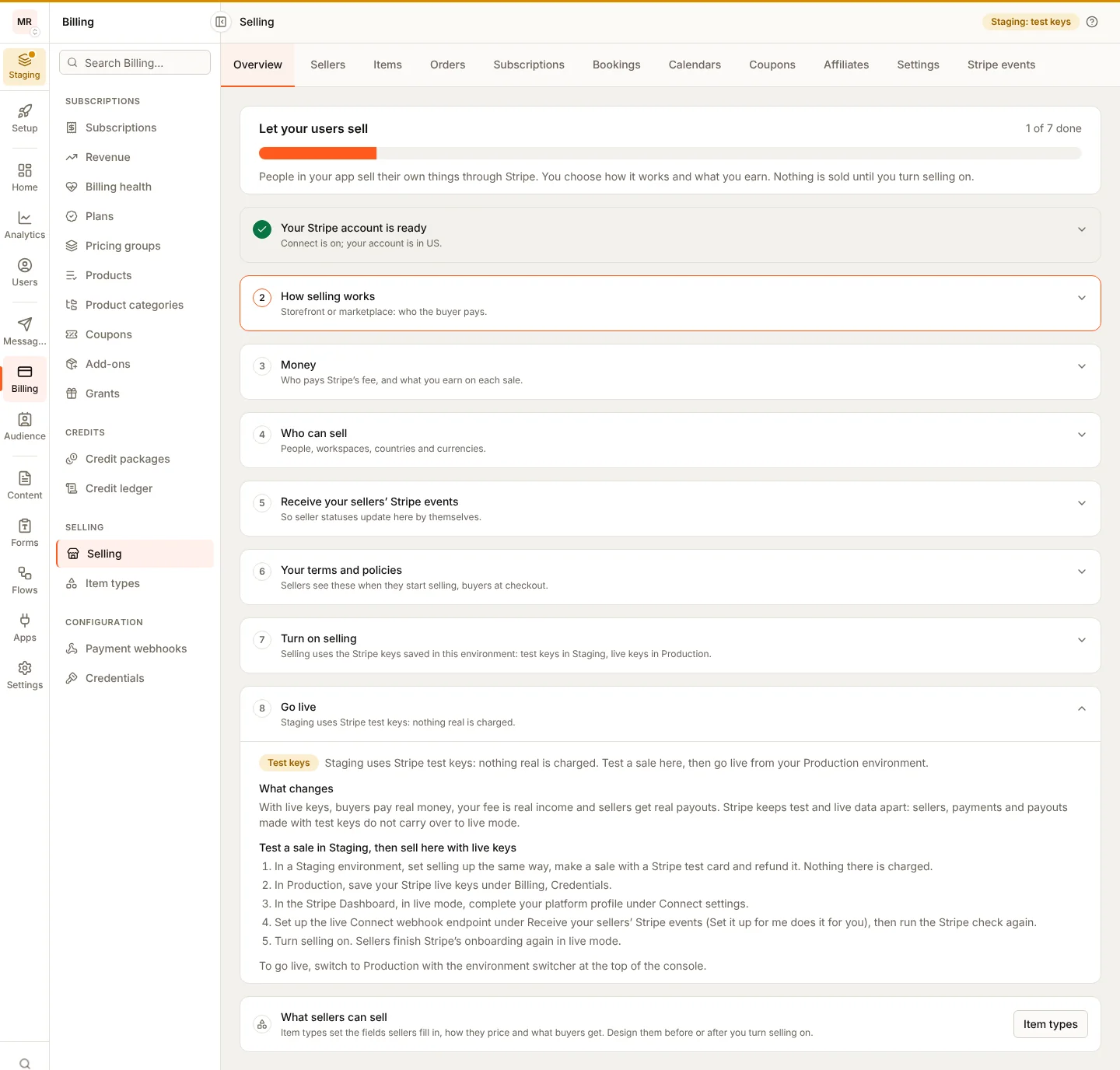
**Billing**, **Selling**, **Overview**: the seven steps in
[Setting it up in the console](#setting-it-up-in-the-console). The tabs
beside it are **Sellers**, **Items**, **Orders**, **Subscriptions**,
**Bookings**, **Calendars**, **Coupons**, **Affiliates**, **Settings** and
**Stripe events**, each shown to roles that hold its permission.
### Marketplace and storefront
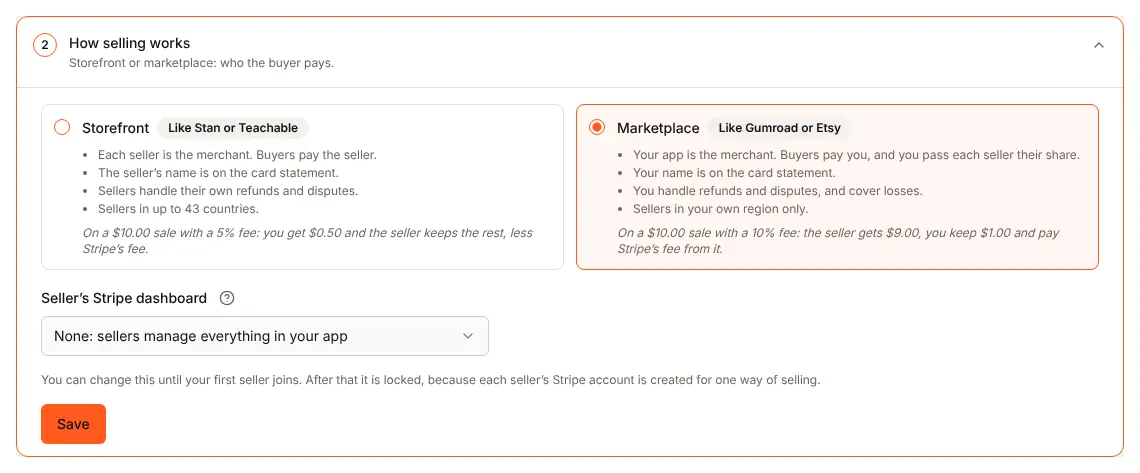
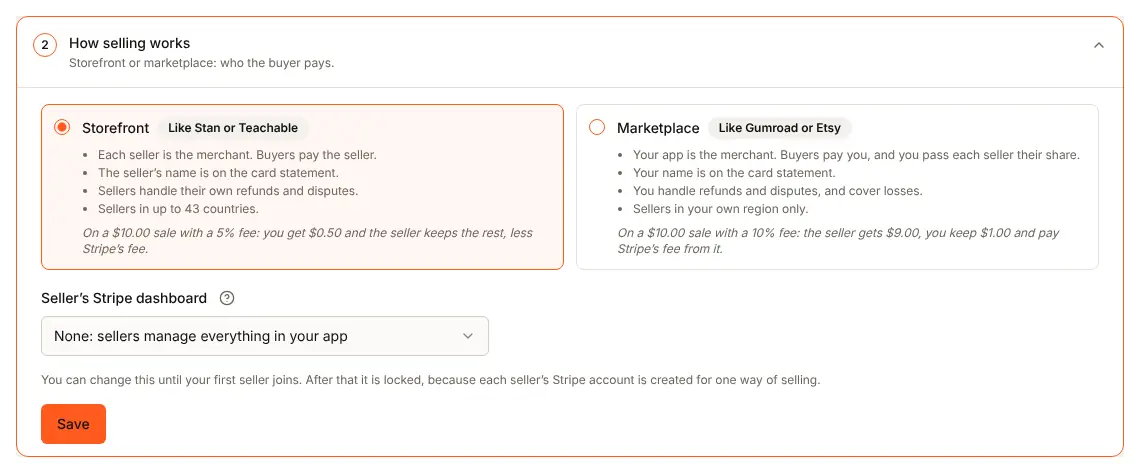
The table in [Storefront or marketplace](#storefront-or-marketplace) sets
out who the buyer pays, who refunds and who pays Stripe's fee. In the
marketplace shape a seller gives an email and can be in fewer countries.
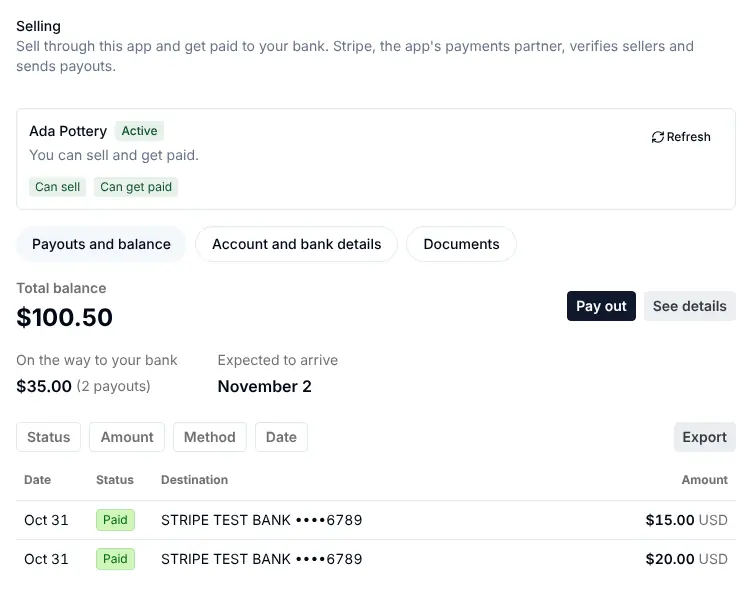
### What the seller sees
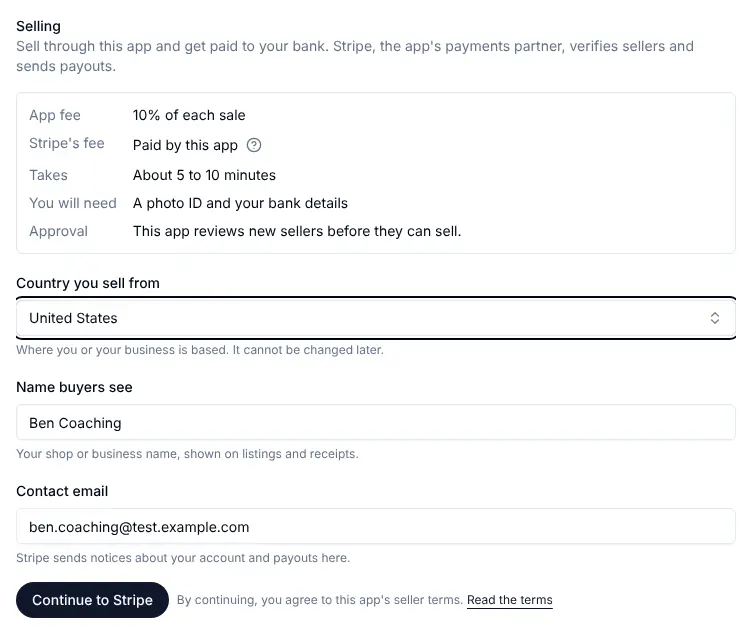
`` inside your app, from **Start selling** through Stripe's
onboarding to **Can sell** and **Can get paid**, with **Payouts and
balance** once active. See [What a seller sees](#what-a-seller-sees).
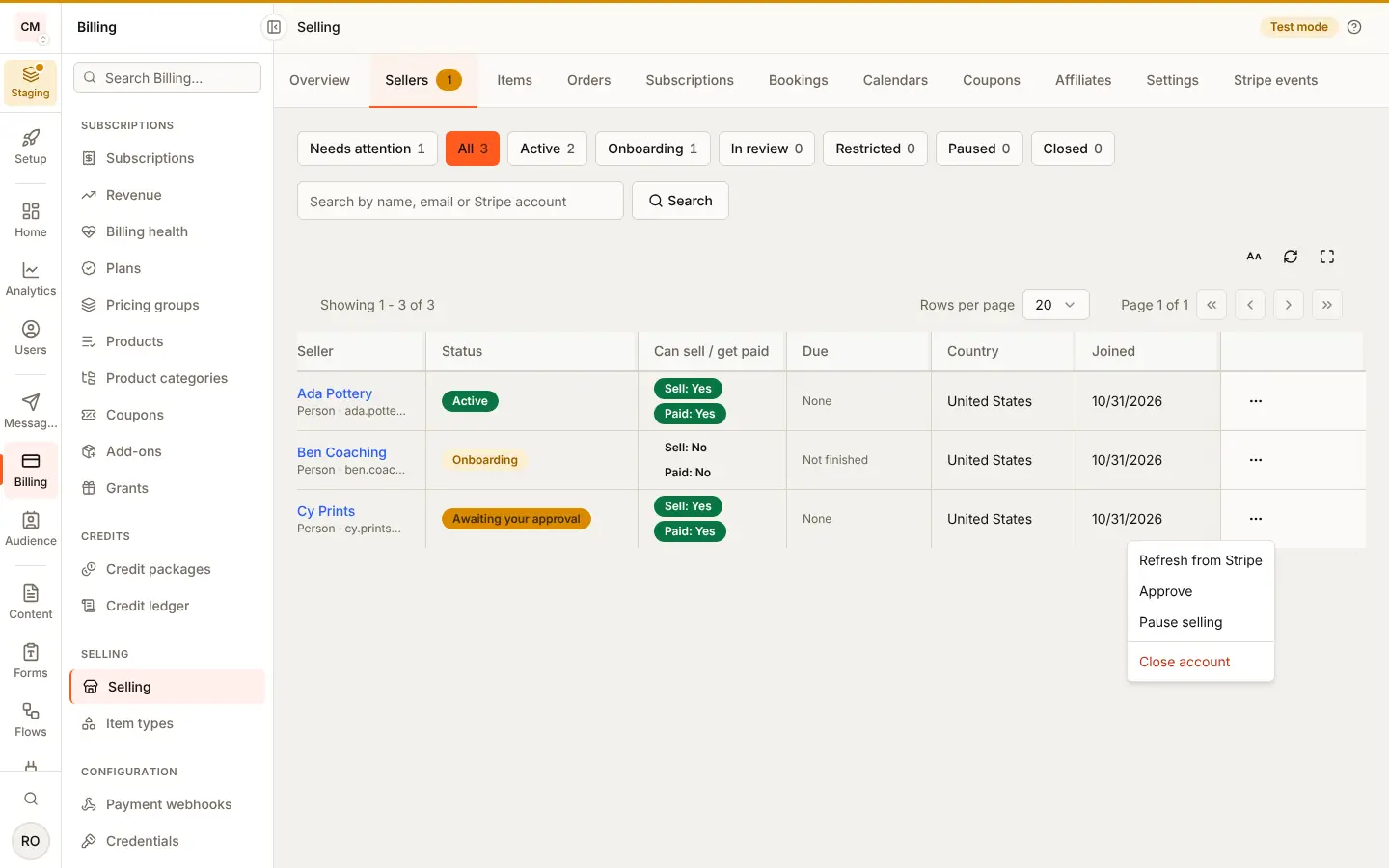
You see each seller under **Sellers**, with Pause, Resume, Approve and
Close.
### What the buyer sees
Nothing of selling itself: buyers meet the items your sellers list and pay
through [checkout](/billing/orders).
### Emails and webhooks
BuildBase sends no email and no webhook event about a seller's account.
Read a seller's state with `useSelling`, or under **Sellers**; it updates
from Stripe through the Connect endpoint of setup step 5. Payouts send
`payout.created`, `payout.paid` and `payout.failed`
([payouts](/billing/orders#payouts)).
### Limits
The shape locks once the first seller joins. A closed seller cannot start
again (`SELLER_TERMINAL`). An export covers at most 366 days and 10,000
orders.
### Staging and Production
Selling uses the Stripe keys saved in each environment: test keys in
Staging, live keys in Production. See
[Test in Staging, then go live](#test-in-staging-then-go-live) and
[Before going live](#before-going-live).
## Storefront or marketplace
You pick one when you set selling up. It locks once the first seller joins,
because each seller's Stripe account is created for it.
| | Storefront | Marketplace |
| --------------------- | -------------------------------------------------------------- | ------------------------------------- |
| Who the buyer pays | The seller | Your app, which pays the seller out |
| Refunds and disputes | The seller's | Yours |
| Stripe's fees | The seller's, or yours if you choose | Yours |
| Seller's countries | Countries Stripe supports for sellers in your account's region | A narrower list Stripe can pay out to |
| Seller gives an email | No | Yes, Stripe's contact for the seller |
## Setting it up in the console
The checklist on **Selling** has seven steps; each saves on its own:
1. **Stripe readiness** - your secret key works, Connect is on in your Stripe
account, and its country is known. A failed check links to the Stripe
page that fixes it.
2. **How selling works** - storefront or marketplace.
3. **Money** - your fee as a percent, a fixed part and a minimum, with a live
preview of what the seller keeps at $5, $10, $50, $100 and $500; what
happens to your fee on a refund; and [tax at checkout](#tax-at-checkout).
Saving it from your server (`PATCH /api/marketplace/settings/money`), a
field you leave out keeps its saved value, your fee included; send
`"feeRule": null` to take no fee.
4. **Who can sell** - people, workspaces or both; countries; currencies;
whether you approve each seller by hand.
5. **Seller updates from Stripe** - a Connect webhook endpoint in your Stripe
account. "Set it up for me" creates it; on a server without a public
https address, create it in Stripe and paste its signing secret.
6. **Terms** - your seller terms and refund policy (required) and a fee
disclosure page.
7. **Turn on selling.**
Below the seven steps, **Go live** says what changes with live keys and how to
switch, as in [Test in Staging, then go live](#test-in-staging-then-go-live).
Sellers then appear under **Sellers**, with their status, what Stripe still
needs from them, and Pause, Resume, Approve and Close.
**Turning selling off.** **Turn off selling** under **Selling** stops every
sale and every new listing at once. A checkout of any kind (paid, a free
claim, a subscription, payment in parts, a cart, a guest's) answers `503`
`SELLING_UNAVAILABLE`, and publishing or approving an item is refused the
same way. What was already sold is untouched: buyers keep what they bought,
and orders, refunds, cancels, fulfilment, the later parts of an order paid in
parts and payouts keep working. Sellers keep their Stripe accounts and can
still edit drafts and hide what is live. Turn selling on again and everything
sells as before. **Pause selling** on one seller does the same for that
seller alone (`SELLER_CANNOT_SELL`), and holds even when an update from Stripe
arrives while you pause.
What sellers can list is set by [item types](/billing/item-types), which the
checklist links to. You can design them before or after you turn selling on.
## Buyers, payouts and records
Under **Billing > Selling > Settings**, the **Buyers, payouts and records**
card holds choices that each start at the safer one. Saving it from your
server is `PATCH /api/marketplace/settings/policies` with
`{ "policies": { ... } }`; a field you leave out keeps its saved value, and
an org that never saved one reads the default.
| Setting (`policies.`) | Default | Other choices | What it does |
| -------------------------- | --------------- | ------------------- | ------------------------------------------------------------------------------------------------------------------------------------------------------------- |
| `buyerCountry` | `ask_before` | `refund_after` | A buyer outside an item's countries is refused before payment, or refunded after ([item types](/billing/item-types#asking-before-payment)) |
| `buyerCountryRefusalEmail` | `true` | `false` | Email the buyer of an order refused for their country |
| `payoutHoldHours` | `72` | `24`, `0` | Payouts to an affiliate's new PayPal address or bank account wait this long ([affiliates](/billing/affiliates#when-an-affiliate-changes-where-they-are-paid)) |
| `payoutDestinationConfirm` | `true` | `false` | A new payout destination is used only once confirmed by a one-time link |
| `webhookRetentionDays` | `90` | `30`, `365` | How long stored shipping (EasyPost, Shippo) and PayPal events are kept |
| `coSellers` | `owner_only` | `invite` | Who adds a co-seller to an item: you, or a seller's invitation the invitee accepts |
| `affiliateContact` | `hidden` | `consented` | Sellers never see their affiliates' email, or see it for affiliates who agreed ([affiliates](/billing/affiliates#what-a-seller-sees-of-their-affiliates)) |
| `addressMismatch` | `flag_hold` | `requote`, `ignore` | Your sellers' default when the address paid for is not the quoted one; each seller can choose otherwise ([shipping](/billing/shipping)) |
| `disputeLoss` | `charge_seller` | `owner_bears` | A lost marketplace dispute: reverse the seller's transfer, or you bear it ([orders](/billing/orders#disputes)) |
| `revokeOnOpenDispute` | `false` | `true` | Take access back when a dispute opens (given back on a win), not only when it is lost |
**Co-sellers.** An item's sales can be split between sellers (its
`payees`, shares that add up to 100%, marketplace shape only). With
`coSellers` at `owner_only` (the default) only you set the split, in the
console or from your server, and a seller who names another seller in an
item save is refused (`payee_not_allowed`). With `invite`, an item's seller
offers another seller a share and the invitee answers, through the SDK
routes for the person or the workspace (the workspace ones need
`SELLING_MANAGE`):
| Route (under `/api/v1/public/me/selling` or `/api/v1/public/workspaces/:workspaceId/selling`) | Body | What it does |
| --------------------------------------------------------------------------------------------- | -------------------------------- | ------------------------------------------------------------------------ |
| `GET /co-sellers?direction=received\|sent` | | The seller's invitations, newest first |
| `POST /co-sellers` | `{ itemId, sellerId, shareBps }` | Offer another seller a share, taken from the inviting seller's |
| `POST /co-sellers/:invitationId/accept` | `{ "consent": true }` | Accept: the split changes now, and the consent is kept with who and when |
| `POST /co-sellers/:invitationId/decline` | `{}` | Decline; nothing changes |
| `POST /co-sellers/:invitationId/withdraw` | `{}` | The inviting seller takes an open one back |
The split changes only on accept, and only if it is still the one the
invitation was made against: a split you or the seller changed meanwhile
is refused with `409` `CO_SELLER_REFUSED`, as is an invitation older than
14 days. Under `owner_only` the routes answer `403` `CO_SELLERS_OWNER_ONLY`.
**Stored provider events.** Each shipping or PayPal event is stored once by
its id, then applied, and removed `webhookRetentionDays` after it arrived.
Changing the setting re-dates the events already stored, so a shorter window
removes older ones at the database's next expiry pass. Stripe Connect events
are kept for their own year, and 90 days after each arrived its body is
stripped of personal data (names, emails, addresses, amounts): the event's
id, type, account and status stay. That window is not a setting.
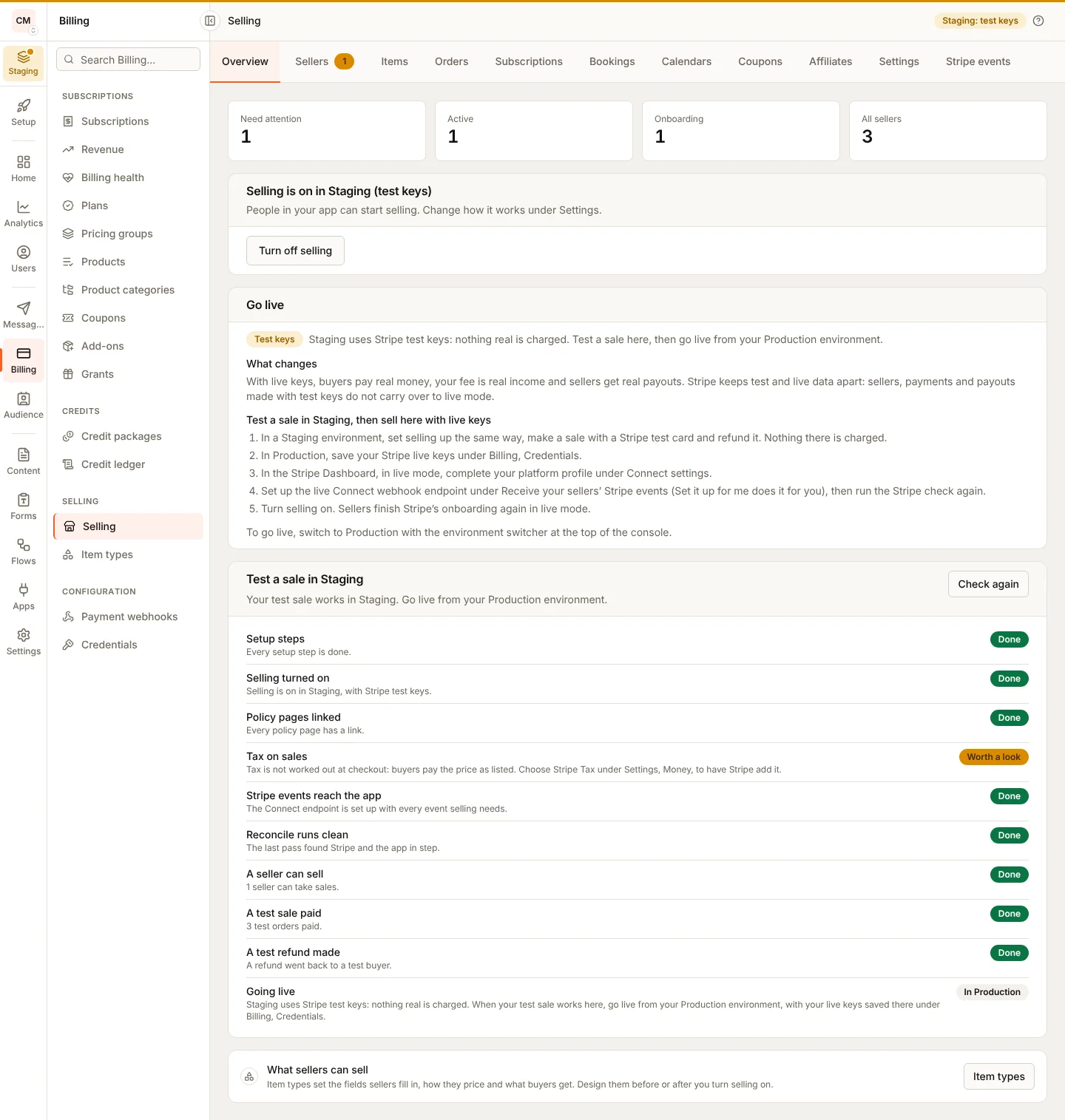
## Test in Staging, then go live
Selling uses the Stripe keys saved under **Billing**, **Credentials** in each
environment. Make your first run in a Staging environment, which takes Stripe
test keys only (`sk_test_`, `pk_test_`): turn selling on with your test keys,
start selling as a test user, buy an item with a
[Stripe test card](https://docs.stripe.com/testing) and refund it. You see the
whole flow, seller onboarding to payout, and nothing real is charged. A live
key saved in Staging is refused with "Staging accepts Stripe test keys only
(`sk_test_` and `pk_test_`). Live keys belong in production.", and a live key that
reaches selling there some other way is refused with `SELLING_UNAVAILABLE`.
The **Selling** header reads **Staging: test keys**.
**No Staging environment yet?** Environments are switched on per app as the
platform rolls them out ([environments](/quick-start/environments)). Until
your app has one, Production accepts Stripe test keys too: make your first
test sale there with your test keys, then switch to live keys there.
**What changes with live keys.** Buyers pay real money, your fee is real income
and sellers get real payouts. Stripe keeps test and live data apart: sellers,
payments and payouts made with test keys do not carry over, so each seller
finishes Stripe's onboarding again in live mode.
To go live in Production:
1. Switch to **Production** with the environment switcher at the top of the
console. Its settings and item types are its own, so set selling up there
as you did in Staging.
2. Save your Stripe live keys under **Billing**, **Credentials**. The
**Selling** header reads **Test keys** until you do, then **Live**.
3. In the Stripe Dashboard, in live mode, turn Connect on and complete your
platform profile.
4. Under **Selling**, set up the live Connect webhook endpoint (**Set it up
for me**, or create it in Stripe and paste its signing secret), and run the
Stripe check again.
5. Turn selling on.
Live keys work in Production once live selling is open for your app. Until
then the **Go live** step says **Not open yet**, and selling with a live key
is refused with `SELLING_UNAVAILABLE`. To open it, contact BuildBase support.
Live selling is part of the Grow and Scale plans: on Free or Launch, Production
sells with your Stripe test keys, and turning selling on with live keys (or
switching to live keys while selling is on) answers 402 `FEATURE_NOT_IN_PLAN`
with an upgrade link. Staging and Development sell with test keys on every
plan.
Live selling is opened per app while it is a pilot: BuildBase adds your app to
the live-selling pilot list. Until it is on the list, Production keeps selling
with your Stripe test keys, and three things answer 403
`LIVE_SELLING_NOT_ALLOWED` ("Live selling is open to apps in the BuildBase
pilot only for now."): turning selling on with live keys, switching the keys
under **Billing**, **Credentials** from test to live while selling is on, and a
buyer's checkout with live keys (the buyer reads only "This app cannot take
payments right now."). Staging and Development are not affected. An app that
does not sell keeps saving live keys for its own billing, and a live key can
always be replaced by another live key. If live selling is closed again for
your app, new live checkouts stop, while refunds, cancellations and payouts of
the orders you already took carry on.
## Tax at checkout
Under **Money**, **Tax at checkout** is off by default: buyers pay the price
as listed. With **Stripe Tax**, Stripe works out the tax on each checkout and
adds it to what the buyer pays.
- **Where it runs.** In the marketplace shape, on your Stripe account; in the
storefront shape, on each seller's own Stripe account, which each seller
sets up in Stripe. Stripe Tax's own settings must be complete on that
account, or checkout says so: `CHECKOUT_REFUSED` with the problem
`tax_not_ready`.
- **What the order keeps.** `tax` on the order and its line, and `total` as
charged. The seller's share stays what the price gives them. A refund of
the line returns its tax with it.
- **Subscriptions.** Stripe Tax runs on the first invoice and every one
after it, a move to another tier included. Each payment records its
`tax`, and your fee is taken on the amount before tax. Stripe splits a
subscription's invoice by percent, tax included, so once each invoice is
paid BuildBase puts the split right: in the marketplace shape the
seller's percent of the tax comes back from their transfer, since the
tax is yours; in the storefront shape your percent of the tax goes back
to the seller, since the tax is theirs. A refund of a renewal never takes
the tax back from the seller in the marketplace shape.
- **Prices paid in parts.** Each part is taxed as it is paid: the first on
Stripe's checkout page, from the address the buyer gives there; each later
part by Stripe Tax from that same address, charged on top of the part and
recorded with Stripe Tax for its reports. A part's `tax` shows once it is
paid. The fee and the seller's share are of the part before tax, and a
refund of a part never takes the tax back from the seller in the
marketplace shape. Working out a later part's tax needs Stripe Tax
activated on the account, not only set up: until it is, charging the part
is refused with `PART_REFUSED` saying so, and nothing is charged.
- **Carts.** In the marketplace shape, Stripe works out the tax once on the
cart's one page, on your account, and each order and line records its
own share of it from Stripe's line items; sellers are sent their share
without the tax. A subscription in a cart is paid per invoice, so its
seller is sent their share of each invoice without the tax, with nothing
to put right after. In the storefront shape, each step of the cart is
taxed on its seller's account, as a single sale is. See
[carts](/billing/orders#carts-across-sellers).
Which registrations to hold, and what to file, is for you and your sellers
to decide with your advisers; the platform does not say.
## Before going live
Once selling is on, the **Overview** tab lists what is done before you could
sell with live keys, each a fact the platform checks: the setup steps,
selling on, links to the five policy pages, tax at checkout, the Connect
endpoint's events, a recent clean Reconcile and a seller who can sell. The
list follows the environment:
- **In Staging** it asks for a paid test sale (`todo` until there is one) and
a test refund, and ends with **Going live** (`info`, shown as **In
Production**): nothing real is charged there, and going live happens in
Production.
- **In Production** it adds **Platform profile in live mode**
(`platform_profile`), the events item reads **Live Connect webhook
endpoint** once live keys are saved, and a first sale and a refund are
recommended (`warn`), never required, since the test sale belongs in
Staging. **Live keys** is `locked` only while live selling is not open for
your app (contact BuildBase support to open it), `todo` while your saved
keys are test keys, and `ok` once they are live.
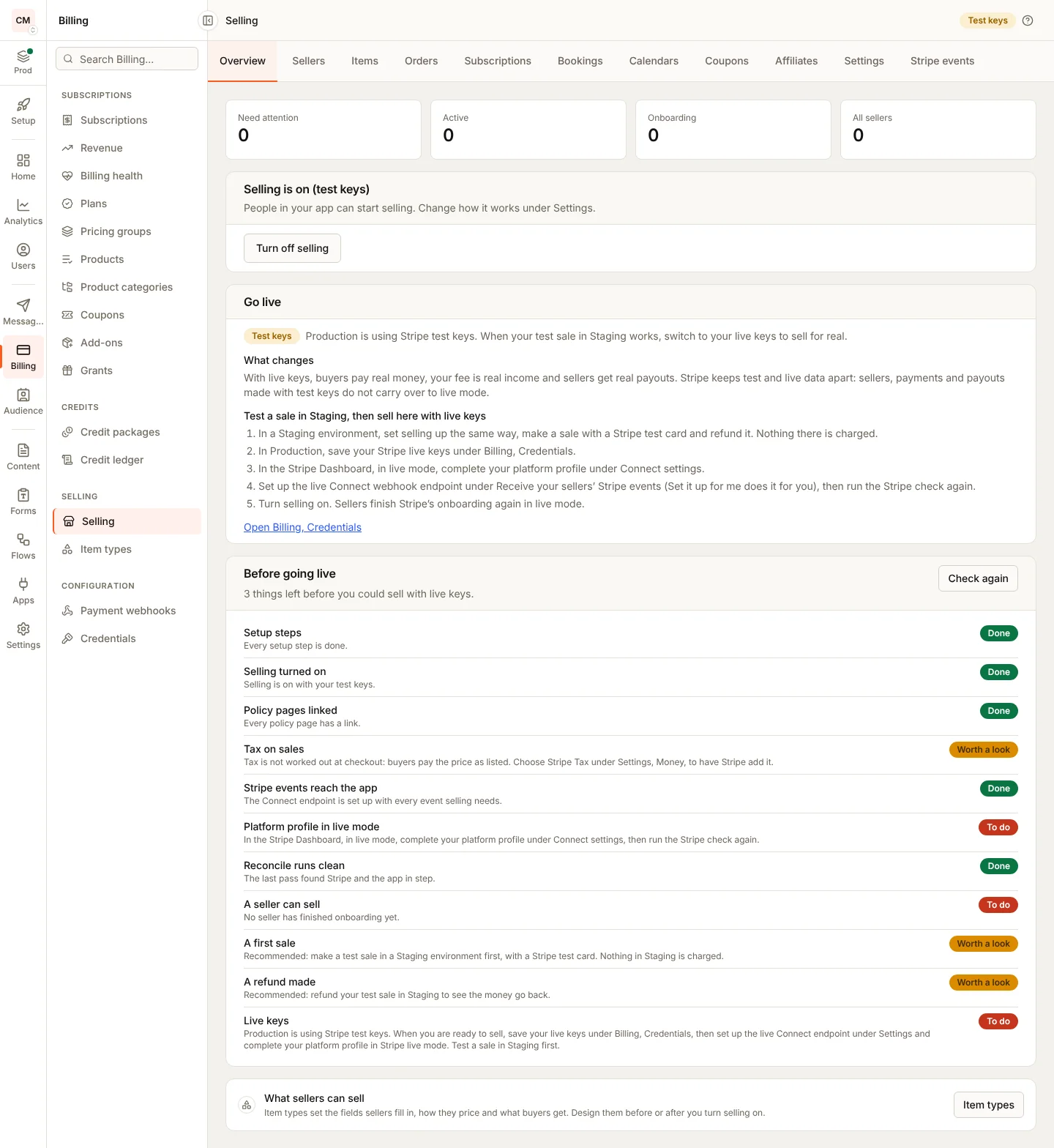
Read it from your server with `GET /api/marketplace/go-live`: `checks`, each
`ok`, `todo`, `warn`, `locked` or `info`; `liveOpen`, true only in
Production once live selling is open; and `environment` (`name`,
`production`).
## Exporting sales
**Orders, Export CSV** saves the paid orders between two dates, one row per
order: when it was paid, its status, the seller, the buyer, what was bought,
the currency, subtotal, tax, total, your fee, the seller's share, refunded,
paid in parts and the subscription. Amounts are plain decimals (19.99, or
1000 for yen). An export covers at most 366 days and 10,000 orders, newest
first.
- Your server: `GET /api/v1/server/commerce/orders/export?from=&to=`, with
`sellerType` and `sellerId` for one seller.
- A seller: `GET /api/v1/public/me/sales/export` (or
`/workspaces/:workspaceId/sales/export` with `workspace:selling:view`),
and the **Export CSV** button in ``, or `useSalesExport`.
A range the platform cannot give answers `EXPORT_REFUSED`.
## Adding the seller screens to your app
Install Stripe's loader, and pass it to the provider or to the component.
BuildBase adds no Stripe dependency of its own.
```bash
npm install @stripe/connect-js
```
```tsx title="app/providers.tsx"
import { ApiVersion } from '@buildbase/sdk';
import { SaaSOSProvider } from '@buildbase/sdk/react';
import { loadConnectAndInitialize } from '@stripe/connect-js/pure';
import '@buildbase/sdk/css';
function BuildBaseProvider({ children }: { children: React.ReactNode }) {
return (
{children}
);
}
```
The rest of the provider is as in [installation](/quick-start/installation).
Import from `@stripe/connect-js/pure` in Next.js: it loads nothing while the
page renders on the server. Your Content-Security-Policy must allow
`https://connect-js.stripe.com` and `https://js.stripe.com` in `script-src`
and `frame-src`.
The workspace settings dialog shows **Selling** (a workspace as the seller)
and **Personal selling** (the signed-in person) while selling is on or paused,
for the subjects you let sell. They open Stripe's screens through the loader
on the provider.
## What a seller sees
`` shows the step the seller is at:
| Seller's state | What the screen shows |
| ------------------ | ------------------------------------------------------------------------------------------------------------------------------------- |
| Not started | Start selling: your fee, who pays Stripe's fee, about 5 to 10 minutes, what to have ready, then country, name and (marketplace) email |
| Onboarding | Stripe's onboarding inside your app; leaving it saves progress, and "Continue setup" picks it up |
| In review | Stripe is checking their details |
| Active | "Can sell" and "Can get paid", Stripe's notices, account and bank details, documents |
| Action needed | The date Stripe needs more details by |
| Paused by you | Your pause reason |
| Closed or rejected | Why, and nothing to act on |
Every word is in the SDK's eight languages. Stripe's own forms follow your
theme's colors.
### Props
| Prop | Type | Default | Description |
| -------------------------- | ---------------------------------- | -------------- | ------------------------------------------------------------------------ |
| `subject` | `{ user: true }` or a workspace id | Required | Who sells |
| `canManage` | `boolean` | `true` | Start selling and open the account's settings; `false` shows status only |
| `defaultDisplayName` | `string` | - | Prefills the name buyers see |
| `defaultEmail` | `string` | - | Prefills the contact email |
| `defaultCountry` | `string` | - | Preselects a country you allow |
| `loadConnectAndInitialize` | function | The provider's | Stripe's loader |
| `title`, `description` | `string \| null` | Translated | `null` hides them |
## Building your own screens
`useSelling(subject)` is the same flow without the markup:
```tsx title="components/seller-badge.tsx"
import { sellerAbilities, useSelling } from '@buildbase/sdk/react';
export function SellerBadge() {
const { seller, loading } = useSelling({ user: true });
if (loading || !seller) return null;
const { canSell } = sellerAbilities(seller);
return {canSell ? 'Selling' : 'Setting up'};
}
```
It returns `{ seller, selling, loading, error, refetch, start, starting,
startError, sync, syncing }`. `StartSelling`, `SellerStripeFrame` (any one of
Stripe's embedded screens) and `SellerStatusBadge` are exported on their own.
## Permissions
A workspace sells through two permissions:
| Permission | Allows | Default roles |
| -------------------------- | ---------------------------------------------------- | ------------- |
| `workspace:selling:view` | See the workspace's seller status | Admin, editor |
| `workspace:selling:manage` | Start selling, Stripe's onboarding, account settings | Admin |
A person always manages their own selling.
## When starting is refused
The request answers with a `code`; the SDK shows each in the reader's
language.
| `code` | Meaning | What to do |
| ---------------------------- | ----------------------------------------------------------------------------------------------------------------- | ------------------------------------------------------------------------------------------------------------- |
| `SELLING_UNAVAILABLE` | Selling, or live selling, is not open for this app; or a live key in a non-production environment such as Staging | Contact BuildBase support to open selling or live selling; in Staging use test keys and go live in Production |
| `LIVE_SELLING_NOT_ALLOWED` | Live selling in Production is open to apps on the BuildBase pilot list, and this app is not on it yet (403) | Keep selling with test keys, or contact BuildBase support to join the pilot |
| `CONNECT_NOT_READY` | Your Stripe account cannot create sellers yet | Run the Stripe check under **Selling** and fix what it links to |
| `SELLER_SUBJECT_NOT_ALLOWED` | You do not let this kind of subject sell | Allow people or workspaces under **Who can sell** |
| `SELLER_COUNTRY_NOT_ALLOWED` | A country you do not allow | Allow the country under **Who can sell** |
| `SELLER_EMAIL_REQUIRED` | A marketplace seller sent no email | Send an email (`defaultEmail`, or let the seller type one) |
| `SELLER_TERMINAL` | The seller's account is closed and cannot start again | Nothing: a closed seller cannot sell again |
| `SELLER_NOT_FOUND` | The subject has not started selling | Start selling first, with `` or `useSelling().start` |
## Next Steps
- [Add-ons](/billing/add-ons) - sell extra capacity on top of your plans.
- [Permissions](/permissions/overview) - give a role the selling permissions.
- [Webhooks](/webhooks/overview) - events from your app to your server.